Set up scoring
Create a blueprint with dimensions and archetypes, write the rules that match each archetype, attach it to an Assessment, and map questions to dimensions.
Use a scoring blueprint to turn supported answers into dimension scores and, where configured, archetypes. You need a Console account with editing access: a viewer can open blueprints but cannot create, change, duplicate, or delete them. Ordinary assessments and 360 feedback both use blueprints. Survey response analytics and quiz correctness analysis are separate workflows.
How scoring works
Scoring runs on a Blueprint: a reusable scoring model you build separately from the assessment, then attach to it. A Blueprint has two parts:
- Dimensions are the traits you measure, such as Collaboration or Resilience. Each question feeds one or more dimensions, and Datatrap combines the answers into a score on each dimension.
- Archetypes are the named result profiles a participant can get, such as The Connector. Each archetype has rules about the dimension scores, which decide who gets it, and the words participants read about their result.
Once a blueprint is attached, you tell Datatrap which dimension each question feeds, and how much it counts. That mapping is what produces the scores. One blueprint can be used by many assessments, and each assessment uses one blueprint.
Create a blueprint
Open Blueprints
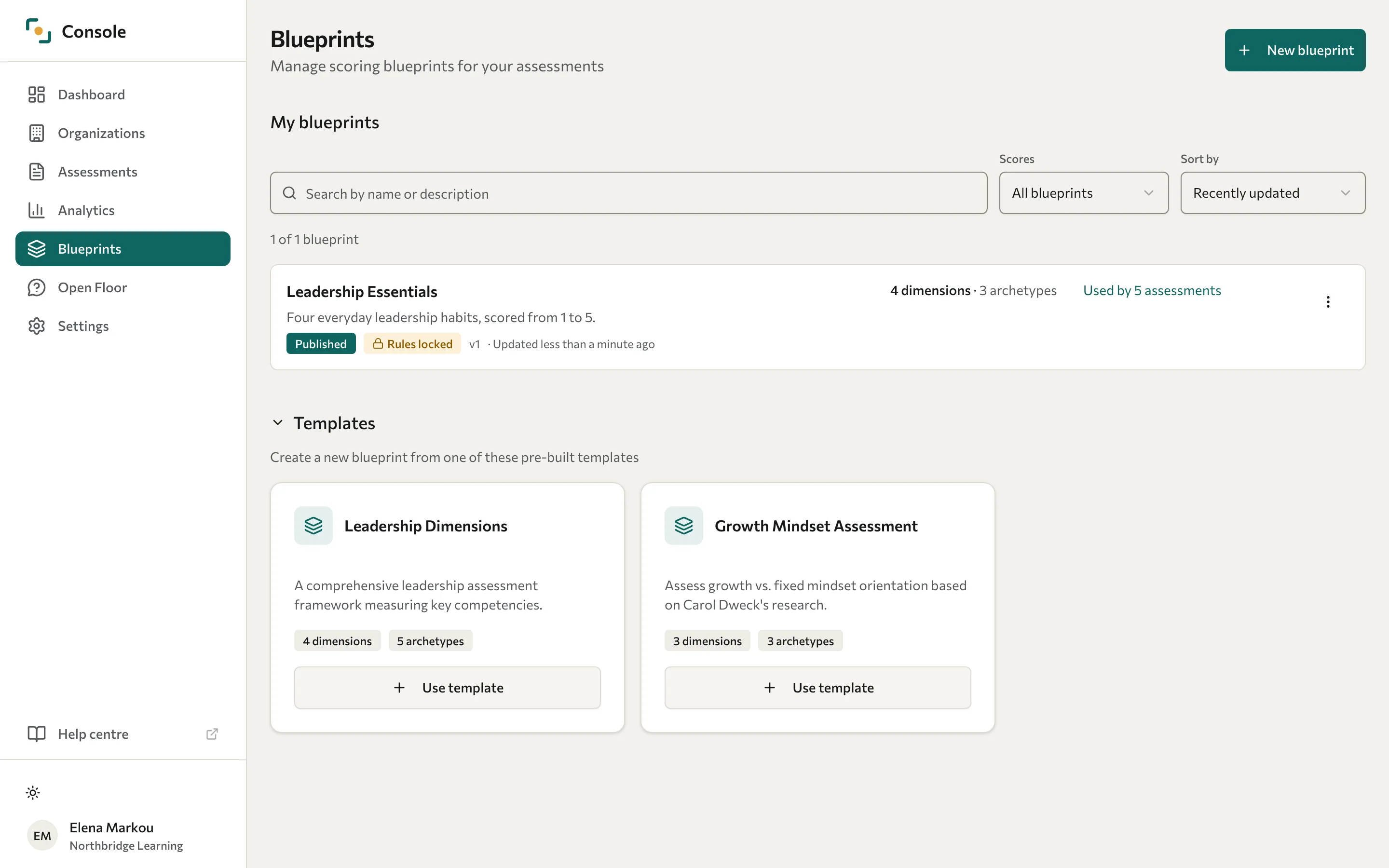
Open Blueprints in the left sidebar, or go to /console/blueprints. You see My blueprints and the Templates you can start from.
Create a new one
Select New blueprint. In the Create new blueprint dialog, enter a Name. Optional: enter a Description of what the blueprint measures. Then select Create blueprint. Each blueprint needs a name that your other blueprints don't use.
To start from a template instead, select Use template on a template, then Create blueprint.
Start building
Datatrap opens the blueprint you created on its Overview. Add dimensions next, then archetypes.
Find a blueprint in the library
Each blueprint in My blueprints is one row. A row shows the description, Draft or Published, the version, the number of dimensions and archetypes, and how many assessments use it:
- Rules locked means participants have been scored with the blueprint, so its rules and score ranges cannot be changed.
- Has test scores means test submissions have been scored, so the blueprint cannot be deleted.
- Used by followed by a number opens the blueprint's Assessments section. The count covers the assessments you can open.
To narrow the list, search by name or description, choose All blueprints, Has scores, or No scores in Scores, and choose an order in Sort by. To open a blueprint, select its name. The actions menu next to each row has Edit blueprint, Duplicate, and Delete.
Find your way around a blueprint
A blueprint has six sections, in this order. The header shows its name, its badges, and how many assessments use it, with a Duplicate button.
| Section | What you do there |
|---|---|
| Overview | See how the blueprint works, a summary of its dimensions, archetypes, and question links, where it's used, and what's missing before you share it. |
| Dimensions | Add and edit dimensions and their score interpretations. |
| Archetypes | Add and edit archetypes, their rules, and their report texts. |
| Assessments | See which assessments use the blueprint, and where each kind of change is made. |
| Translations | Translate the blueprint's texts into other languages. |
| Settings | Change the blueprint's Name and Description, or delete it. |
On the Dimensions and Archetypes pages, the list of items sits beside the one you're editing. On a phone, switch between them with the Outline tab and the tab named after the item.
Add dimensions
Go to the blueprint's Dimensions section to build the traits you want to measure.
Add a dimension
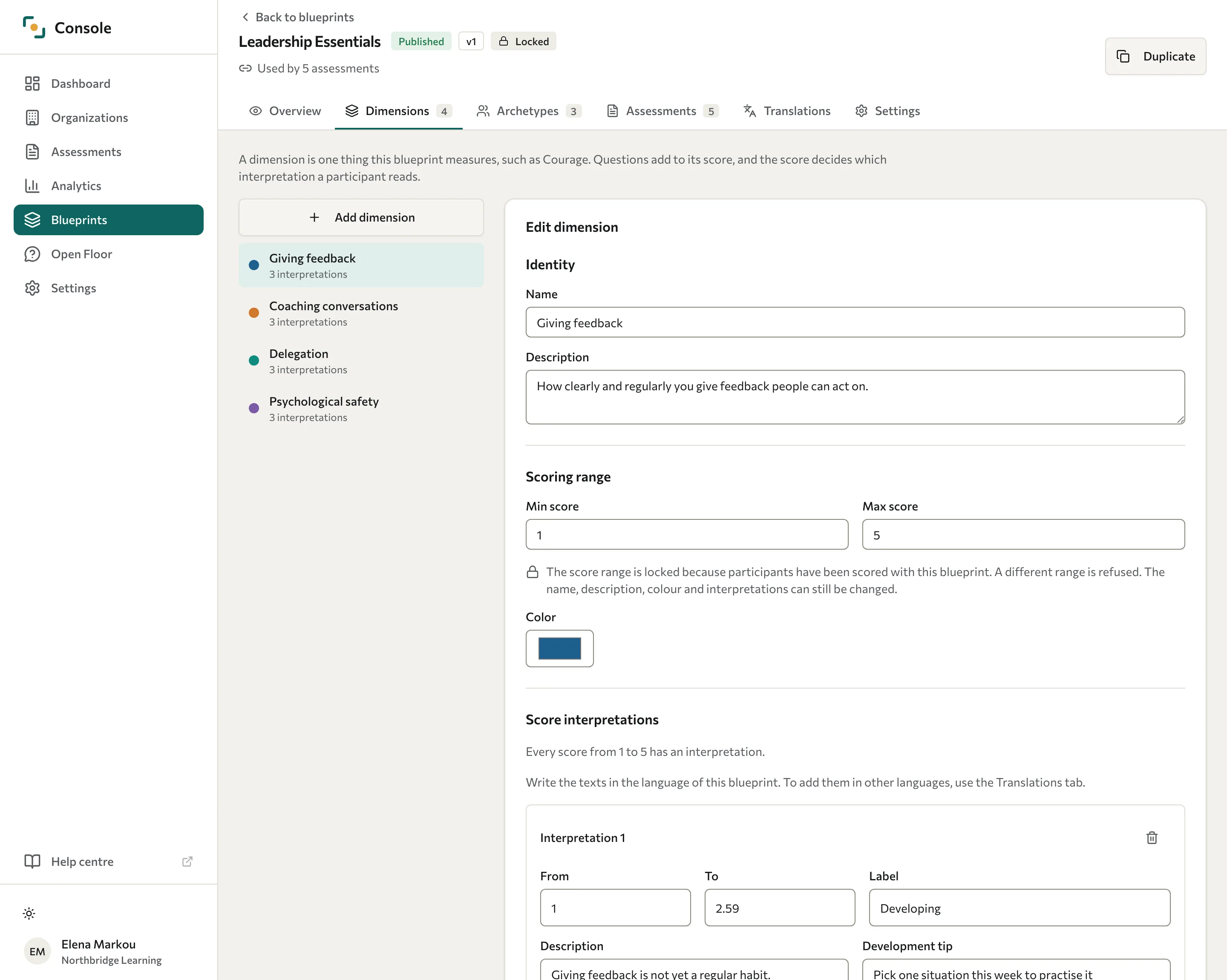
Select Add dimension. Datatrap adds a numbered dimension, such as "Dimension 1", and opens it under Edit dimension. Change its Name and add a Description so its meaning is clear. Changes save as you type.
Set its scale and colour
Set the Min score and Max score for the dimension (0 and 100 unless you change them), and choose a Color to identify it in results.
Describe each range of scores
Under Score interpretations, write the short text a participant reads for each range of scores. In the PDF report, a participant sees the interpretation that matches their score, under the dimension's score.
- Select Add interpretation. Datatrap fills in From and To with the first scores that have no text yet.
- Enter a Label, such as "Developing".
- Optional: enter a Description and a Development tip.
- Select Add.
Both the From and To scores belong to the range, so ranges can't overlap. Use adjacent ranges that do not share an endpoint, and check that the ranges cover the scores your model can produce. Add ranges until the line under Score interpretations says every score has an interpretation. Changes to an interpretation save as you type. To add the texts in other languages, use the blueprint's Translations section.
Repeat these steps until every trait you measure has its own dimension.
Define archetypes
Go to the blueprint's Archetypes section to write the result profiles participants can receive and the rules that decide who gets each one. Add your dimensions first: a rule is always about a dimension.
Add an archetype
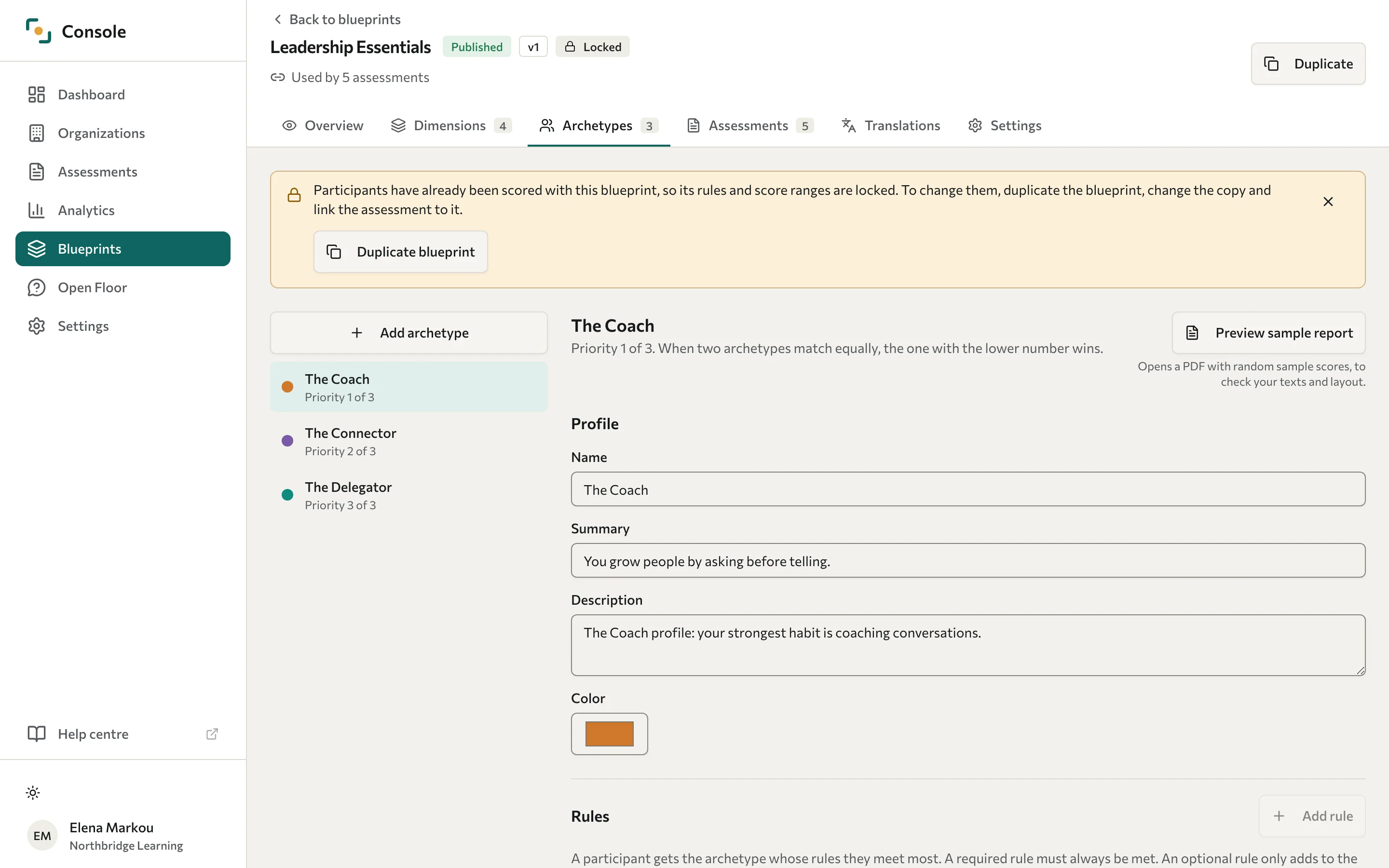
Select Add archetype. Datatrap adds a numbered archetype, such as "Archetype 1", and opens it. Under Profile, give it a Name, a short Summary, a fuller Description, and a Color. Your changes save as you type.
Each archetype in the list shows its priority, such as "Priority 1 of 3", in the order you added them. When two archetypes match a participant equally, the one with the lower number wins.
Write its rules
Under Rules, select Add rule. In the Add a rule dialog:
- Choose the Dimension the rule is about.
- In Compare with, choose A number or Another dimension.
- Choose the Condition: At least, At most, Higher than, Lower than, Equal to, or Between two numbers.
- Enter the Score, or the From and To numbers for a range, or choose the Other dimension.
- Leave Required selected if a participant must meet this rule to get the archetype. Clear it to make the rule optional.
- Select Add rule.
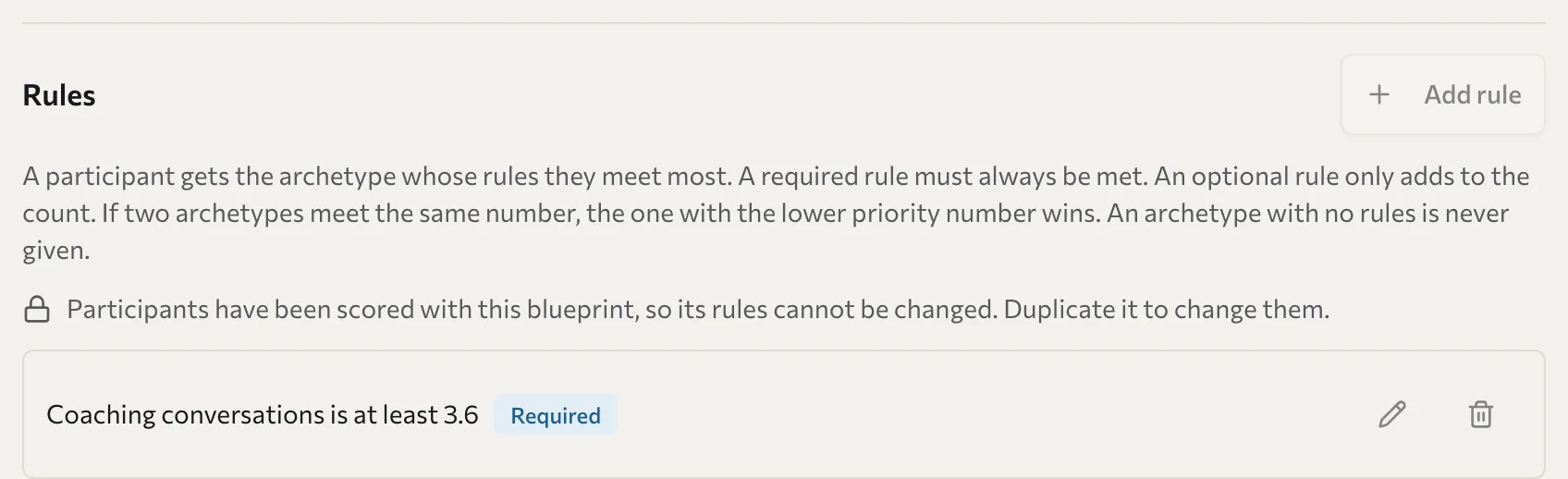
The rule appears in the list as a sentence, such as "Strategy is at least 70", marked Required or Optional. Add as many rules as the profile needs. An archetype with no rules is never given. To read how Datatrap chooses between archetypes, open How a profile is chosen under the rules, or see Scoring rules.
To change a rule, select the pencil button next to it, change the fields, then select Save rule.
Write its interpretation
Under Strengths and development, fill in what a participant reads about this profile: its Strengths and Development areas, and optionally Reflection prompts, Self-awareness guidance, and Self-awareness tips. This is the text that makes a score meaningful, so write it in plain, encouraging language.
To check the wording and layout, select Preview sample report. Datatrap opens a PDF of this archetype's report with random sample scores, so it does not predict a real result.
Delete a rule
Participants scored after you delete a rule are no longer matched by it. Participants who were already scored keep their result until you recalculate their wave.
- Select the bin button next to the rule.
- In the Delete this rule? dialog, select Delete rule.
Change rules after people have answered
Scores are worked out when a participant submits. A rule you add, change, or delete applies to participants scored after the change. To apply it to people who already answered, open the wave's menu on the assessment's Waves tab and select Recalculate scores.
In an ordinary assessment, rules can be changed while only test submissions exist. Once a real participant has been scored with the blueprint, or anyone has been scored in a 360, its rules and each dimension's Min score and Max score are locked. The blueprint shows Rules locked in the library, and a message at the top of the blueprint offers Duplicate blueprint. You can still change names, descriptions, colours, and interpretations.
The copy has the same dimensions, archetypes, and rules but no participants' scores, so you can change its rules and score ranges. Assessments keep using the original until you switch them. For an ordinary assessment with existing answers, use Change blueprint. That change workflow is unavailable for 360 assessments.
Check the blueprint before you use it
The blueprint's Overview shows how answers become a result, from the assessments' questions to the participant report. The assessments, dimensions, and archetypes blocks link to their sections.
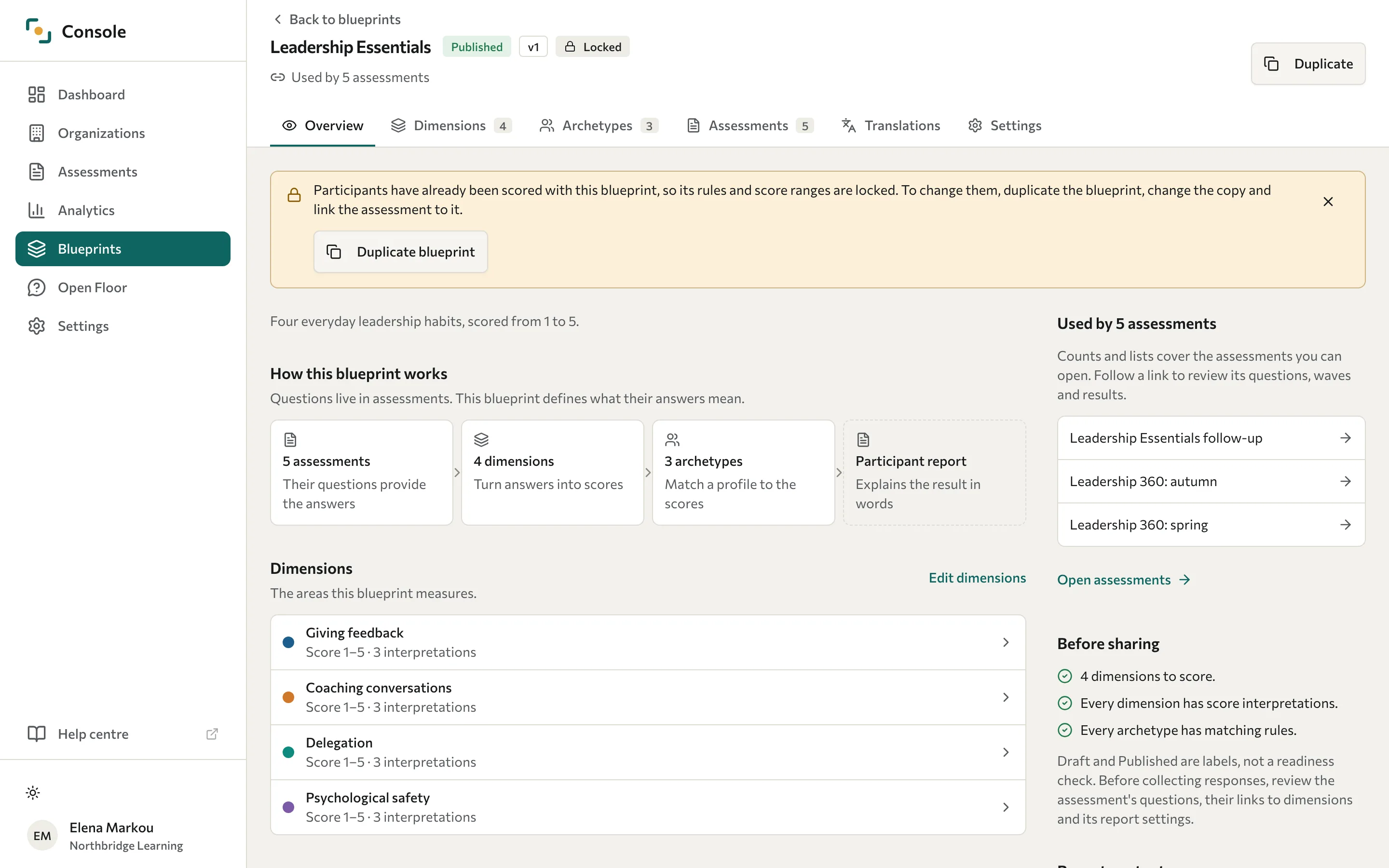
Under Before sharing, Datatrap lists what's missing in the saved blueprint:
- dimensions with no score interpretations, whose report text is empty
- archetypes with no matching rules, which are never given
- a blueprint with no dimensions or no archetypes
Draft and Published are labels, not a readiness check. Before you collect responses, also review the assessment's questions, their links to dimensions, and its report settings.
See which assessments use the blueprint
Open the blueprint's Assessments section, or select Used by in the header or the library. Under Assessments using this blueprint, each assessment shows its number of waves, whether it's locked, and whether it has responses. The list covers the assessments you can open.
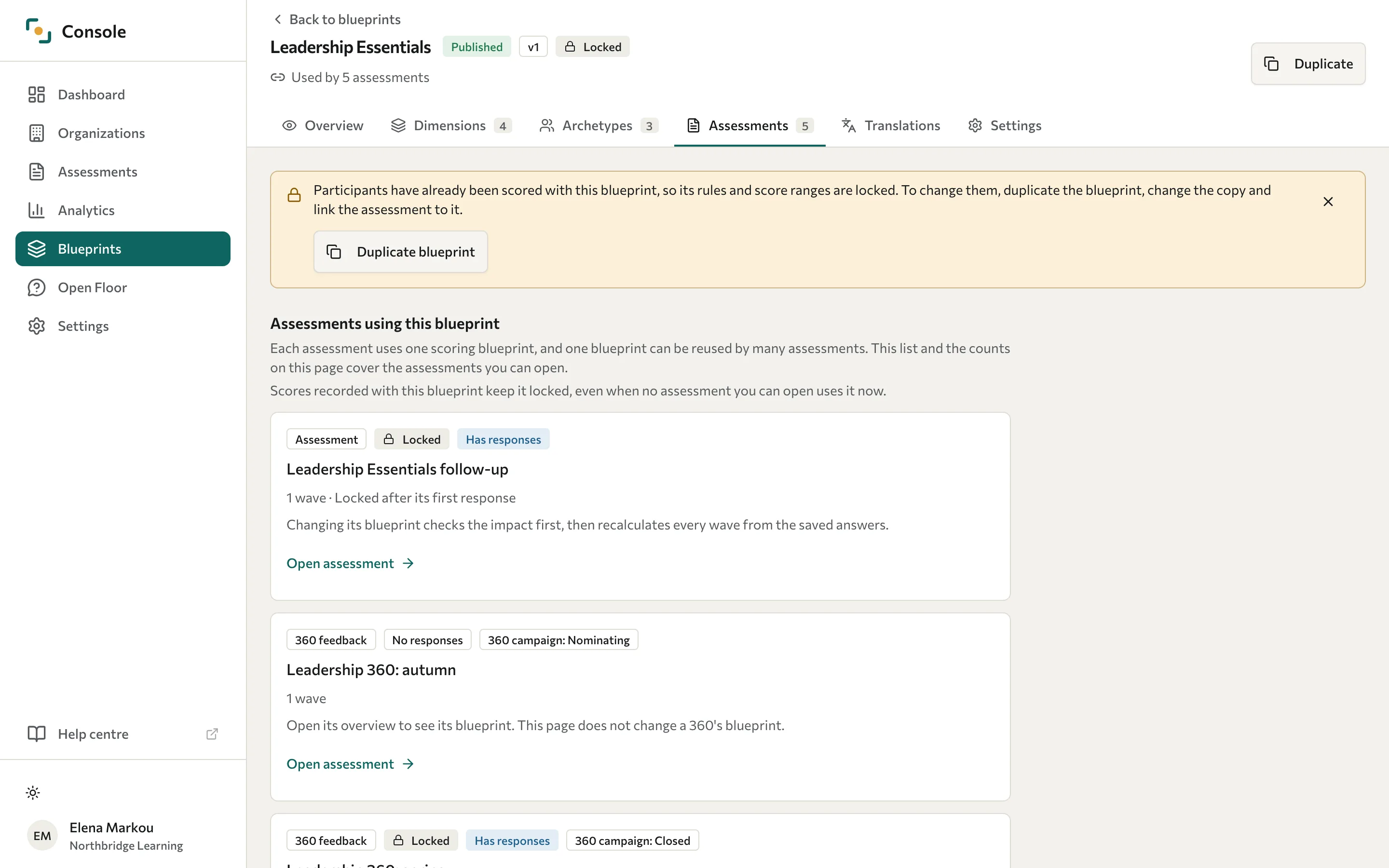
To open an assessment, select its title or Open assessment. Its header then shows a Back to link with the blueprint's name, so you can return to the blueprint.
You can't switch an assessment to another blueprint from here. Where to make each change explains where each kind of change is made: dimensions, rules, and report text in the blueprint; question links and weights in the assessment's Builder; and a switch to another blueprint through Change blueprint on the assessment's Overview.
Attach the blueprint and map your questions
With the blueprint built, connect it to your assessment and point each question at a dimension.
Attach the blueprint
Open your assessment's Overview tab. In the Settings card, the Scoring blueprint row reads None linked until you set one. Select Choose blueprint, then the blueprint you created. If the assessment is locked, unlock it first: a locked assessment cannot be linked to a blueprint. See Configure assessment settings.
Once a blueprint is linked, Open blueprint in the same row opens it. Its header then shows a Back to link with the assessment's title.
Open dimension mappings
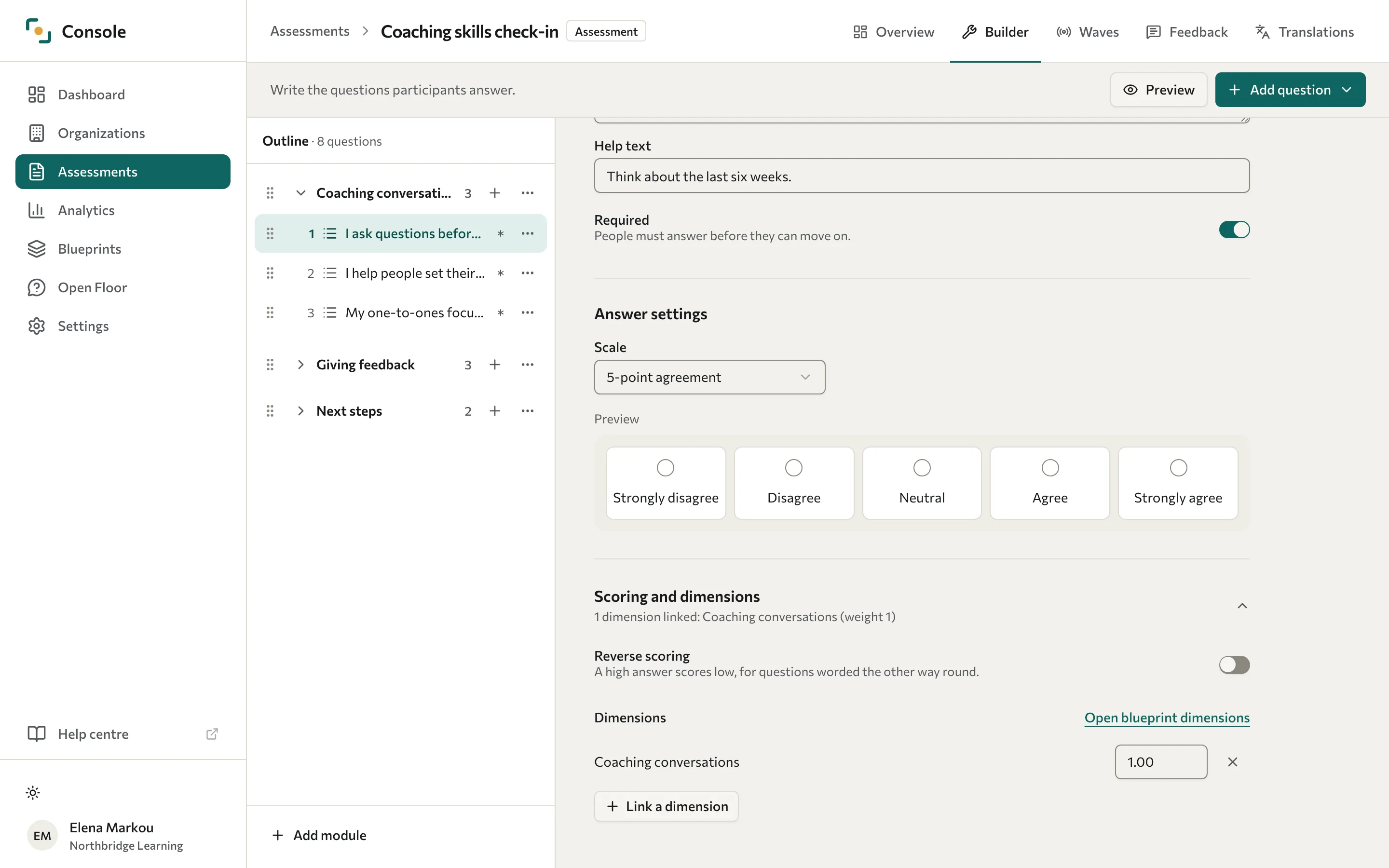
Go to the Builder and open a question in the Outline. In the editor, select Scoring and dimensions to open that section. Under Dimensions, select Link a dimension, then choose the dimension in Pick a dimension. The dimension appears in the list with a weight of 1.
To check or change the dimensions themselves, select Open blueprint dimensions next to the Dimensions heading. It opens the blueprint's Dimensions section, with a link back to the assessment.
Weight the question
Next to each linked dimension is the question's weight in that dimension, 1 unless you change it. Enter a higher number to make the question count for more than the others feeding the same dimension. The weight saves when you leave the field. To unlink a dimension, select the cross button next to it. Use Reverse scoring where the question type supports it. Test reversed questions with a few sample answers before you collect responses: a 360 combines scores differently from an ordinary assessment, so check both kinds of report if you use both.
Repeat for every question
Map each remaining question the same way. Links and weights save as you make them, and the summary under Scoring and dimensions lists the dimensions a question feeds. Map only question types that contribute to scoring; an open-text question, for example, does not produce a numeric dimension score. See Question types.
A ranking question scores each of its options separately, so each option is linked to a dimension. You link ranking options through the API or the Claude connector, not in the Builder.
Once mapping is complete, responses are scored against your dimensions and matched to an archetype, ready to view in Analytics. See View results.
Related
Build your assessment
Add modules and questions before you map them to dimensions.
Scoring rules
How weights, reverse scoring, and archetype rules combine into a result.
Change a blueprint
Move an assessment with existing answers to another blueprint.
Question types
Which question types you can score and map to dimensions.