Run a pulse survey
Choose focus areas and raters, schedule a 360 follow-up, and interpret and moderate its results.
A pulse survey is a short follow-up to a finished 360. Some or all of the same raters answer a few of the original 360 questions again, limited to a few focus areas for each person (the dimensions of the 360's blueprint; one to five each, and two or three work best). The results put each rater group's score from the 360 (Before) next to its score now (After), so you can see where someone has moved.
Use a pulse a few months after a 360, when people have had time to work on their development goals. It takes raters a few minutes, and it works well on a phone.
Before you start
- Pulse surveys must be enabled for the platform. If Pulse is missing from the Run menu in the assessment header, ask your Datatrap administrator about feature availability.
- The 360 campaign must be Closed, and its assessment must have a blueprint. The pulse compares against the 360's scores, so only people who were scored in the 360 can be included. See Run a 360 campaign.
- A campaign runs one pulse at a time. You can schedule a new one only when no other pulse is scheduled or open.
- If you can see only your own or selected assessments, you see only the pulses on those assessments. See Roles and permissions.
- The client organisation's data access level decides what you can do. With Full access, everything on this page applies. With Aggregated only, you can set up and run a pulse, but you can't see each person's focus areas or the results. With No access, the Pulse page shows "This organisation does not share its results with training partners." and you can't set up a pulse. See Manage training-partner data access.
While a pulse is scheduled or open, the 360 behind it is held steady. You cannot reopen rating, unlock the assessment, delete a rater category or change whether it is anonymous or the self category, or remove a person who is in the pulse. Scheduling a pulse also locks the assessment if you had unlocked it. Close or cancel the pulse first if you need to make one of these changes. A rater category that a closed pulse's results use can no longer be deleted at all.
Open the Pulse page
Open the 360 assessment. In the assessment header, open the Run menu and select Pulse. The menu then reads Run: Pulse. The page lists each pulse with its title, status, send and close dates, and how many raters have answered. Select a title to open that pulse.
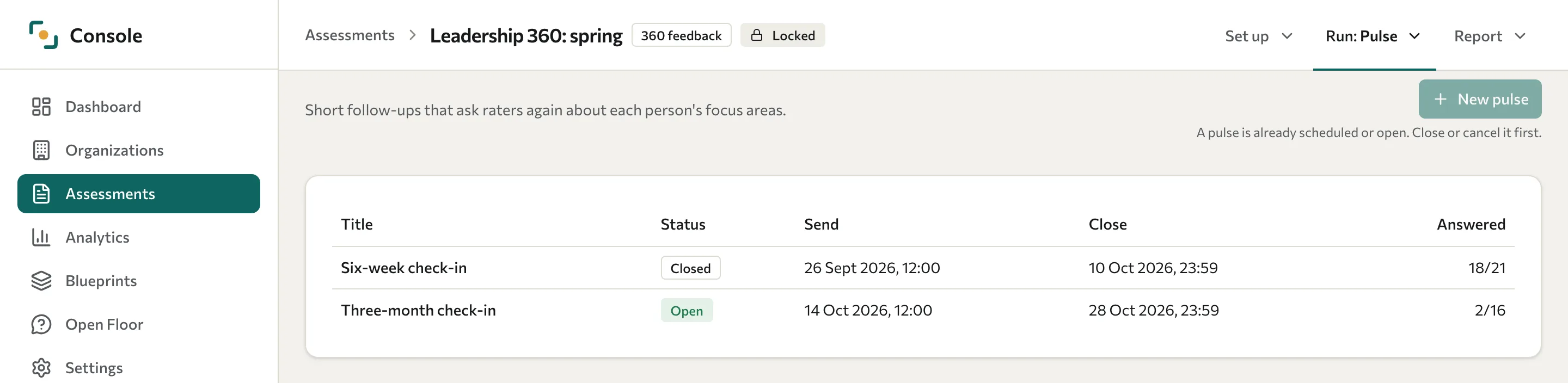
If New pulse is dimmed, the page says why: "Close the 360 campaign before sending a pulse." or "A pulse is already scheduled or open. Close or cancel it first."
| Status | What it means |
|---|---|
| Draft | You are still setting it up. Nothing has been sent. |
| Scheduled | It will send on its send date. You can still unschedule or cancel it. |
| Open | Raters have been invited and can answer until the close date. |
| Closed | Answering has stopped and results are available. |
| Cancelled | It was stopped before sending and cannot be scheduled again. |
Create a pulse
Select New pulse. The form has a Title and four numbered sections. The person rated sees the title above their results, so choose one that makes sense to them. It starts as "Pulse check-in, September 2026" (the current month and year), and you can change it.
Choose focus areas
Under 1. Focus areas for everyone, select a focus area to add it for every person in the pulse. Each focus area shows how many of its questions will be asked. Only focus areas with at least one rated question can be chosen.
Under 2. People, adjust each person's focus areas: one to five each. Focus areas linked to a person's development-plan goals are selected for you. Use the Include switch to leave someone out.
If the organisation's access level is Aggregated only, the form shows Focus areas are hidden. Each person's suggested focus areas come from their own development plan, so the form doesn't select any for you or show the ones a person already has. You can still select focus areas for everyone or for each person. When you edit a draft, focus areas already set are kept when you save, and any you select replace them. Each person still needs at least one focus area before you can schedule. If someone has none, scheduling is refused with a message that names them. On the pulse's page, each person shows No focus areas.
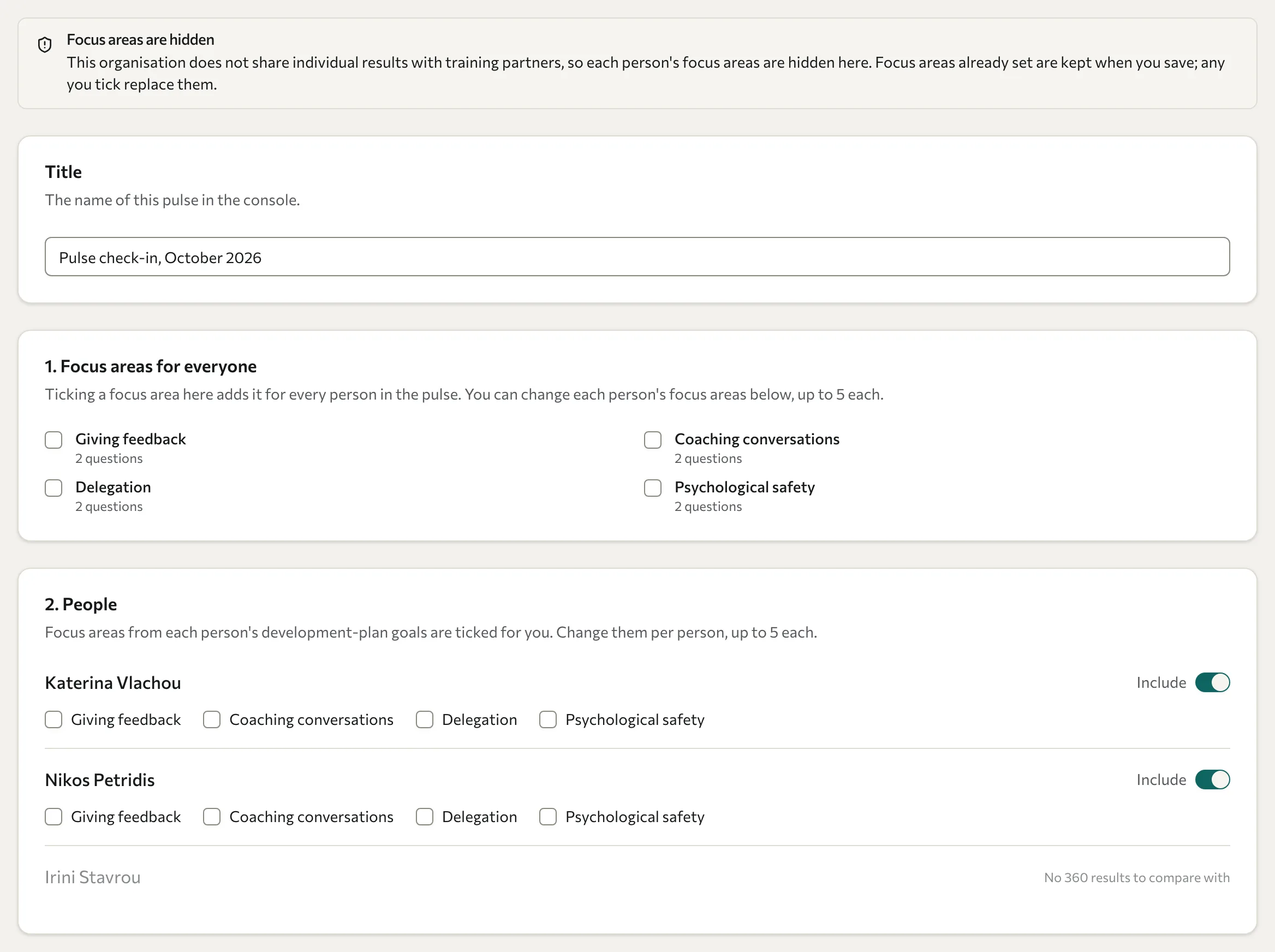
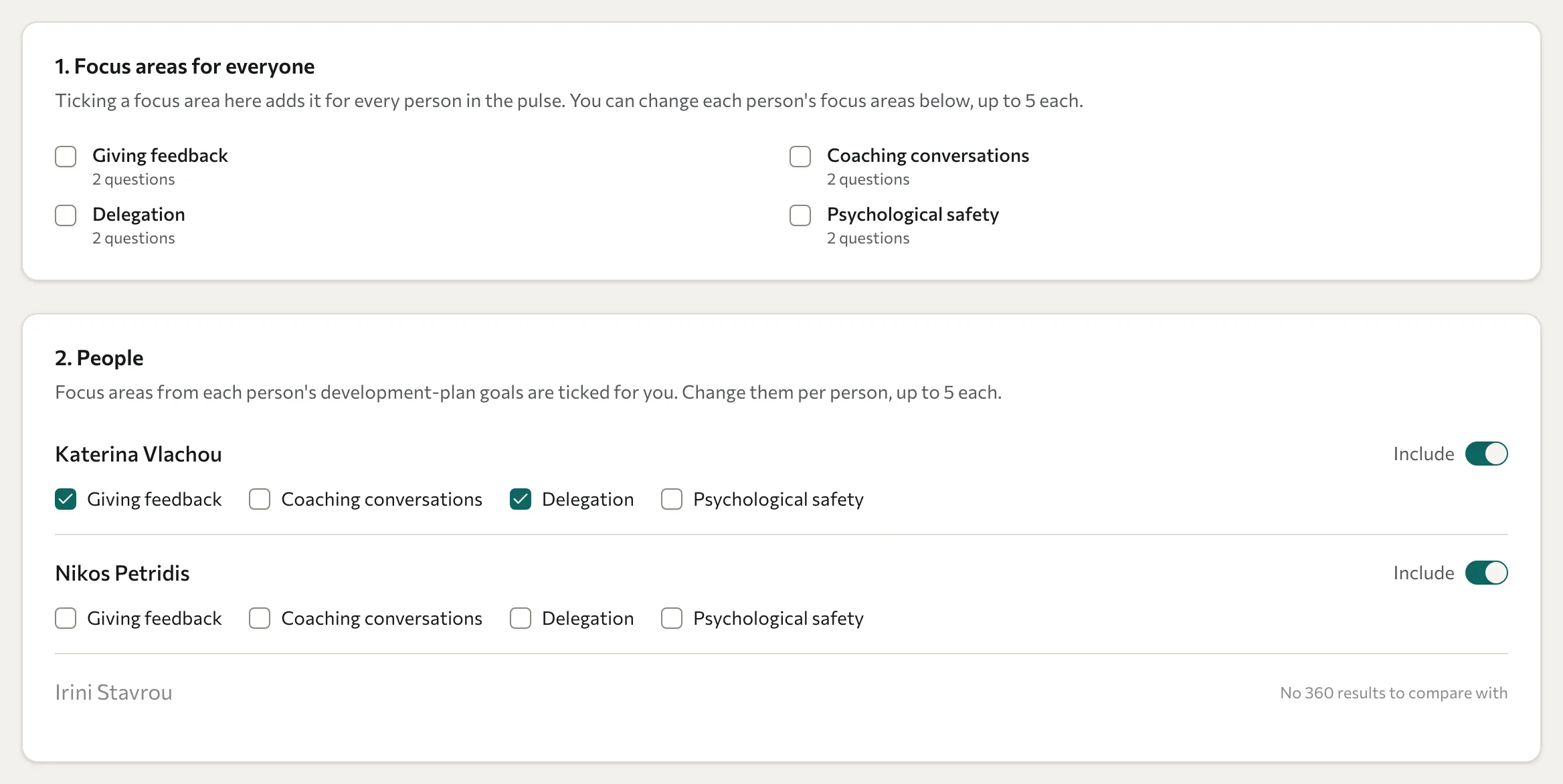
People who cannot be included are dimmed with the reason: No 360 results to compare with (they were not scored in the 360) or No longer active.
Two or three focus areas per person keep the pulse short. Raters answer every question mapped to each chosen focus area, and every question needs an answer.
Check the raters
Under 3. Raters, each person has their own list, grouped by rater category. Everyone who finished that person's 360 is selected. Clear the checkbox for anyone you want to leave out.
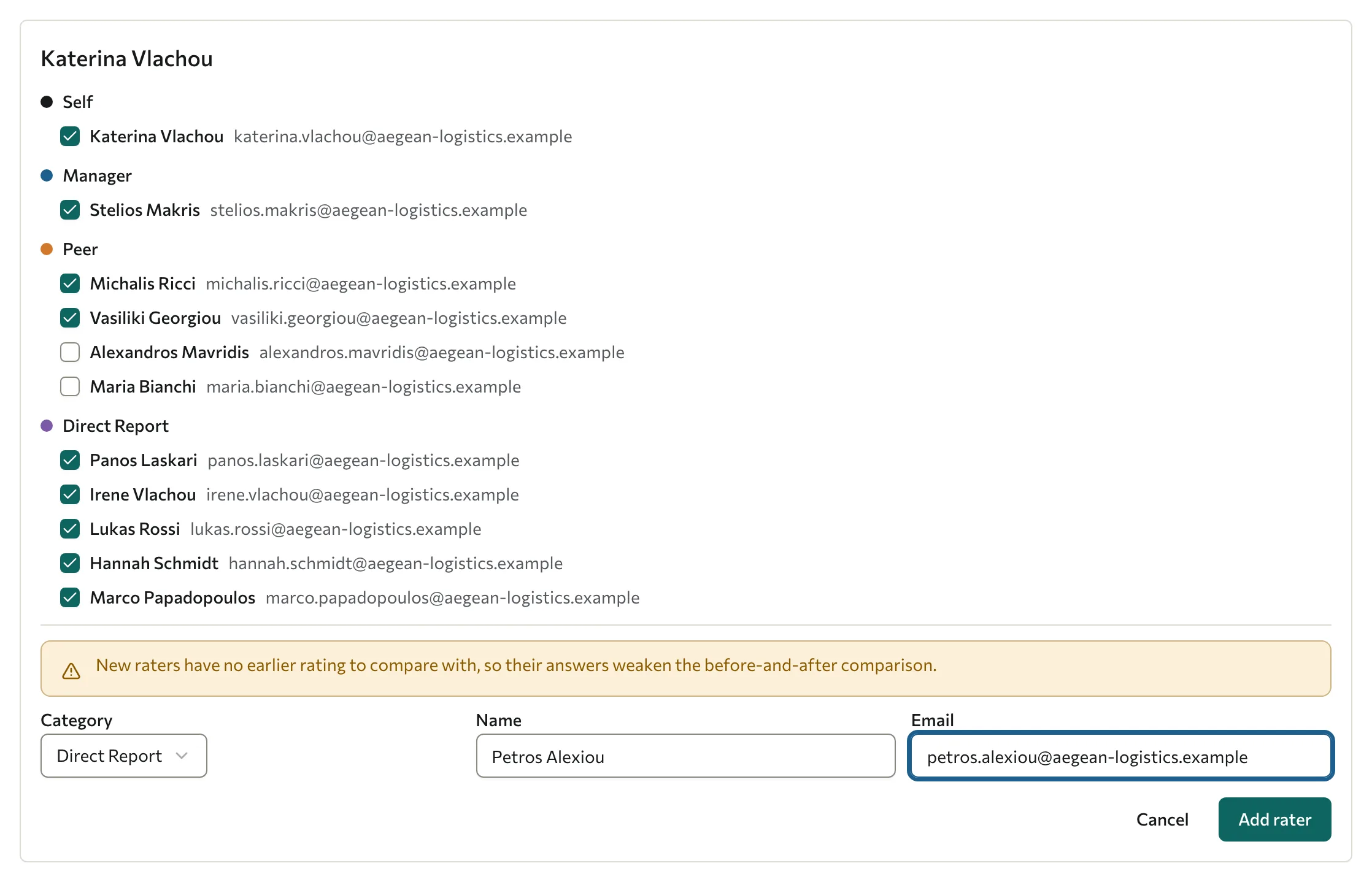
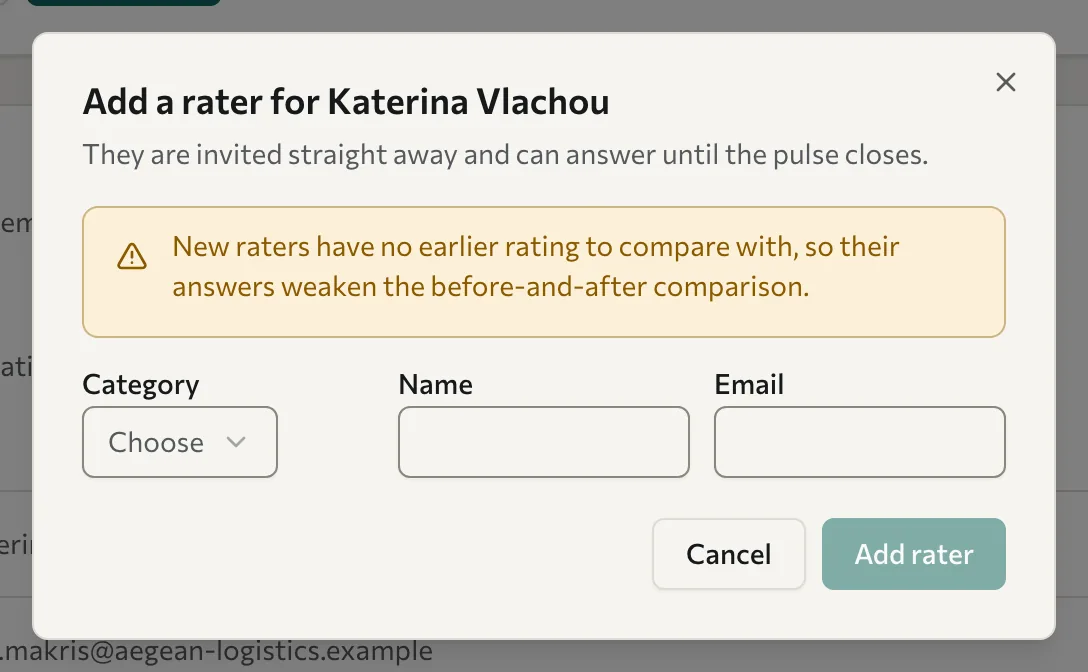
To ask someone who did not rate the person in the 360, select Add a new rater, choose the Category, enter the Name and Email, and select Add rater. They appear with a New rater badge.
New raters have no earlier rating to compare with, so their answers weaken the before-and-after comparison. Ask the original raters wherever you can, and add new ones only when an original rater has left or no longer works with the person.
Keep the anonymity threshold in mind. For an anonymous category such as peers or direct reports, at least as many raters as the campaign's Anonymity threshold must answer, or that group's pulse results are hidden. The section tells you the number, for example "Anonymous groups need at least 3 answers to be shown". Ask more people than the minimum, because not everyone answers.
Set the send and close dates
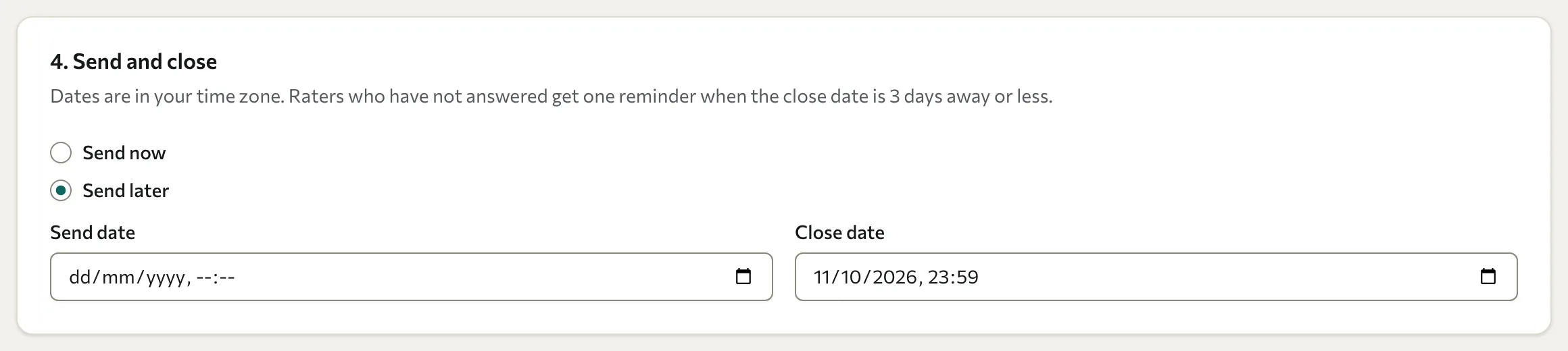
Under 4. Send and close, choose Send now or Send later. For Send later, set the Send date. Then set the Close date; it starts two weeks ahead at 23:59. Dates are in your own time zone.
Schedule it
Select Schedule. To finish later instead, select Save draft. The draft appears in the list on the Pulse page. Select it to open its page, where Edit draft reopens the form and Delete draft removes it.
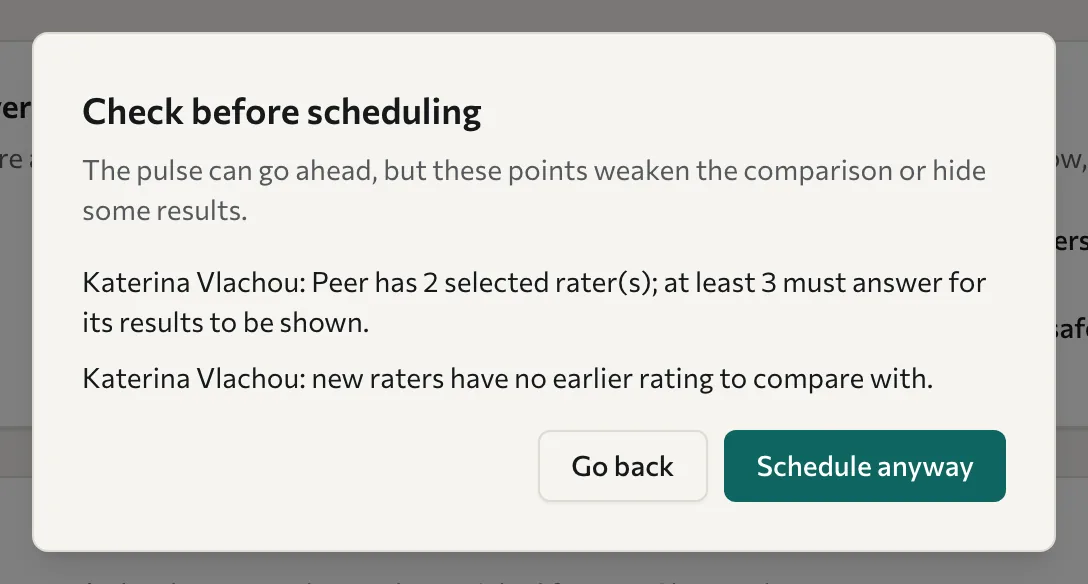
If something needs a second look, a Check before scheduling dialog lists it. It warns when an anonymous group has fewer raters selected than the threshold, when a person has new raters, and when someone rated a person in more than one group in the 360 (the pulse asks them once). Select Schedule anyway to go ahead, or Go back to change the setup.
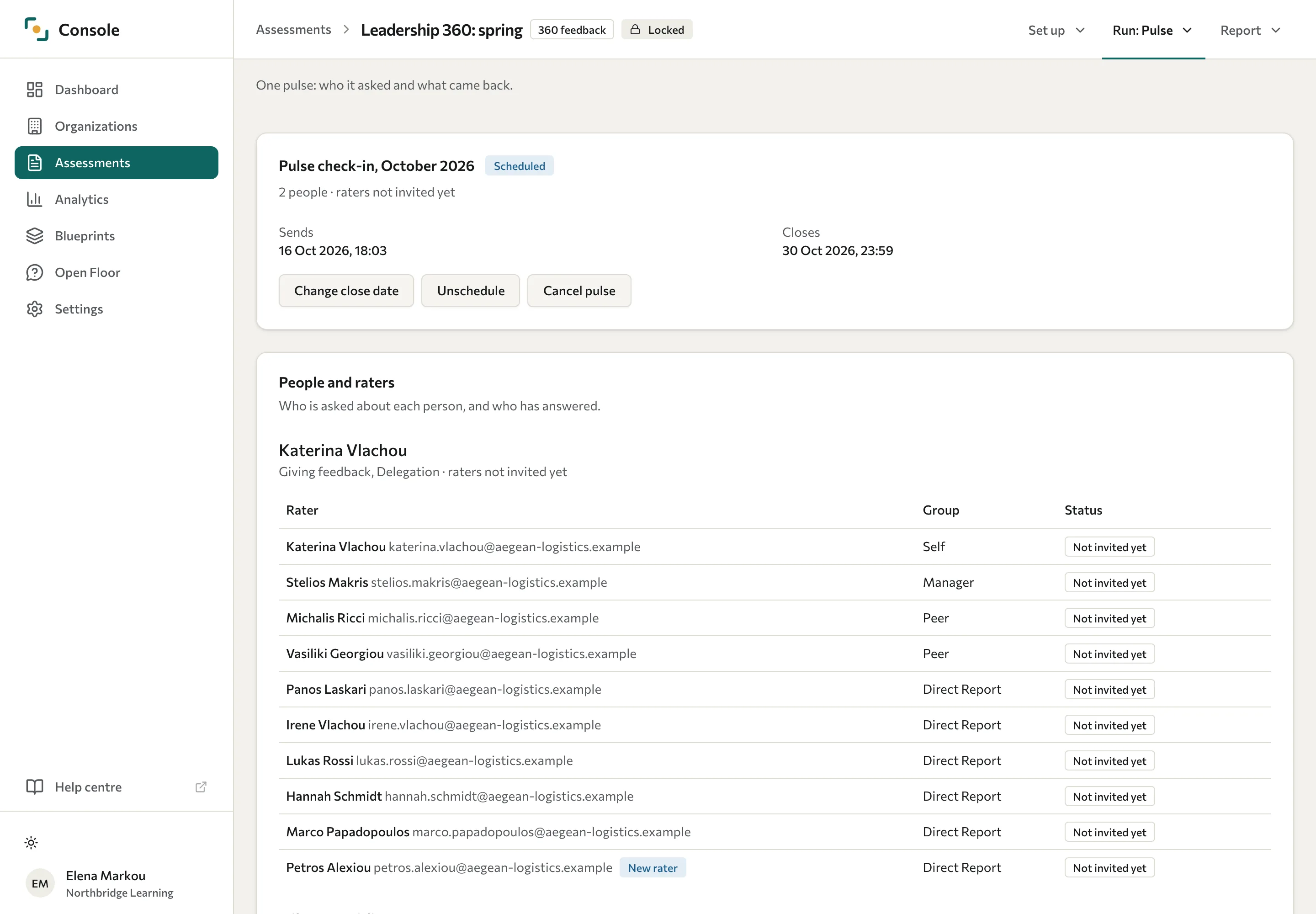
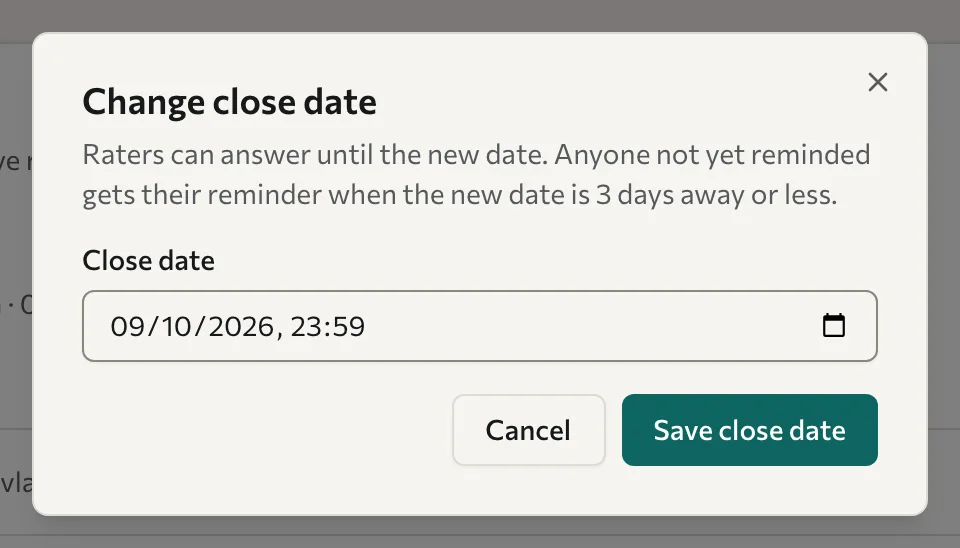
The pulse is now Scheduled. The scheduled job checks for invitations every 5 minutes. Delivery can take longer if the background worker or email service is delayed. Until then you can Change close date, Unschedule it (it goes back to a draft you can edit; no email has been sent) or Cancel pulse (it will not be sent and cannot be scheduled again).
What raters receive
When the pulse opens, each rater gets one invitation email listing everyone they are asked about, with their focus areas and the close date, and a personal sign-in link. A manager asked about six people gets one email, not six. A rater you add while the pulse is open is invited straight away; if they were already asked about someone else, they get a new invitation that lists everyone.
- Reminder: raters who have not finished get one reminder when the close date is 3 days away or less, and never within a day of their invitation.
- Thank you: a rater gets one thank-you email once they have answered for everyone they were asked about.
- Expired or used links: each sign-in link works once and lasts up to 72 hours; the email says when it expires. A rater can enter their email on the sign-in page to get a new one.
Raters see only the questions for each person's focus areas, never their earlier answers. What they see is covered in Answer a pulse check-in. You can change the wording of all four pulse emails; see Email templates.
Follow a running pulse
Select the pulse in the list. The first card shows its title, status, the send and close dates and how many raters have answered. People and raters lists every rater for each person with a status: Not invited yet, Invited or Answered.
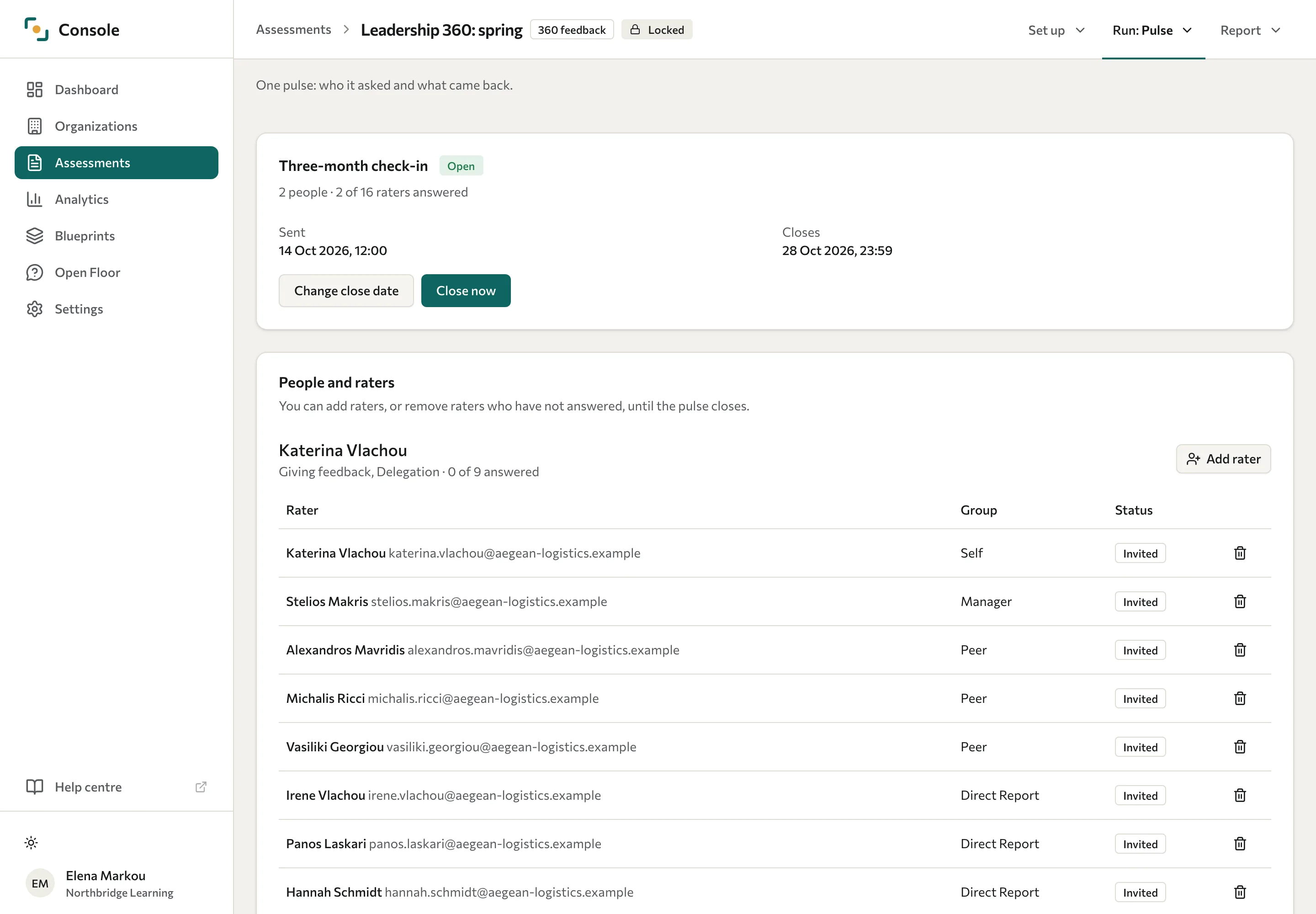
While the pulse is open you can:
| Action | What it does |
|---|---|
| Change close date | Moves the close date. Raters can answer until the new date, and anyone not yet reminded gets their reminder when the new date is 3 days away or less. |
| Add rater | Asks one more person about that person. They are invited straight away and can answer until the pulse closes. They always count as a new rater. |
| Remove (bin icon) | Removes a rater marked Invited, after you confirm with Remove rater. If you add them back, they count as a new rater. |
| Close now | Closes the pulse early. Raters can no longer answer, and each person with at least one answer is scored and emailed that their results are ready. |
When the pulse closes
The background job checks for overdue pulses hourly. You can also select Close now and confirm with Close pulse. Answering stops at the close date itself, even if the background job has not yet finalised the results.
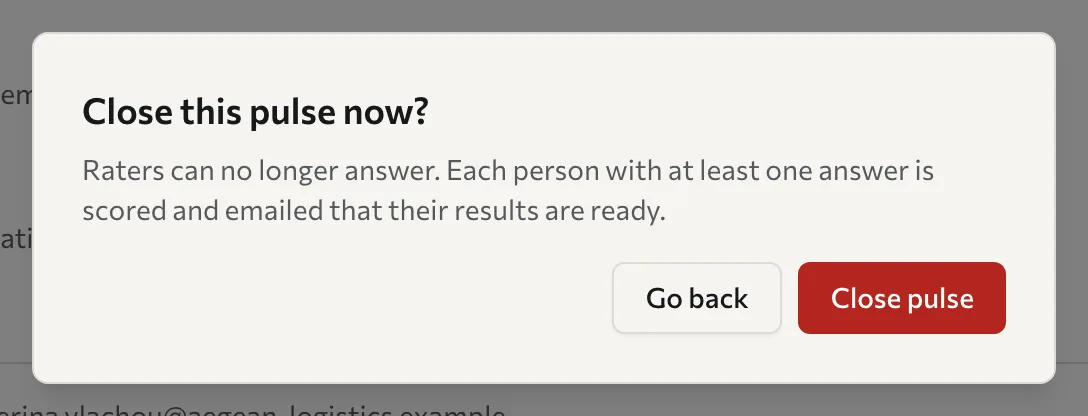
Each person with at least one answer is scored, and gets a results ready email with a link to their results. People nobody answered for are not scored or emailed; their results say No one answered for this person.
Read the results
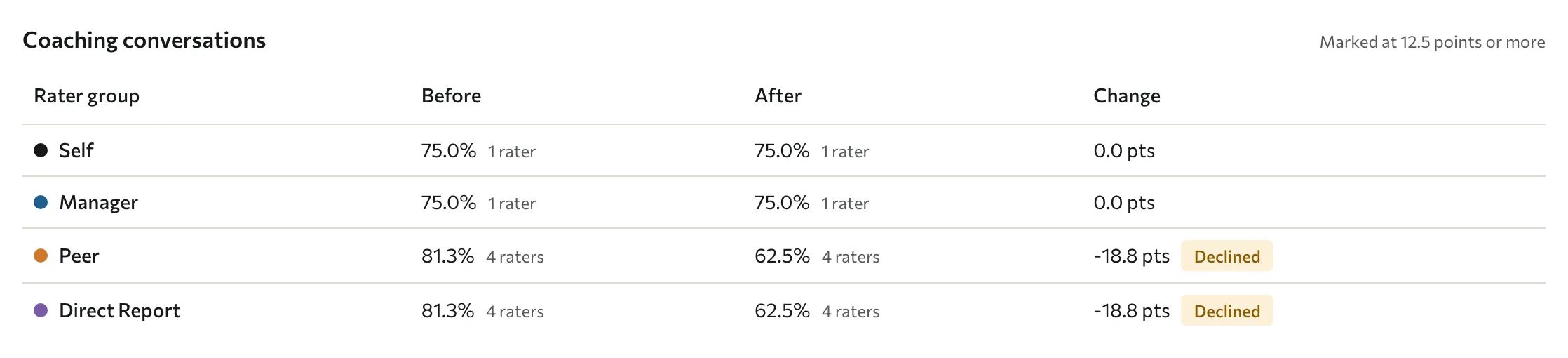
Open the closed pulse. Under Results, choose a Person. Each focus area has a table with one row per rater group:
| Column | What it shows |
|---|---|
| Before | The group's score for this focus area in the 360, with its number of raters. |
| After | The group's score in this pulse, with its number of raters. |
| Change | The difference, in percentage points. |
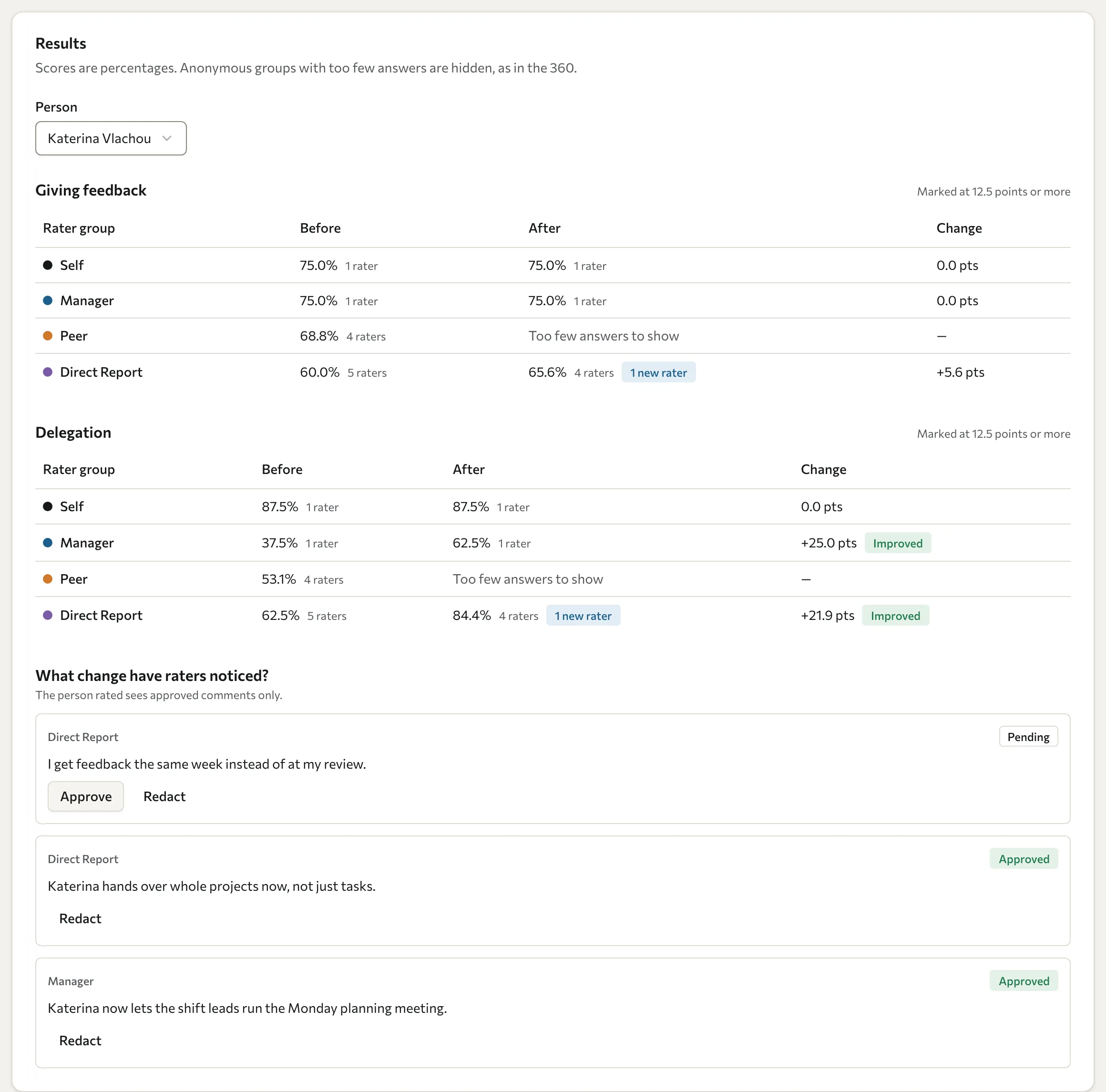
Scores are percentages, as in the 360 report. What the marks and notes mean:
| You see | Meaning |
|---|---|
| Improved or Declined | The change is at least the threshold shown above the table ("Marked at 12.5 points or more" when the focus area's questions all carry a weight of 1). Smaller changes are shown without a mark. The marking threshold is not a statistical significance test or evidence that the programme caused the change. |
| Too few answers to show | An anonymous group had fewer answers than the anonymity threshold, so its score stays hidden to protect the raters. Self and groups that are not anonymous are never hidden. |
| No earlier rating | That group did not rate the person on this focus area in the 360, so there is nothing to compare with. |
| 1 new rater, 2 new raters | How many raters in that group were not in the original 360. The comparison for that group is less exact. |
| Mixed-direction questions: change not marked | The focus area mixes positively and negatively weighted questions, so a change is shown but never marked. |
A change can go either way. A Declined mark is worth a conversation, not a verdict: it may reflect a new manager, a harder quarter, or raters who now know the person better.
The comparison figures are saved when the pulse is scored and do not change if the 360 is scored again. Comment moderation can change which comments are shown.
If a person shows Results are being computed. Check back later., scoring has not finished yet. Results could not be computed. Contact support if you need them. means scoring kept failing for a week; contact Datatrap support.
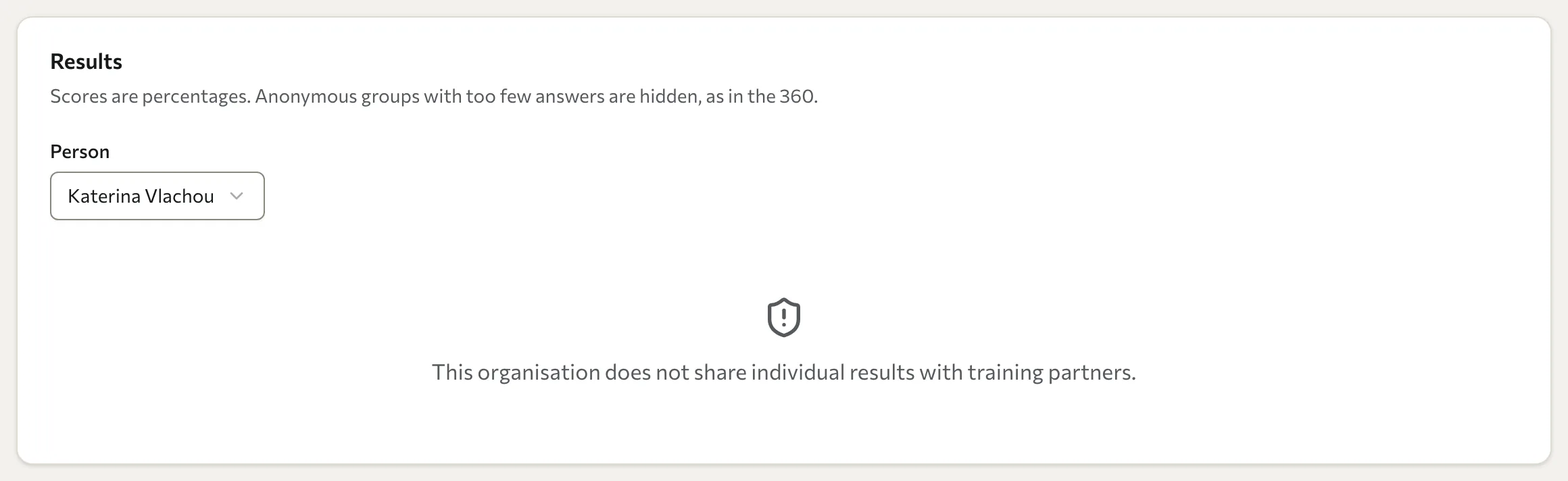
If the organisation's access level is Aggregated only, the results and comments for each person are replaced by "This organisation does not share individual results with training partners." You can still choose a Person and follow who has answered.
Moderate comments
Raters can add an optional comment to each person: "What change have you noticed?". Under the results, What change have raters noticed? lists the comments from groups that are shown. Comments from a hidden group are never shown, to protect those raters.
- Select Approve to show a comment to the person rated. It shows without the rater's name, labelled with the rater group only.
- Select Redact to remove it. You can add a Note (optional) for your own records, then select Redact comment. A redacted comment disappears from the results. Redaction cannot recall a comment the person has already read or saved. This cannot be undone.
A comment stays Pending until you act on it, and the person rated sees approved comments only. Review comments soon after the pulse closes, because the person can open their results as soon as they are emailed.
Anonymous comments can still give a rater away, for example by naming a task only one person did. Redact anything that would identify its author.
Who sees pulse results
| Who | What they see |
|---|---|
| Console users with the required role and assessment scope | The report details above, including rater counts, new-rater counts and pending comments, when the organisation gives its training partner Full access. |
| The person rated | Their own before, after and change figures, the Improved and Declined marks, an "Includes new raters" note, and approved comments. Not rater counts or your moderation notes. See See your pulse results. |
| Client portal users | The same view as the person rated, through the Datatrap API only. The client portal has no pulse screen. |
Managers are not emailed pulse results.
Troubleshooting
New pulse is dimmed. The 360 campaign is not closed yet, or another pulse is scheduled or open. The page shows the reason with the button.
A person is dimmed in the form. They were not scored in the 360 (No 360 results to compare with) or are no longer active in the organisation.
A group shows Too few answers to show. Fewer raters in that anonymous group answered than the anonymity threshold. Next time, ask more raters in that group, or give raters longer with Change close date before the pulse closes.
A rater says their link does not work. Each link works once and expires after a few days. Ask them to enter their email on the sign-in page and select Request new link.
I cannot reopen rating or unlock the assessment. A pulse is scheduled or open on the campaign. Close or cancel it first.
The Pulse page or the results say the organisation does not share its results. The client organisation set its data access level to Aggregated only or No access. Only the client's admin can change it.