Complete a 360 feedback process
Use your personal link to nominate raters, approve nominations, and submit feedback.
A 360 gathers feedback about a person from the people around them. Your My360 dashboard shows the tasks assigned to you. You may be the person receiving feedback, a manager approving nominations, a rater, or more than one of these.
Sign in with your email link
Open the personal link in your invitation. It signs you into My360 without a password. Do not forward it: it grants access to your tasks.
A link is single-use and normally expires after 72 hours. If it has expired or was already used, use Request new link on the campaign's sign-in page. Enter the email address used for your invitation. If you cannot find that page or do not receive the message, contact the organiser.
Nominate raters
If you're the person receiving feedback, you might be asked to choose the people who will rate you.
- Select Nominations in the menu, or select Nominate raters on your dashboard. The page Nominate your raters opens.
- Each card is a group of raters, such as peers or direct reports, and shows how many you still need. On the card you want, select Add.
- In Nominate a rater, enter the person's Name and Email, then select Nominate.
- Check the Current nominations table. Repeat until each card shows Met.
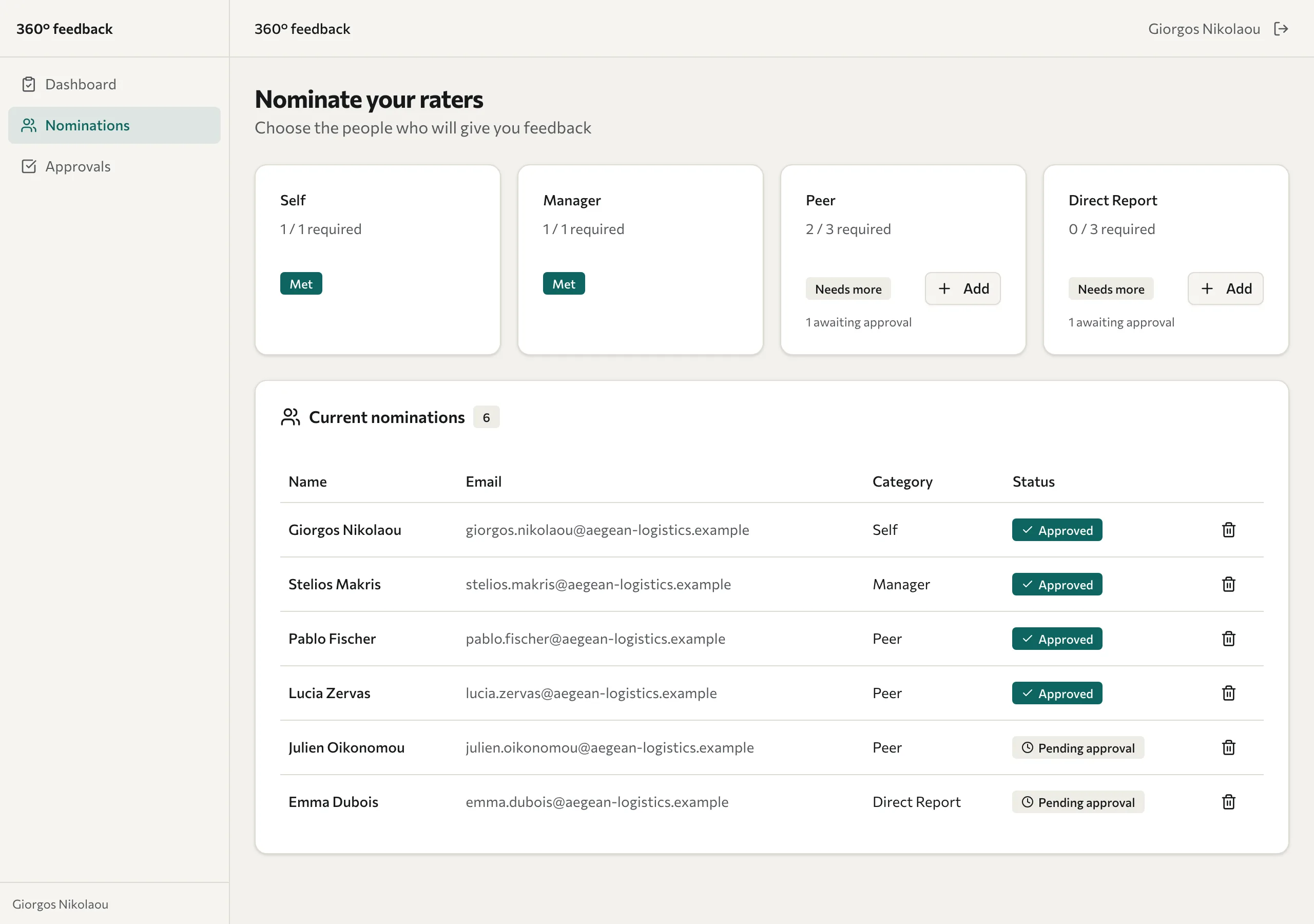
A nomination can show Pending approval until a manager approves it; not every campaign needs approval. A person can be in only one rater group for you. Until a nominee starts rating, you can remove them with the bin icon beside their name. Contact the organiser if nominations have closed or a group can't be changed.
Approve nominations as a manager
If people who report to you are receiving feedback, you might be asked to approve the raters they chose.
- Select Approvals in the menu. The page Nomination approvals lists the nominations waiting for you.
- For each nominated rater, select Approve (the tick) or Reject (the cross). The list updates as you go.
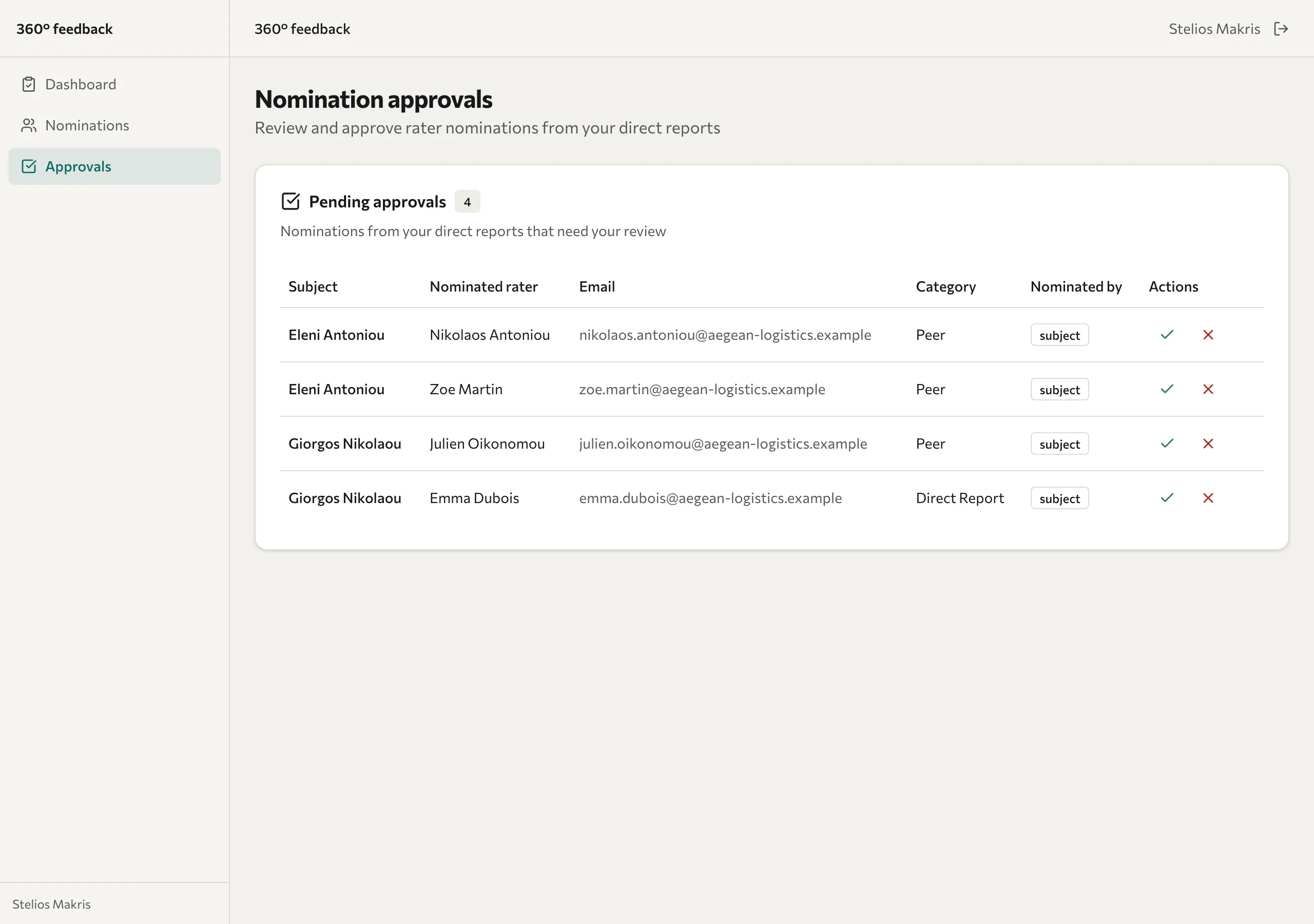
Approving a nominee lets the campaign go ahead with that person. The organiser decides when rating starts.
Give feedback
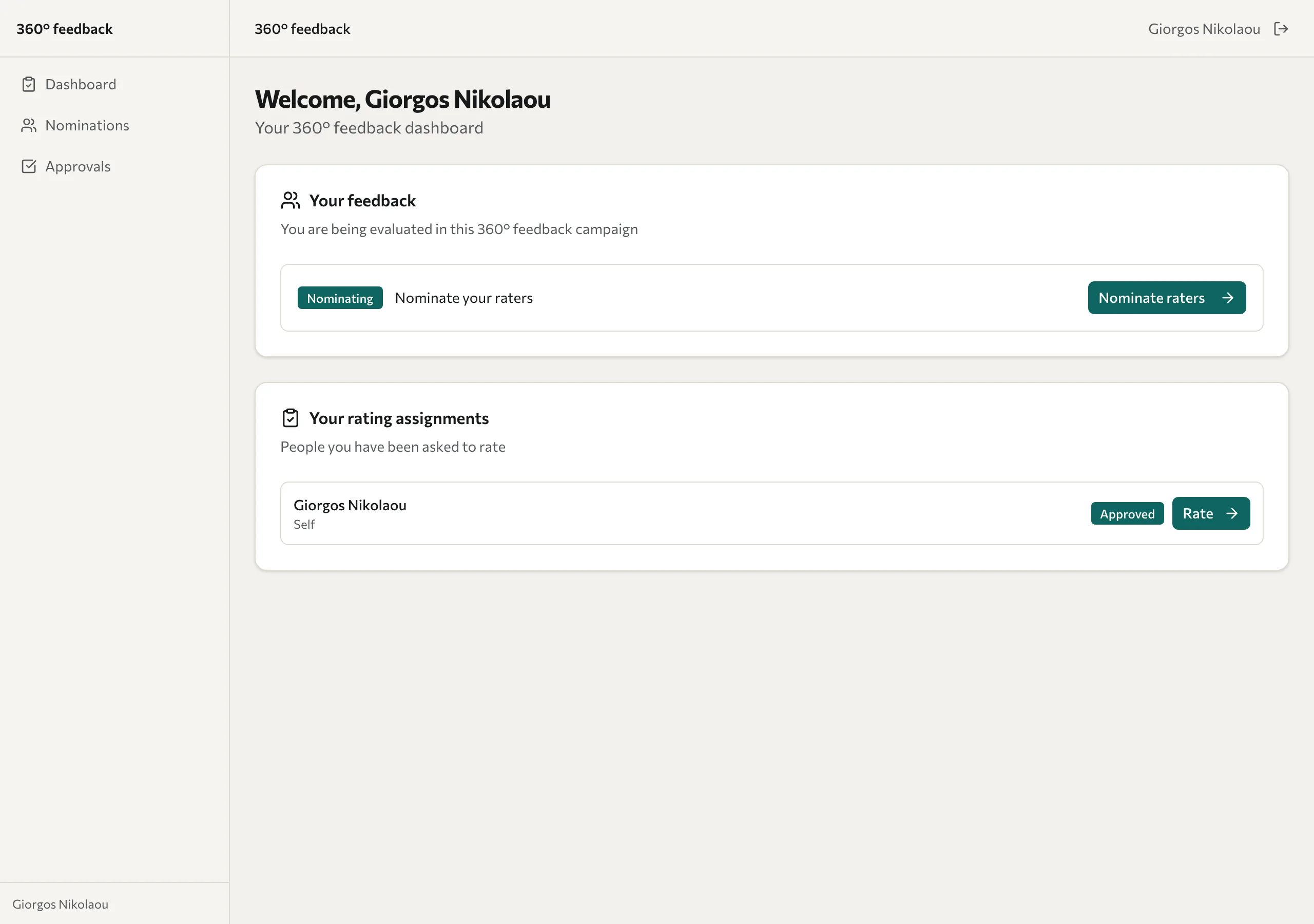
- On your Dashboard, find the person under Your rating assignments and select Rate.
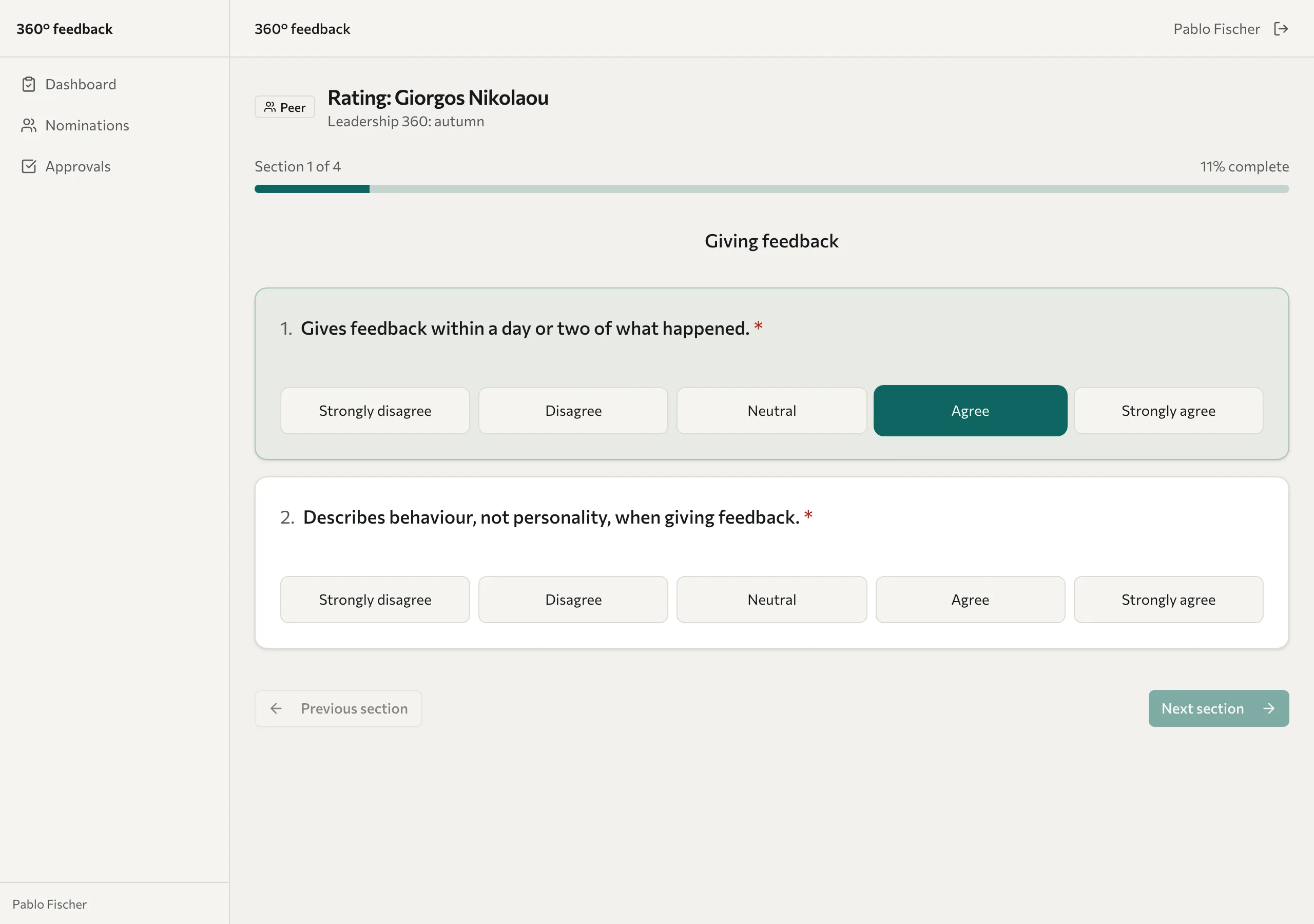
- Answer each section. The page shows your progress, such as "Section 1 of 4" and the percentage complete. Use Next section and Previous section to move through it.
- On the last section, select Submit rating.
- Select Confirm and submit, then wait for the Thank you! screen.
- Select Return to dashboard and complete any remaining assignments.
You can't change a rating after you submit it, so review your answers before you confirm. Finish before the rating deadline.
Understand confidentiality
The organiser defines which groups are anonymous. Anonymous categories with too few responses are hidden in results; self and non-anonymous categories follow different rules. Written comments can identify you through their content, so avoid adding details you do not intend to share.
For a later follow-up, see Answer a pulse check-in. When your own report is available, see Your 360 results.