Build your assessment
Add modules and questions in the Builder, arrange them, and preview what participants see. Every change saves itself.
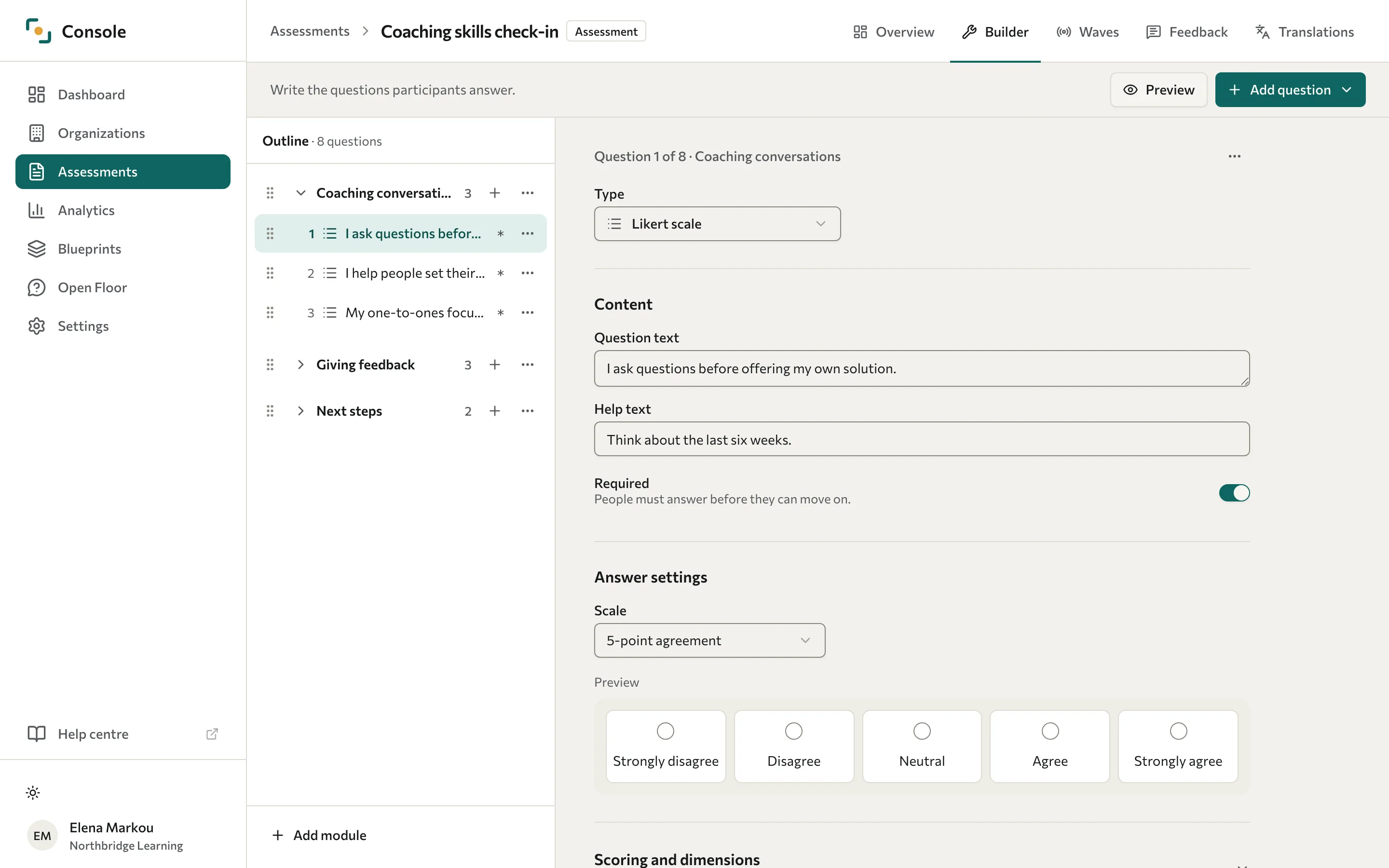
Create an assessment before adding content, then open its Builder tab. The Builder has an Outline of modules and their questions, and an editor for the question you open. Every change saves itself, and the line next to Preview says how saving is going.
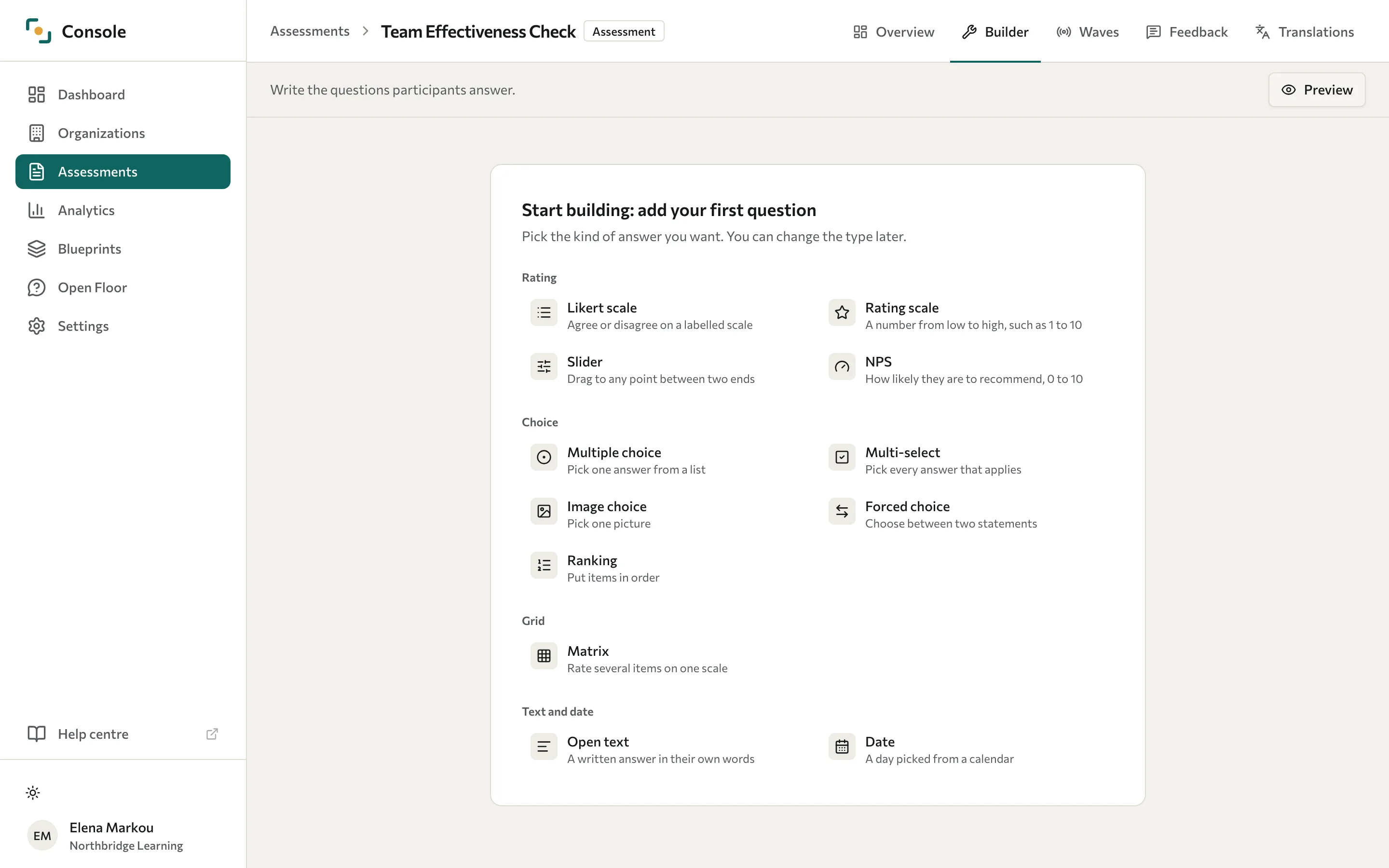
Add your first question
A new assessment opens on Start building: add your first question, with the question types its category allows.
- Select the type of answer you want, such as Likert scale or Open text. Datatrap creates the question and opens it in the editor. If the assessment has no module yet, Datatrap adds one called "Module 1".
- Enter the wording in Question text.
You can change the type later. For what each type does, see Question types.
Add modules and questions
Each module is a section of the assessment, and participants see its title.
- To add a module, select Add module at the end of the Outline, enter its Title, then select Add module in the dialog.
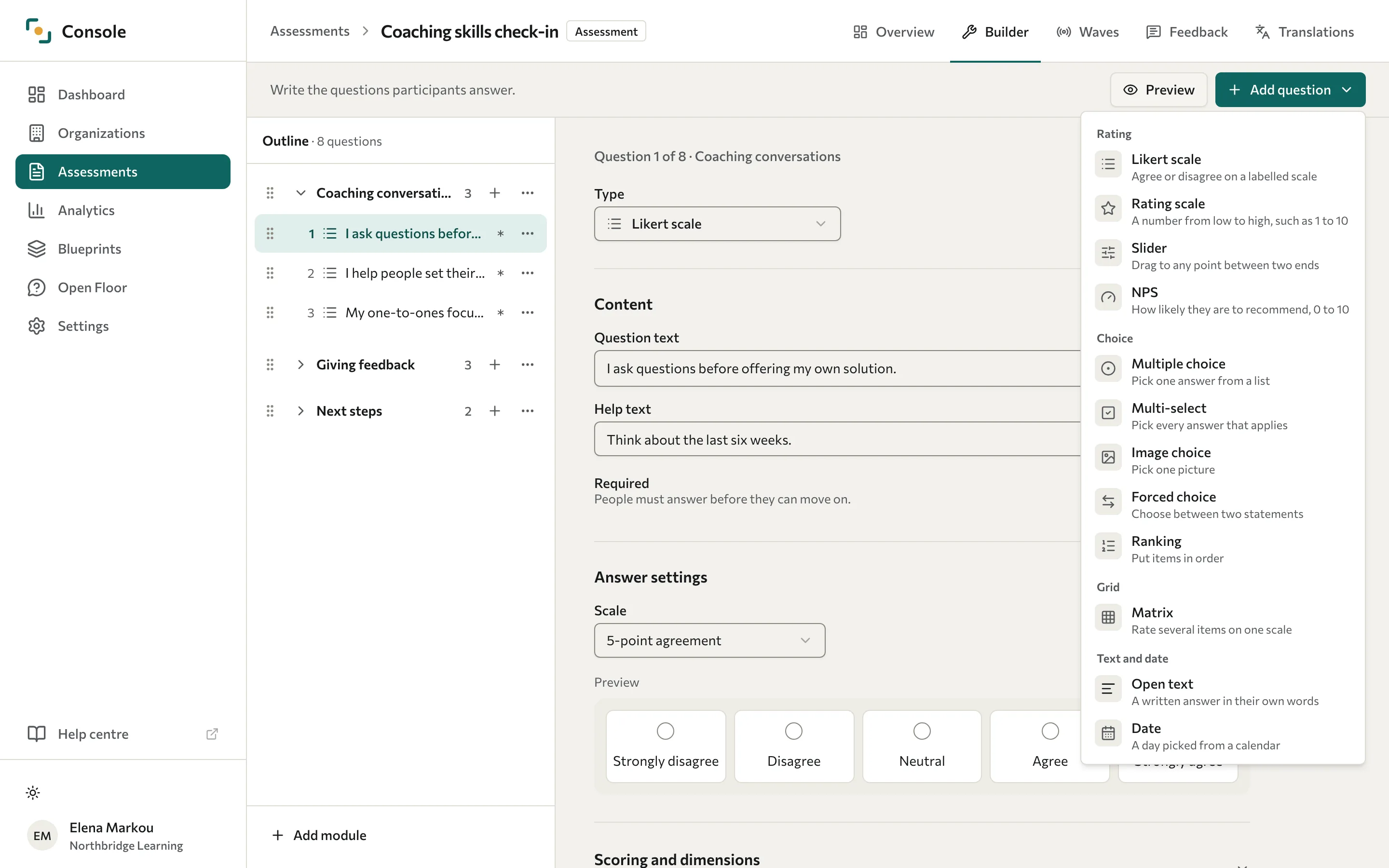
- To add a question, select Add question, then choose its type. The types are grouped under Rating, Choice, Grid, and Text and date, and the list shows only the types the category allows. The question goes into the module of the question you have open, or into the last module if no question is open.
- Enter the wording in Question text, and optionally a Help text that participants see under the question.
- Under Answer settings, set up the answers or scale. A preview of the answer shows under the settings.
- Leave Required turned on if participants must answer before they can move on. New questions start as required.
- Repeat for the remaining questions and modules.
To add a question to a particular module, select the plus button next to the module's title in the Outline, then choose the type.
In a Quiz, a new multiple choice question starts with two options, and option 1 is marked as the correct answer. The editor shows "Check which answer is correct. Option 1 is marked for now." until you change the options or the mark, so make sure the right answer is marked.
How saving works
Datatrap saves a change when you stop typing or leave the field. The line in the toolbar shows Saving…, then All changes saved and how long ago.
- If a field has a problem, Datatrap shows it under the field and says how many fields need attention. That question's latest changes are not saved until you fix the field.
- If a question's changes cannot be saved, the line says Could not save. Select Try again.
- If another change cannot be saved, such as adding, moving, copying, renaming, deleting, or linking a dimension, the line says The last change could not be saved. A message says what failed, and the Builder stays as it was before that change. There is no Try again button, so make the change again.
- To go back to how a question was when you opened it, select the … button in the editor, then Undo changes.
If you leave the Builder while changes are still saving, could not be saved, or wait for a field to be fixed, Datatrap asks first. It also asks before you open another question while a field in the open one needs attention.
When you change a question's Type, Datatrap asks first if the question would lose something, such as its options. Select Change type to go ahead, or keep the current type.
Question settings
The editor changes to match the question type. These settings come up most often:
- Required: turn this on if participants must answer the question before they can move on.
- Scale: for a Likert scale, choose the wording of the scale, such as a five-point agreement scale.
- Shown as: for a rating scale, choose Stars, Numbers, Emoji, Hearts, or Thumbs.
- Correct answer: in a Quiz, select the circle next to the correct option. Select it again to clear the mark.
For a scored assessment, the editor also has a Scoring and dimensions section. Select it to open it:
- Reverse scoring: turn this on for a question whose wording runs the opposite way, so a high answer becomes a low score.
- Dimensions: choose which dimensions of the blueprint the question feeds, and its weight in each. See Set up scoring.
Choose suitable questions
Use a rating or Likert scale for a consistent measure, multiple choice for a single option, and open text for a written response. A ranking question orders a set of options; a matrix repeats the same response scale across several rows.
The available types depend on the category. A 360 supports rating scales, Likert, matrices, and open text. A quiz offers multiple choice, multi-select, ranking, image choice, and open text, but being available in a quiz does not mean every type is automatically graded.
For scored questions, link the dimensions and set the weights. Ranking links refer to individual options. See Set up scoring.
Move, copy, and delete
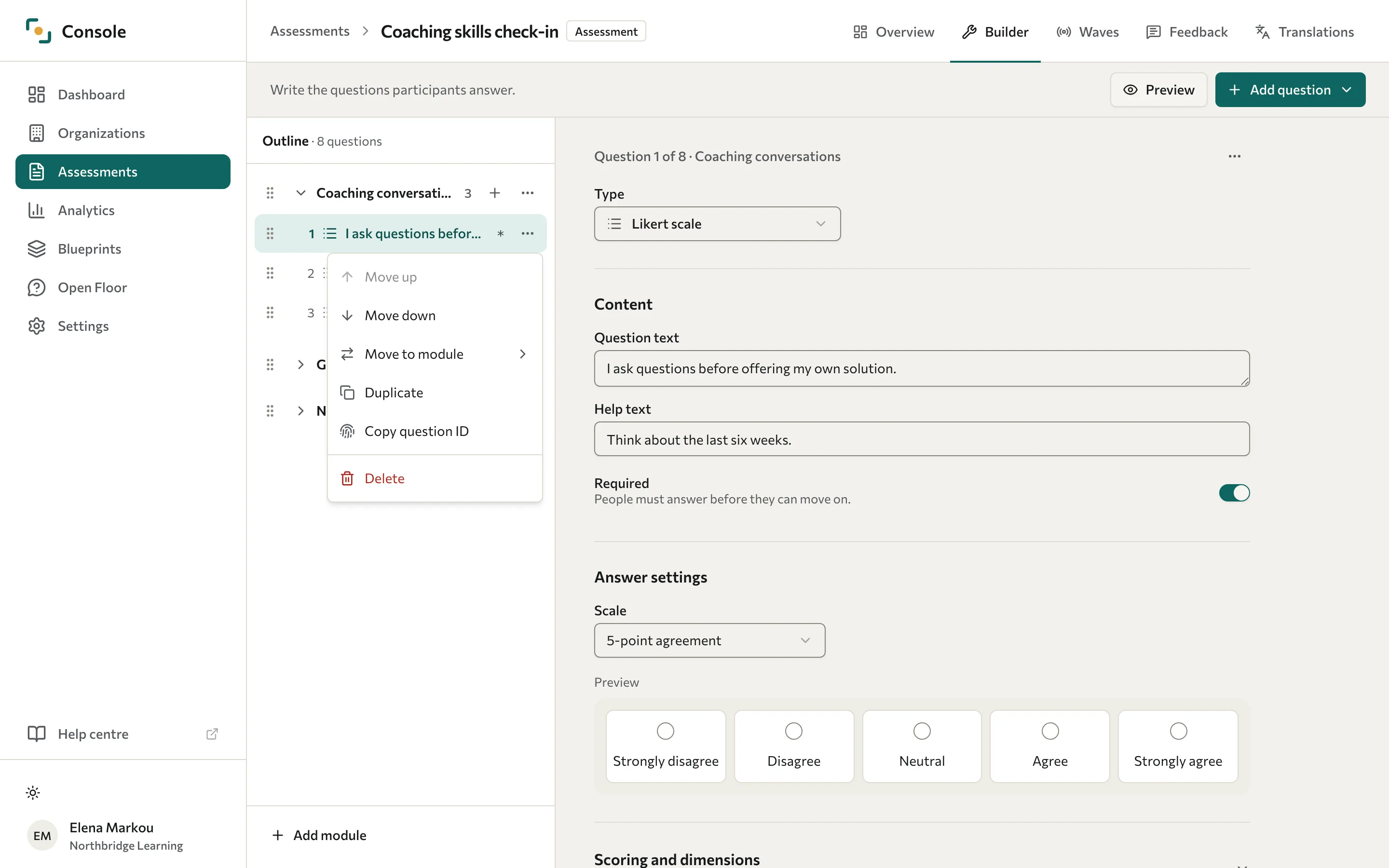
Each question and module in the Outline has a … button. The open question has the same button in the editor.
- Move up and Move down change the order of questions within their module, or the order of modules.
- Move to module moves a question to the end of another module.
- Duplicate adds a copy of a question and opens it. The copy does not include the question's dimension links or pictures.
- Rename changes a module's title.
- Copy question ID copies the question's ID to the clipboard.
You can also drag a question or module by the handle at the start of its row. Dragging moves a question only within its module.
Deleting cannot be undone. Deleting a question also deletes its dimension links. Deleting a module also deletes every question in it.
To delete a question or module, select its … button, select Delete, then select Delete in the dialog. The dialog says what else goes, such as how many questions a module holds.
Preview the assessment
Select Preview to check the participant flow, required questions, and answer options. The preview opens in a new tab. Wait until the line says All changes saved first, so the preview shows your latest edits.
The assessment follows a linear sequence. There is no conditional branching or rule that skips questions based on an earlier answer.
If editing is blocked
A locked assessment shows the message "This assessment is locked, so its questions cannot change." The Outline and each question stay readable, but you cannot add, change, move, or delete anything. You can still preview the assessment and copy a question's ID.
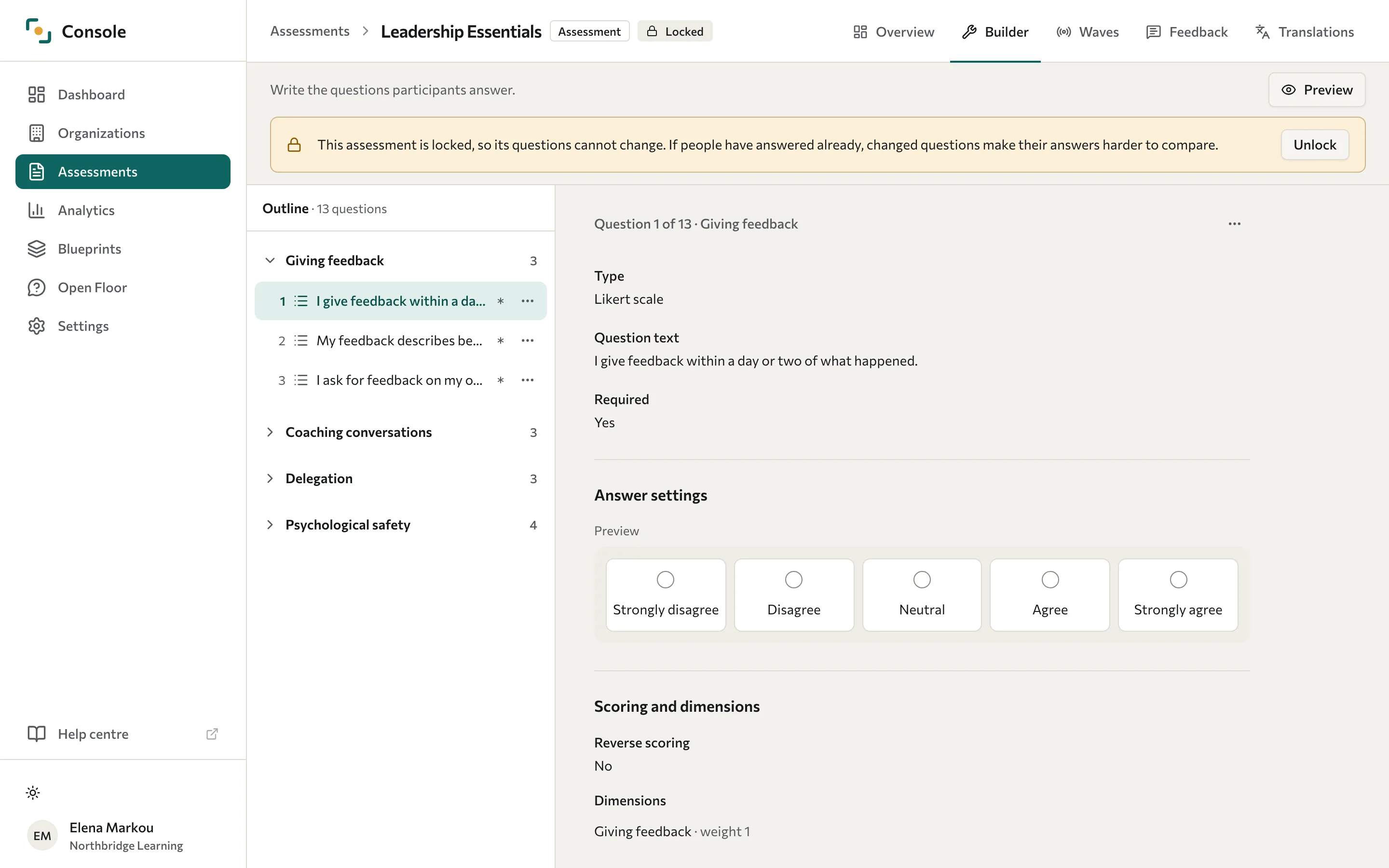
Responses lock the assessment to protect consistency. If people have answered already, changed questions make their answers harder to compare. Read Assessment settings before you select Unlock.
Next, translate the content or deploy the assessment.