Your 360 results and development plan
Read your feedback, save a copy, and create goals and actions in My360.
Open Results in My360 when your feedback is ready. You receive a results notification when scoring completes. Results can become available during rating if the readiness rules are met, or after the campaign closes. They do not always require every invited rater to respond.
Read your feedback
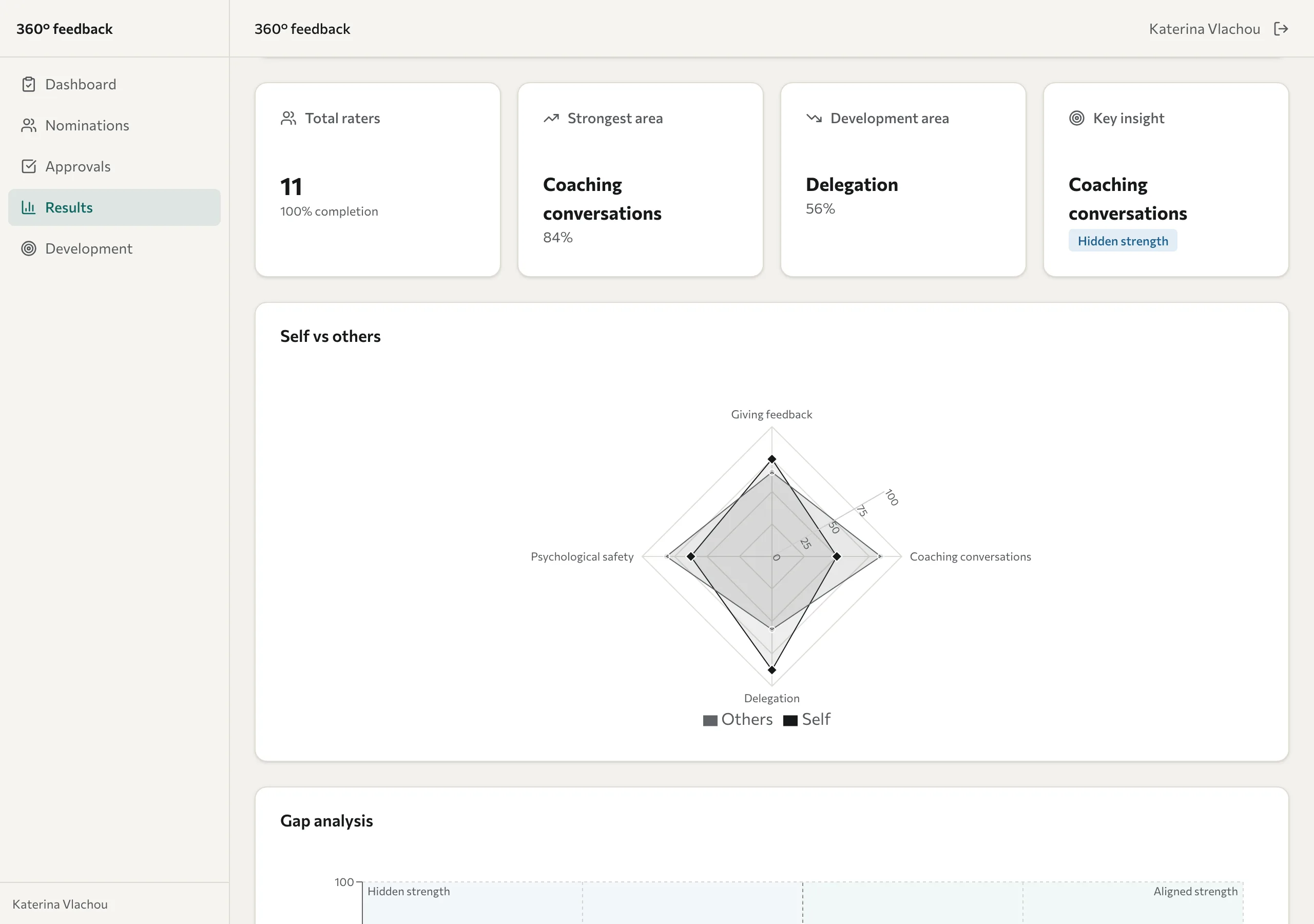
- Select Results in the menu. The page is headed Your 360° feedback results. If you've also had a pulse check-in, its results come first and your 360 report follows.
- Read the summary cards:
- Total raters: how many people gave feedback.
- Strongest area and Development area: the areas your raters scored highest and lowest. Your own ratings don't count towards these.
- Key insight: the area with your biggest gap between how you see yourself and how others see you.
- Under Self vs others, compare your own ratings with everyone else's.
- Under Gap analysis, look for a blind spot (an area others rate lower than you do) and a hidden strength (an area others rate higher than you do).
- Use Scores by rater category, Detailed scores, and Written feedback for the detail.
Some groups or comments can be hidden under the campaign's anonymity and review rules. A missing score is not a zero. A score reflects the answers collected and the way the assessment was designed; it is not a complete judgement about you. Use the feedback to prepare a conversation with your facilitator, coach, or manager.
Save a copy
- At the top of your results, select Print / PDF.
- In your browser's print window, choose to save as a PDF. The wording of this option varies by browser and device.

Create a development plan
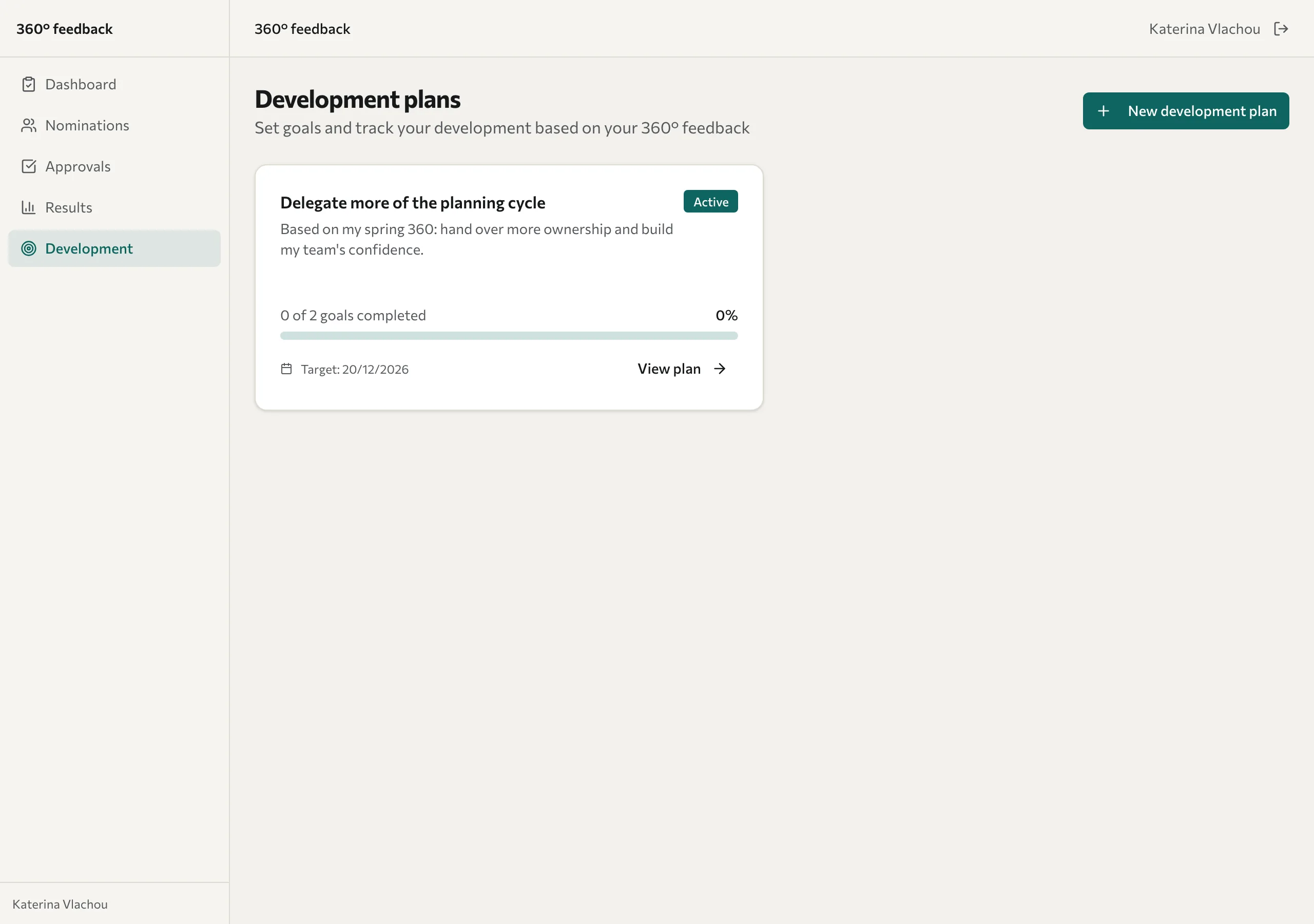
- Select Development in the menu, then select New development plan.
- Enter a Title and, if you like, a Description (optional) and a Target date (optional). Select Create plan.
- Open the plan with View plan, then select Add goal.
- In Add new goal, enter a Title, an optional Description, and a Priority of High, Medium, or Low.
- Optional: choose the Focus area from your 360 that the goal works on, so a later pulse check-in can ask about it.
- Select Add goal.
- Under the goal's Action items, type a practical step and press Enter. Mark each action complete when you finish it.
Track your progress
As you complete actions, the plan's Overall progress bar moves, and the Development page shows how many goals you've completed. To record how things are going, go to Check-ins, enter your Notes, choose a Mood if you like, and select Add check-in. Your check-ins build a record you can look back on.
Select Show to manager to let your manager see the plan, or Hide from manager to keep it private again. A manager can read a shared plan and add check-ins, but cannot edit your goals or actions. Ask your organiser how your organisation handles development information before you record anything sensitive.
Later: a pulse check-in
Some months after your 360, your facilitator might ask some of your raters a few questions again about your focus areas. When that pulse check-in closes, its results appear at the top of the Results page. See See your pulse results.
If results or development plans are unavailable, contact the organiser. See Troubleshooting.