Explore your organisation’s insights
Read assessment analytics and distinguish assessment comparison from matched pre/post analysis.
Open Insights in the Portal, then select an assessment. The page shows the analytics available for your organisation and the selected data.
Scored assessments show dimensions and archetypes where configured. Surveys show answer distributions; quizzes show correctness and score information. A 360 provides multi-rater analysis with anonymity rules.
Compare assessments
Compare sets two to seven assessments side by side, question by question. For each assessment it uses the latest wave, and it compares the questions the assessments share: questions with the same wording and question type. It does not match individual participants across assessments.
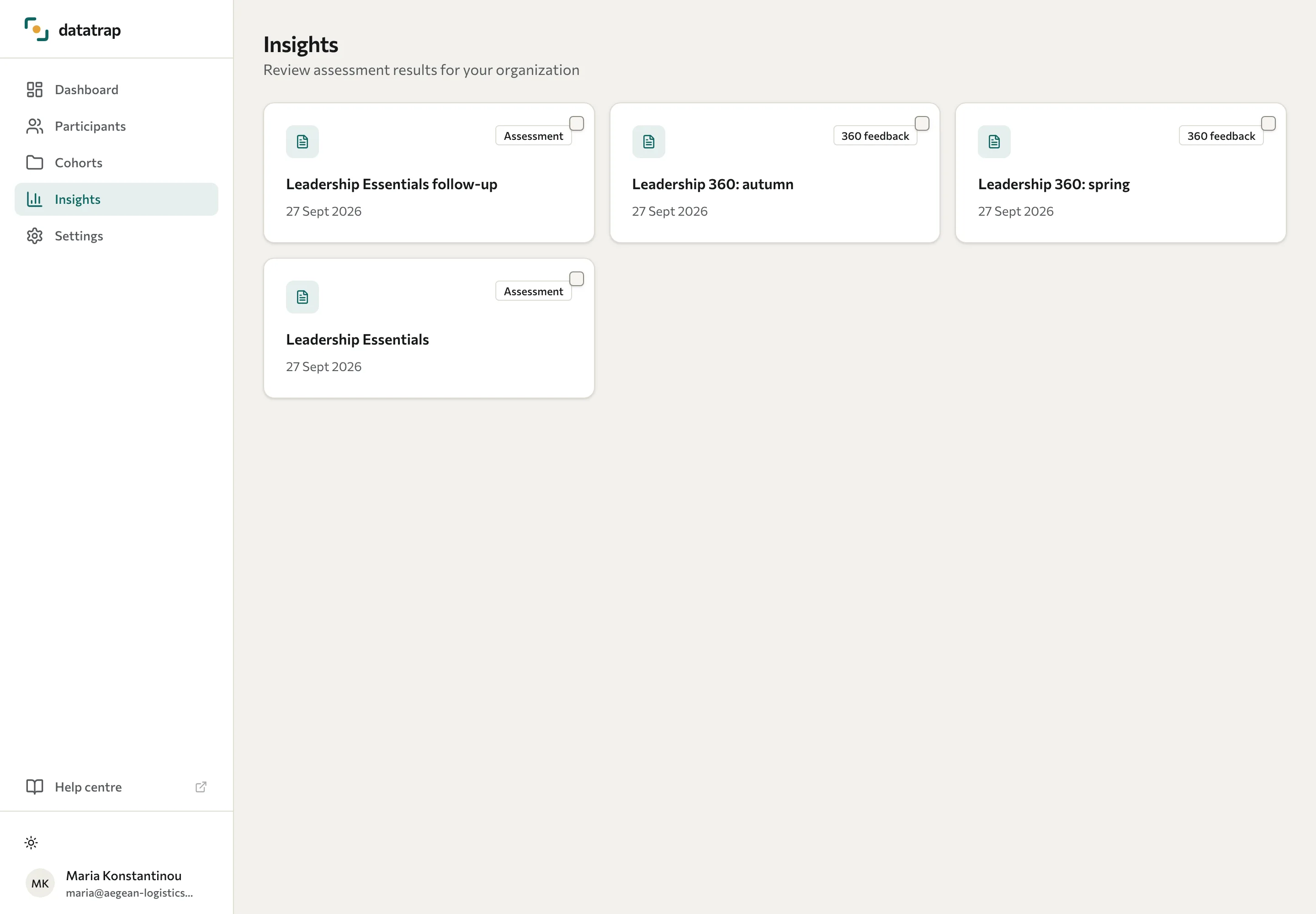
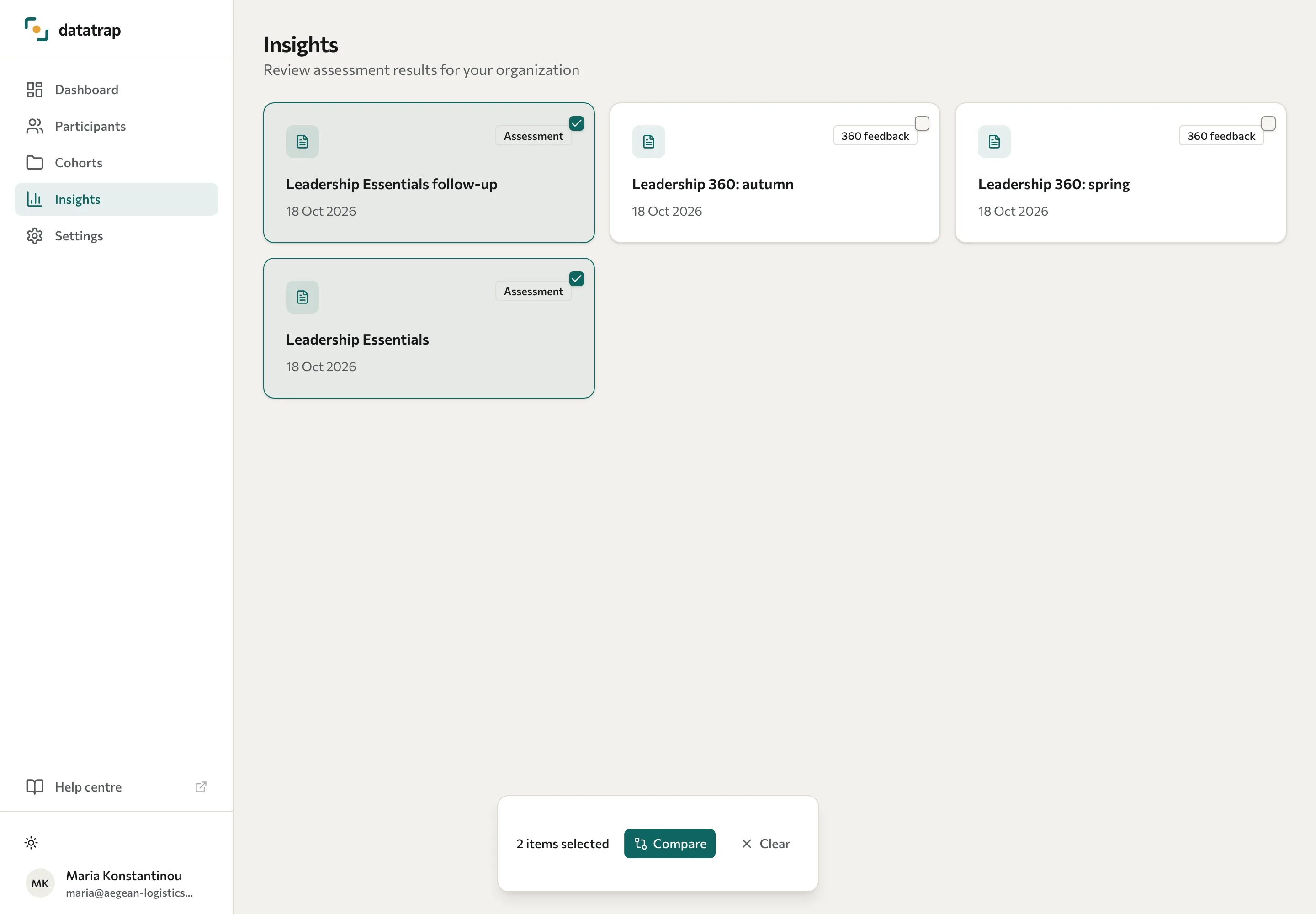
- On Insights, select the checkbox on each assessment you want to compare.
- In the bar that appears, select Compare. The Survey comparison page opens.
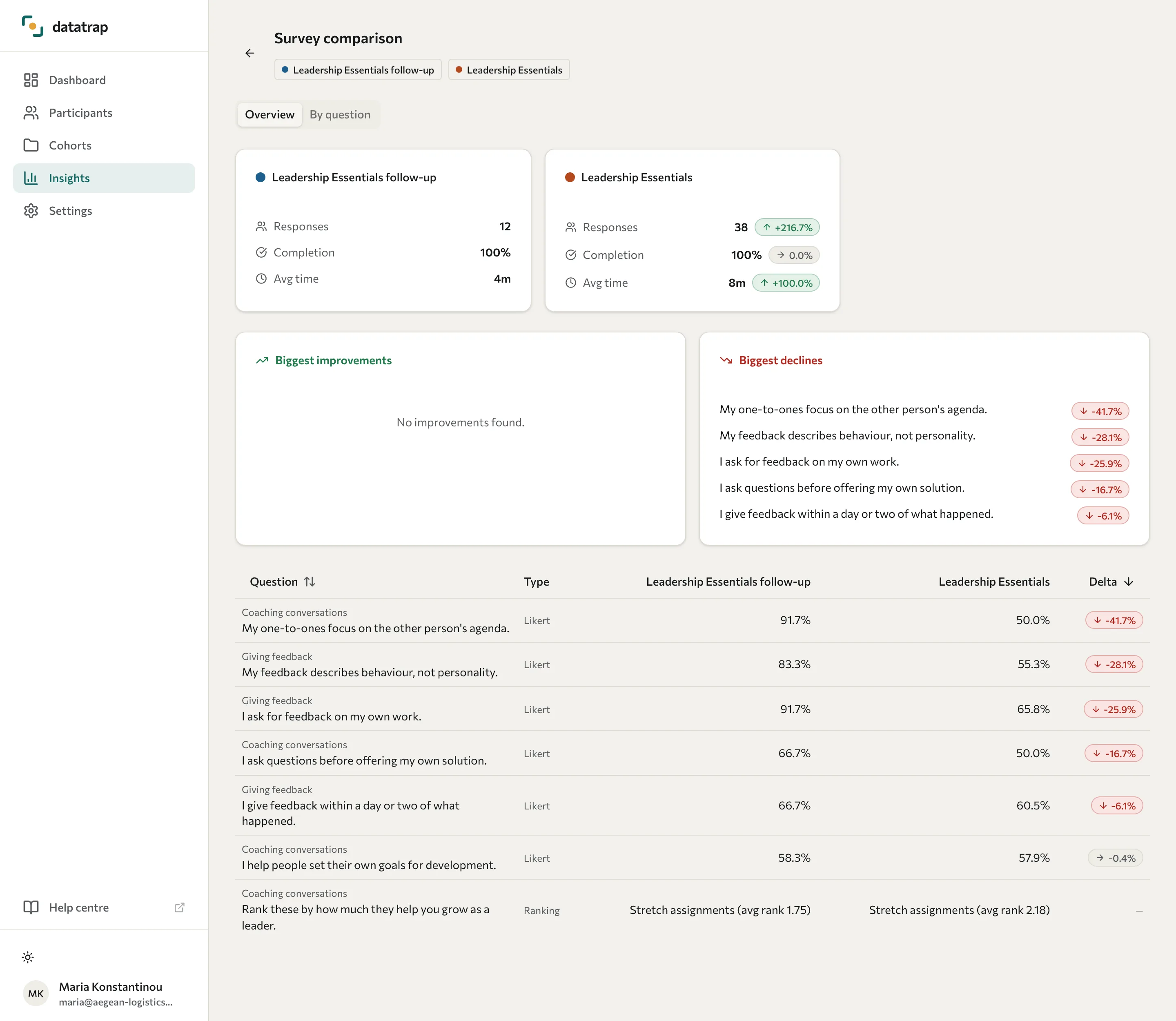
- Read the Overview tab: a card for each assessment with its Responses, Completion, and Avg time, the Biggest improvements and Biggest declines, and a table of each shared question's result next to its Delta (Likert scale and NPS questions only). For a ranking question, the result is the option with the best average rank, for example "Decide (avg rank 1.40)".
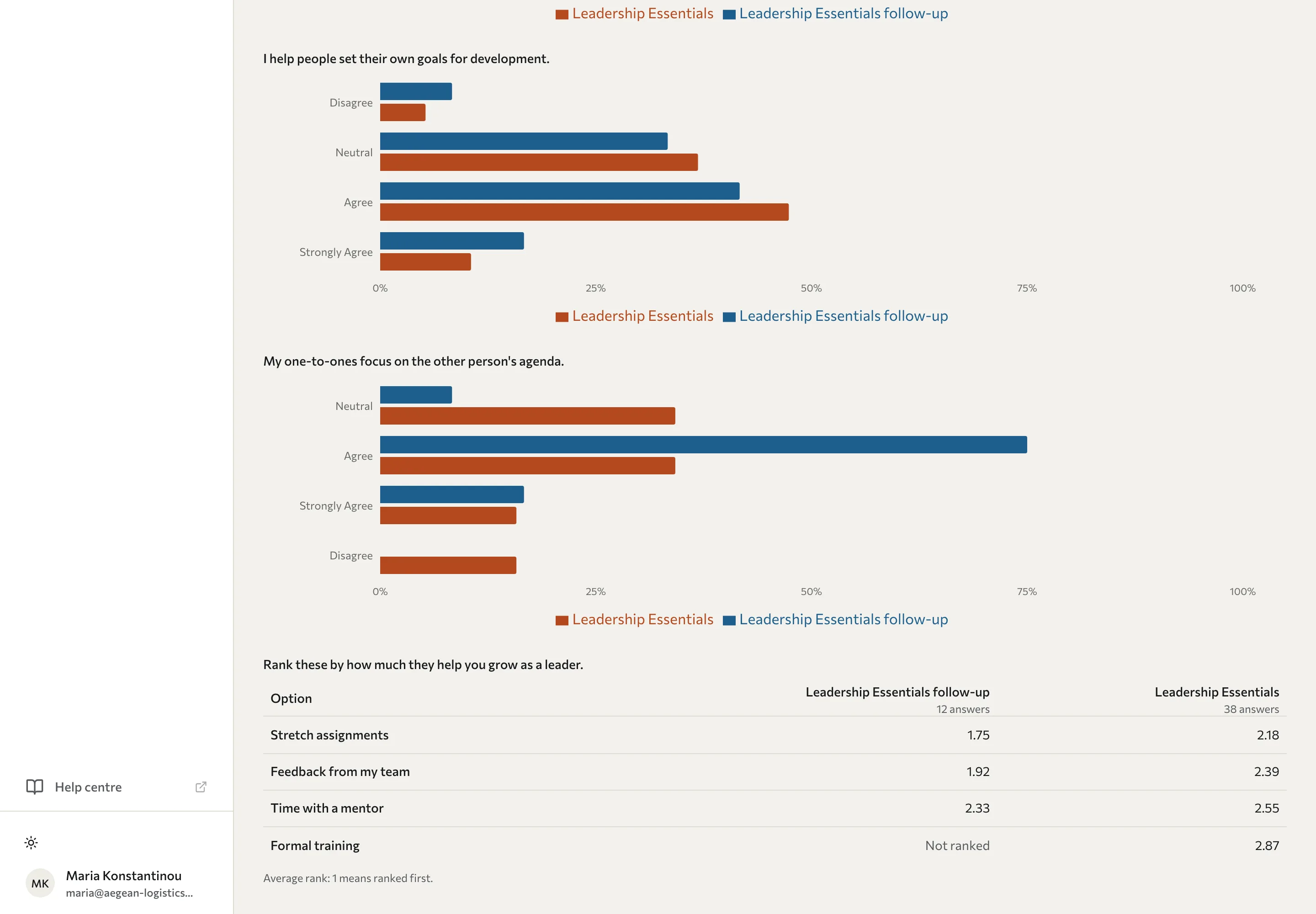
- Use the By question tab to see each shared question's answers for every assessment, grouped by module. When the assessments share open-text questions, the Word analysis tab compares the words people used.
On the By question tab, a ranking question shows a table: one row per option and one column per assessment, with the number of answers under each assessment's name. Each cell is the option's average rank, where 1 means ranked first, so a lower number is a better rank. Not ranked means nobody ranked that option in that assessment.
If fewer than two of the assessments you chose have a wave, the page shows Nothing to compare yet. If they have no questions in common, it shows No shared questions. Matching wording does not guarantee that two questions measure the same thing, so check that their meaning and scales are also comparable.
Review matched pre/post results
For dimension changes for the same people, open Cohorts, select the cohort, and review Impact analysis. This requires suitable pre-training and post-training waves with matched scored participants. See View cohorts.
A difference between two groups or times does not establish that training caused the change. Check who answered, sample sizes, missing responses, and other changes during the programme before presenting the finding.
If you cannot find expected data, ask your training partner to confirm the deployment and scoring. Your Portal is scoped to your organisation; its training-partner access setting controls access in the other direction.