Find responses and results
Choose the right analytics, dashboard, or report view for your assessment category.
Use Analytics to explore submitted responses. An assessment's Feedback tab and a 360's Results page do different jobs, and neither lists submitted responses for an ordinary assessment.
| View | Use it for |
|---|---|
| Analytics | Explore submitted responses and category-specific charts. |
| Live dashboard (View answers on a wave's card) | Watch one wave's response counts, completion, and question summaries as answers arrive. |
| Feedback on an Assessment or Quiz | Set up the feedback participants read about their score when they finish. This is not a list of submitted results. |
| Results on a 360 (in the Report menu) | Open subject reports and moderate written feedback. |
| Roster and Monitor on a 360 | Manage the people being evaluated and track rater completion. These views are 360-only. |
Watch a wave live
The live dashboard shows one wave's figures and updates as participants submit. Use it while a wave is running, for example during a workshop.
-
Open the assessment's Waves tab.
-
On the wave's card, select View answers. A draft wave has no answers, so its card doesn't offer this.
-
Read the four figures at the top:
Figure What it counts Total respondents People with answers stored in this wave Completed People whose submission finished Avg. completion time The average time recorded for the wave Completion rate Completed as a share of Total respondents -
Choose a tab for the detail you want:
- Overview: Min score, Max score, Mean score, and Median score for the rating questions, a Response timeline, a Question breakdown, a Live feed of new submissions and, when the wave has open-text questions, a Word cloud. Present shows the word cloud full screen, and Compare sets several open-text questions side by side.
- Questions: each question's average, median, and spread. Export CSV downloads the table.
- Modules: a card for each module with its questions' averages, and a Module comparison chart.
- Heatmap: how many people chose each score on each rating question. Switch between Counts and Percentages, and sort By order or By average.
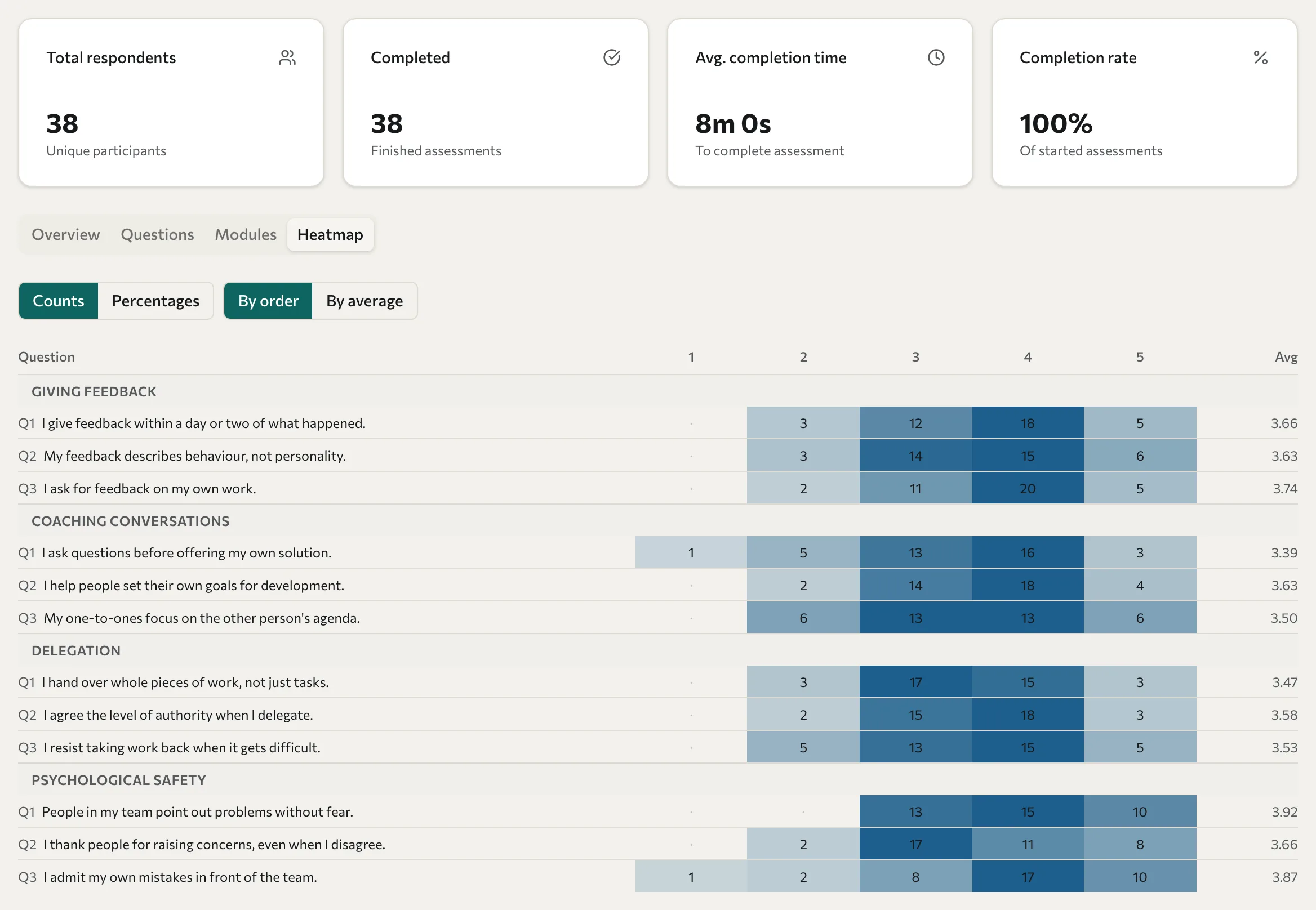
Response totals count people, not individual answers: someone who answered 20 questions counts once. The dashboard doesn't show people who opened a public link but haven't submitted.
Read the live feed
The Live feed adds an entry each time someone submits while you have the dashboard open, newest first, and keeps the 20 most recent. Each entry shows the person's name, when they submitted, and their answer to the last question they answered, in the language they answered in.
| Question type | How the answer shows |
|---|---|
| Ranking | The options in the order the person ranked them, for example "1. Decide, 2. Listen" |
| Forced choice | The statement they picked |
| Multi-select | The options they ticked |
| Multiple choice or Image choice | The option they chose |
| Likert scale | The scale label, for example Agree. Scale labels show in English. |
| Rating scale, Slider, or NPS | Score: and the number they gave |
| Matrix | Score: and the rating they gave the last row |
| Open text or Date | No answer, only the question |
What the dashboard shows for each access level
Each client organisation chooses in its Portal how much of its data you can see. The setting of the organisation that owns the wave's cohort decides what the live dashboard shows.
| Organisation's access level | What you see on the live dashboard |
|---|---|
| Full access | Everything described in this section. |
| Aggregated only | The four figures and the tabs, for groups of at least 3 people. Individual answers stay private: Response timeline, Question breakdown, and Live feed show "This organisation does not share individual results with training partners." |
| No access | No figures. The page shows "This organisation does not share its results with training partners." |
Under Aggregated only, Datatrap also hides figures that fewer than 3 people contributed to:
- If fewer than 3 people have answered the wave, the page shows "Fewer than 3 people answered, so this organisation's figures are hidden." in place of the dashboard.
- A question fewer than 3 people answered shows — as its count on the Questions tab and is left out of the Heatmap.
- When any question is hidden, the Overview tab shows "Too few people answered some questions, so the overall scores are hidden." in place of the score figures.
If the organisation lowers its setting from Full access while you have the dashboard open, the dashboard stops showing incoming answers within a few seconds.
Read the outcomes
Open Analytics, then select the assessment. Choose the wave or filter you want to inspect. See Analytics and training impact for the differences between surveys, quizzes, scored assessments, and 360s.
For a 360, open the assessment's Report menu, select Results, and open a completed subject's report. See 360 results and development plans.
For files to analyse elsewhere, see Export data. For participant-facing text, see Configure result feedback.