Review 360 results and development plans
Read subject reports, moderate comments, and understand when results are ready.
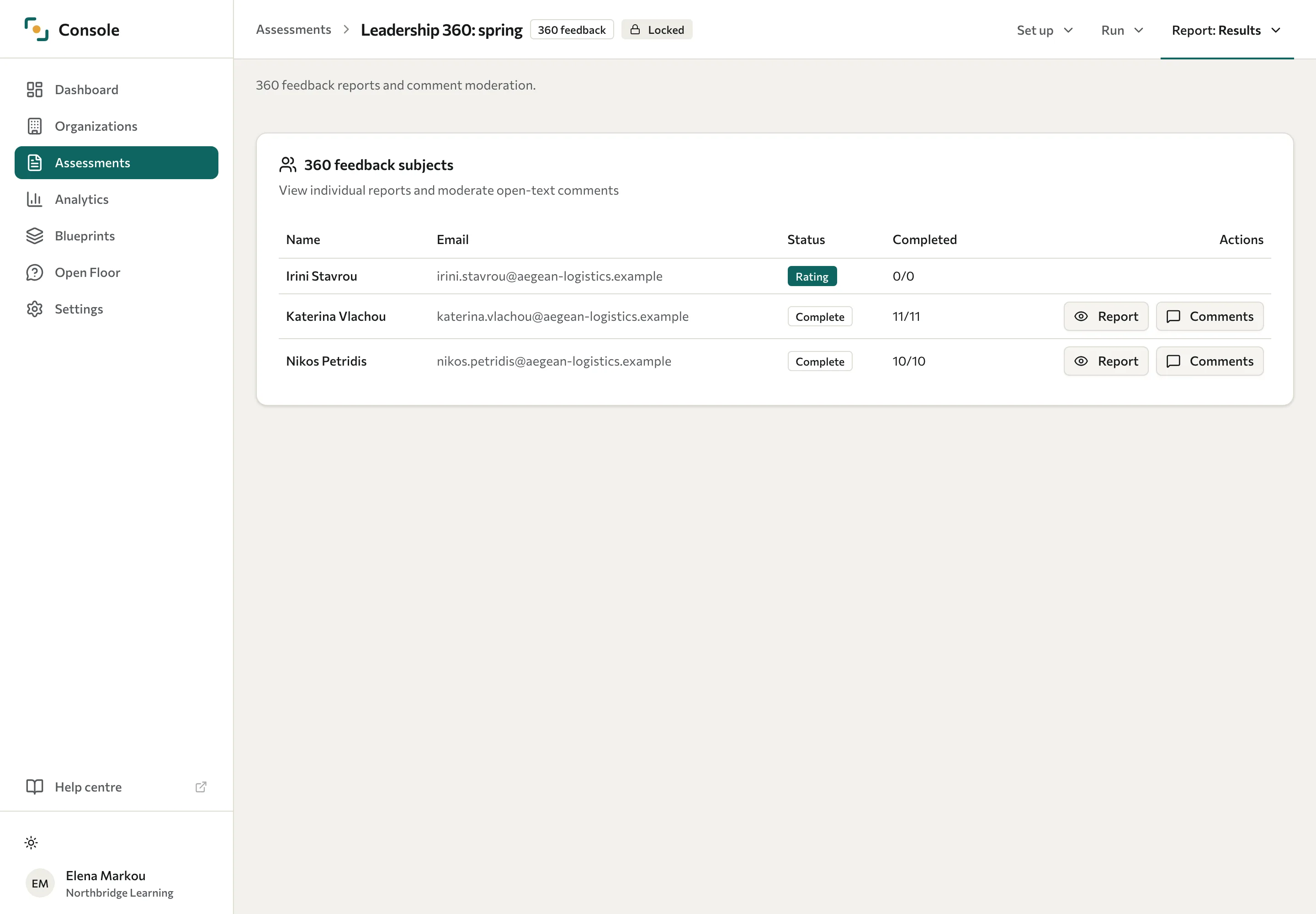
Open a 360 assessment. In the assessment header, open the Report menu and select Results. Find a subject marked Complete and select Report in its row.
When results are ready
During rating, a subject becomes ready when outstanding assignments are resolved, applicable minimums are met, and there is visible feedback from someone other than self. Closing the campaign also queues scoring for people with completed, visible ratings. A closed campaign does not guarantee a report for every subject.
An anonymous category below the campaign threshold is suppressed. Self-ratings and non-anonymous categories follow different visibility rules. A missing category can also have no usable scores, so check mappings and completion before assuming that anonymity is the only cause.
Read the report
| Section | What it shows |
|---|---|
| Total raters, Completion | How many raters finished, and the share of invited raters who finished. |
| Key insight | When there is one, the dimension with the biggest gap between self and others, marked Blind spot or Hidden strength. |
| Self vs others | The person's self-ratings alongside eligible feedback from others. |
| Gap analysis | Differences between self and others, including blind spots and hidden strengths. |
| Category breakdown | Scores by rater category and dimension, subject to suppression. |
Written comments are not part of the Console report. Review them with Comments, as described in the next section. Select Back to subject list to return to the list.
A blind spot means others rated an area lower than the person rated themselves. A hidden strength means they rated it higher. Treat either as a starting point for discussion, not a diagnosis or a judgement about the person.
Moderate comments and save reports
On the Results page, select Comments in a completed subject's row. The Comment moderation dialog lists each written comment with its rater category, question, and status. For a pending comment, select Approve or Redact. Check comments for identifying details before sharing a report. Approved comments still need appropriate handling.
If the dialog shows Comments could not be loaded., select Try again.
The Console report has no PDF download control. A PDF can be generated through the API; participants can use Print / PDF in My360. Previously saved copies do not update after moderation or scoring changes.
When the organisation limits what you can see
Each client organisation chooses in the Portal what its training partner can see. Reports, PDFs, and comments need Full access.
| The organisation's access level | What you see on the Results page |
|---|---|
| Full access | The subject list, reports, and comments. |
| Aggregated only | The subject list. Selecting Report shows Back to subject list and "This organisation does not share individual results with training partners." Comments shows the same notice. A PDF can't be generated through the API either. |
| No access | "This organisation does not share its results with training partners." in place of the subject list. |
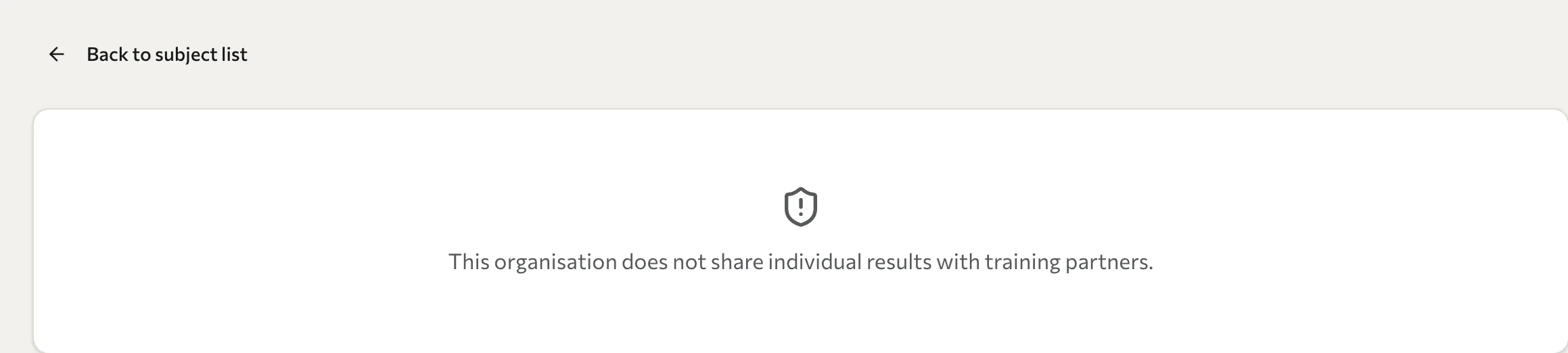
The setting does not change what the person rated sees of their own results in My360. To change the level, ask the client's admin. See Manage training-partner data access.
Support a development plan
Participants create their own plans in My360, with goals, actions, priorities, target dates, and check-ins. They can change the plan's manager visibility. A manager can read a shared plan and add check-ins, while the participant controls its goals and actions. The Console does not offer a general plan-editing workflow for facilitators.
See Your 360 results and development plan. For a later measurement of selected focus areas, use pulse follow-ups.