Analyse results and change over time
Distinguish category analytics, assessment comparison, and matched pre/post impact analysis.
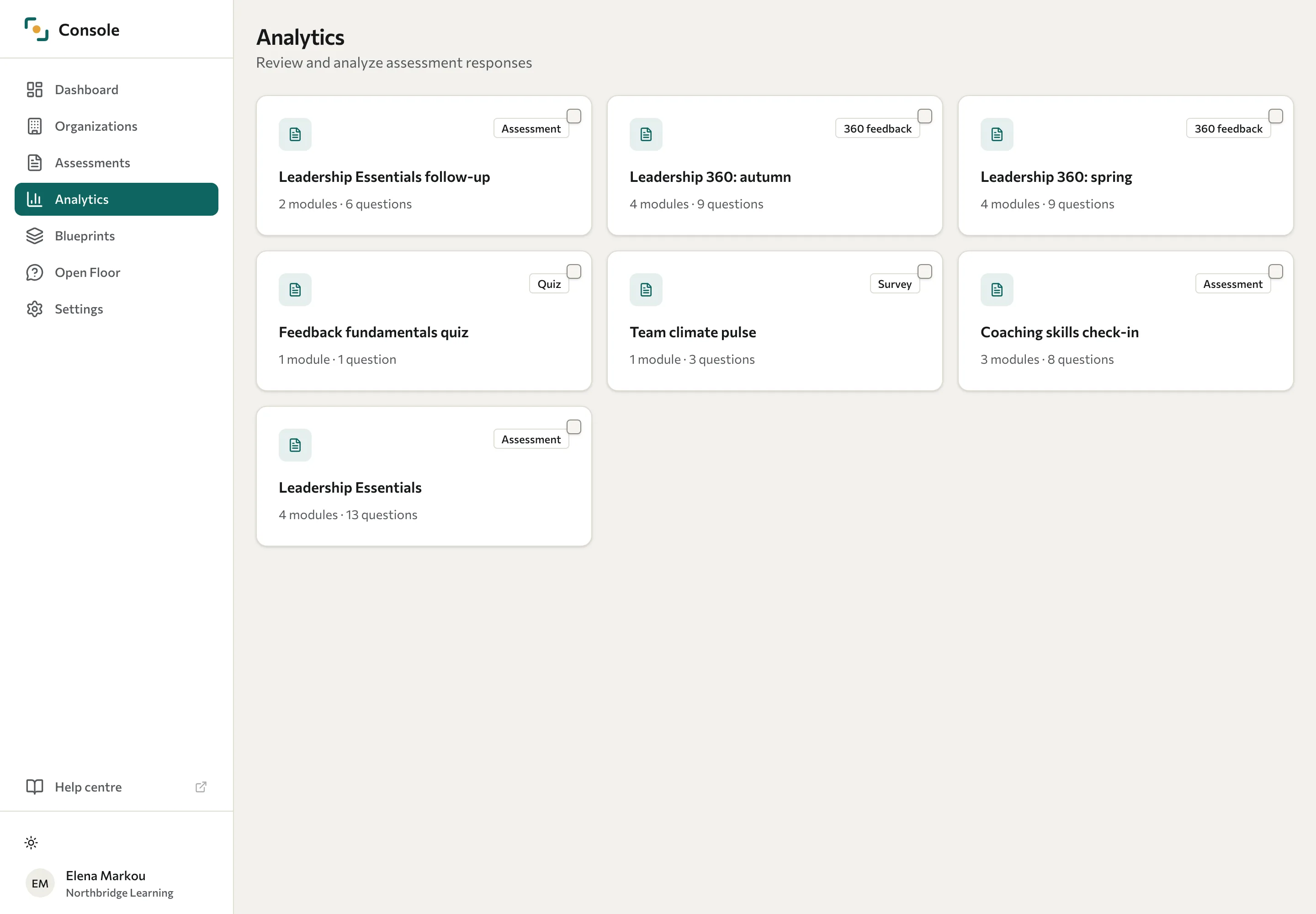
Open Analytics in the Console and select an assessment. Datatrap opens the most recent wave your client organisations share with you, and the wave picker shows Latest shared round. To review another wave, choose it in the picker. The available tabs depend on the assessment category.
| Category | Main analysis |
|---|---|
| Assessment | Dimension scores and archetype distributions, where scoring is configured. |
| Survey | Answer distributions, questions, and comparisons. |
| Quiz | Score distributions, correctness, and question difficulty. Pass rates appear only when the quiz has a pass mark, which you set through the API. |
| 360 feedback | Participation, self-versus-others gaps, and rater groups. |
Module and open-text views help you explore the detail. See Theme analysis for written responses.
When figures are hidden
Each client organisation chooses in its Portal how much of its data you can see. The setting of the organisation that owns the wave's cohort decides what Analytics shows for that wave.
| Organisation's access level | What you see in Analytics |
|---|---|
| Full access | All figures for the wave. |
| Aggregated only | Figures across the group, but only for groups of at least 3 people. |
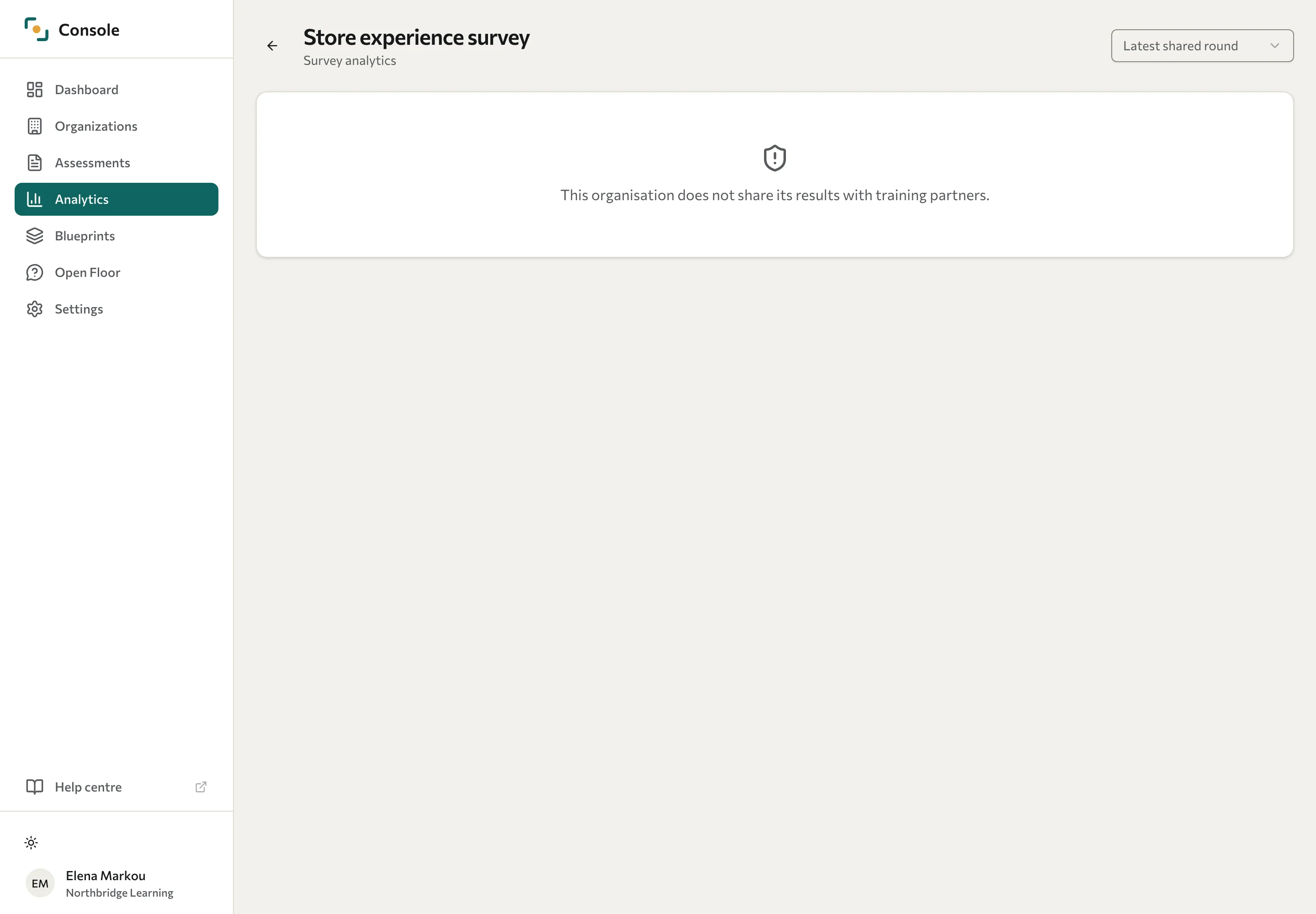
| No access | No analytics. The page shows "This organisation does not share its results with training partners." |
Under Aggregated only, Datatrap hides figures that fewer than 3 people contributed to:
- A whole wave: the page shows "Fewer than 3 people answered, so this organisation's figures are hidden."
- A question: its chart is replaced by "Too few people answered this question to show its figures." In a quiz's question difficulty table, the question shows Hidden.
- A dimension: its card shows "Too few people were scored on this dimension to show its figures." A dimension is also hidden when a question that feeds it is hidden.
- Overall quiz scores: when any question is hidden, the Overview tab shows "Too few people answered some questions, so the overall scores are hidden."
If you need the hidden figures, ask the client admin of the organisation. Only they can change the access level. See Manage training-partner data access.
Compare assessments
Compare sets two or more assessments side by side, question by question. For each assessment it uses the latest wave, and it compares the questions the assessments share: questions with the same wording and question type. It is separate from matched pre/post analysis of dimension scores.
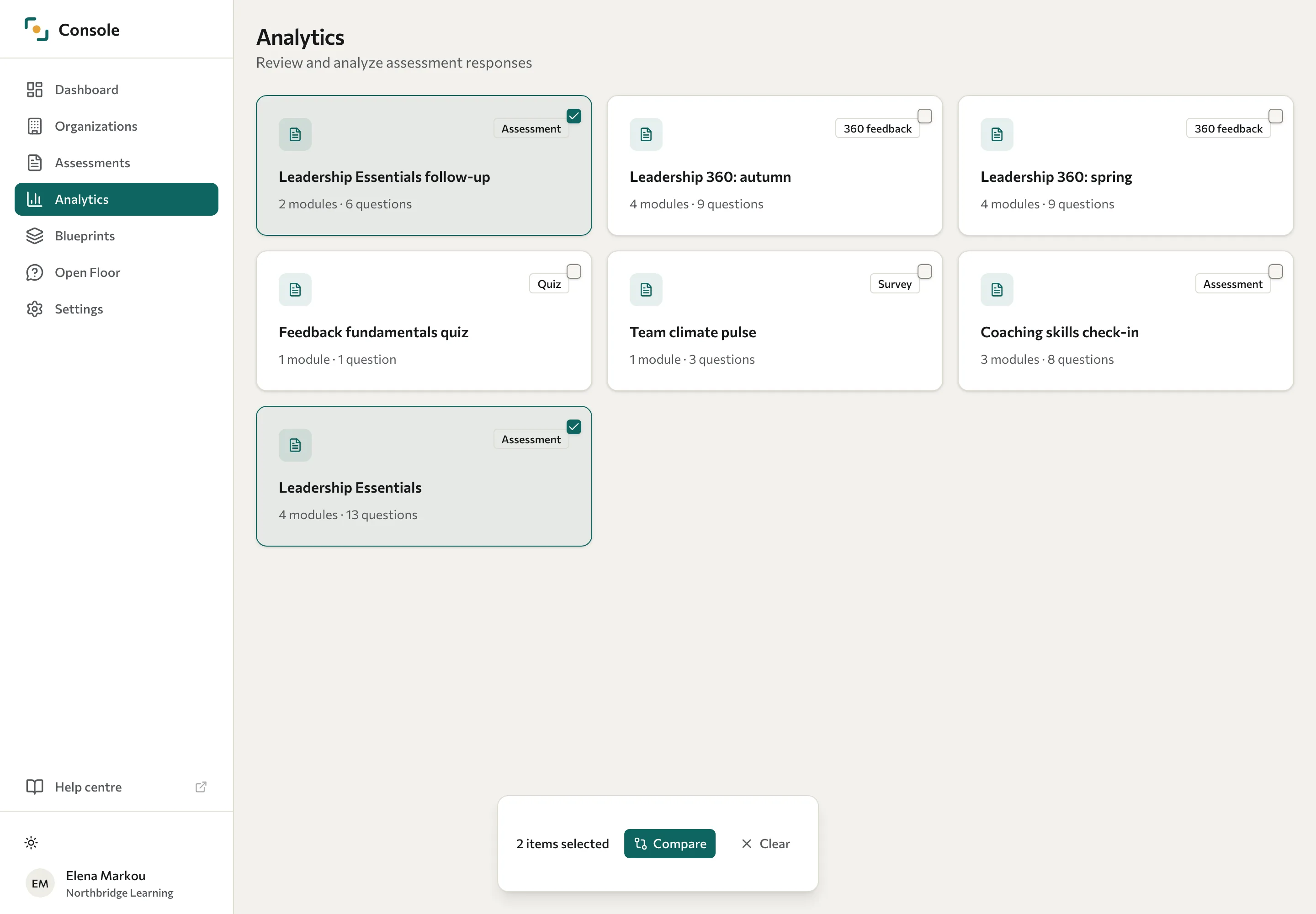
- On the Analytics page, select the checkbox on each assessment you want to compare. You can choose up to seven.
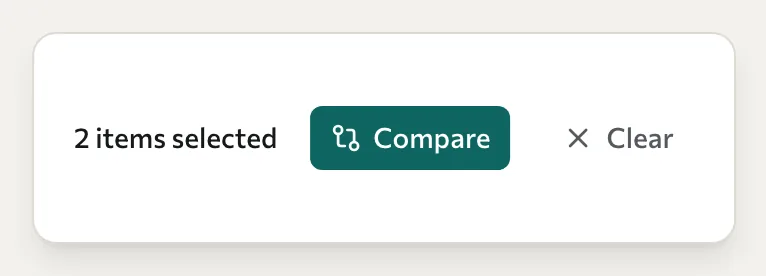
- In the bar that appears, select Compare. The Survey comparison page opens.
- Read the Overview tab. A card for each assessment shows its Responses, Completion, and Avg time, so you can check the groups are comparable. Biggest improvements and Biggest declines list the shared questions that moved most, and a table sets each question's result for every assessment next to the Delta, the change from the first assessment you selected to the last. Only Likert scale and NPS questions have a Delta; other questions show —. For a ranking question, the result is the option with the best average rank, for example "Decide (avg rank 1.40)", or — when nobody ranked an option in that assessment.
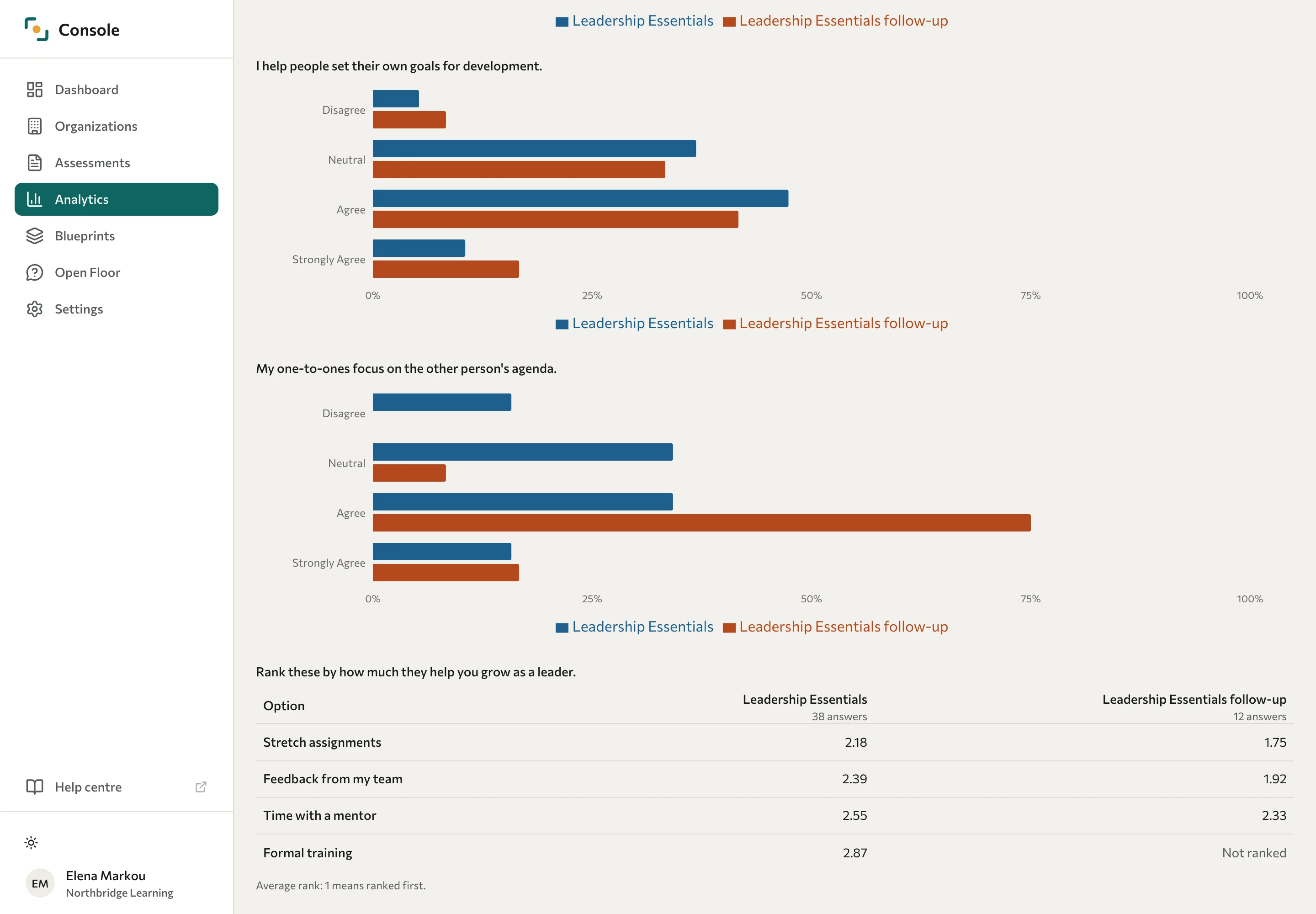
- Use the By question tab to see each shared question's answers for every assessment, grouped by module. When the assessments share open-text questions, the Word analysis tab compares the words people used.
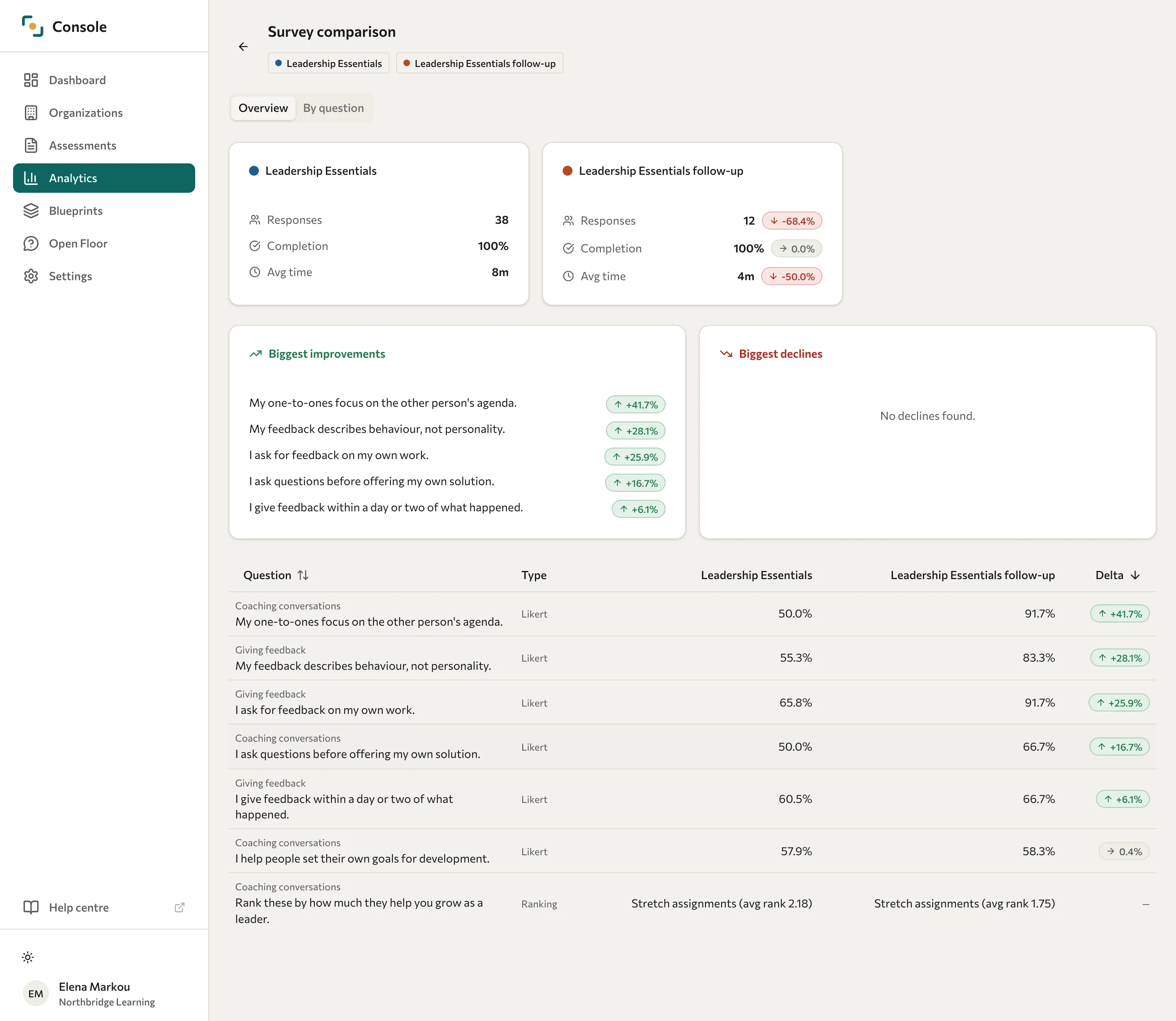
If fewer than two of the assessments you chose have a wave, Datatrap shows Nothing to compare yet. If they have no questions in common, it shows No shared questions.
Read a ranking question
On the By question tab, a ranking question shows a table in place of a chart. Each row is an option, and each column is an assessment, with the number of answers it counted under the assessment's name. Each cell is the option's average rank in that assessment: 1 means everyone ranked it first, so a lower number is a better rank. Options are listed best first, by their rank in the first assessment that has answers.
- Not ranked: nobody ranked that option in that assessment.
- Hidden, with "Too few people" under the assessment's name: the organisation is set to Aggregated only and fewer than 3 people answered. When this applies to every assessment, the table is replaced by "Too few people answered this question to show its figures."
- "No ranking answers in these rounds yet.": nobody has ranked any option in the assessments you chose.
When compared figures are hidden
Compare leaves out the waves of client organisations set to No access. For a wave of an organisation set to Aggregated only that fewer than 3 people answered, the assessment's card shows "Too few people answered, so this round's figures are hidden.", and its results in the question table show Hidden. A single question that fewer than 3 people answered also shows Hidden for that assessment, and it has no Delta.
Similar wording does not guarantee that two questions measure the same thing. Check their scales and the context in which they were collected.
Review matched pre/post change
For a scored assessment, collect identified Pre-training and Post-training waves within the same cohort. Participants need dimension scores in both waves to contribute to a matched comparison. For each dimension, only people with a score for that dimension at both points are included.
The organisation Portal exposes this analysis under Cohorts: open the cohort and review Impact analysis. The API also exposes cohort impact. Do not use the question-based Compare page as a substitute for this calculation.
If the cohort's organisation is set to Aggregated only, Datatrap withholds the impact analysis when fewer than 3 people were scored in either wave or in both, or when the people scored in both waves differ from either wave by one or two people. If it's set to No access, the impact analysis isn't available to you.
Review the matched-pair count, pre and post means, and signed change. The effect size reports the magnitude of the difference relative to variation in the scores; inspect the change to see its direction. The calculation can be unavailable with fewer than two observations or zero variance.
Interpret the findings
A larger effect size describes a larger standardised difference. It does not establish statistical significance, practical importance, or that training caused the change. Consider sample size, missing follow-up responses, changes in who participated, and other events during the programme.
Anonymous waves cannot reliably match the same people across rounds. Avoid presenting a comparison of different groups as individual progress.
See View cohorts, Reports, and Export data.