Run a 360 campaign
Set up subjects, rater groups, nominations, rating, and campaign deadlines.
A 360 campaign collects feedback about a person, called the subject, from their raters. Create an assessment in the 360 feedback category to get its campaign workspace.
Prepare the assessment
Build the questions, attach a scoring blueprint, and map scored questions to dimensions. Preview the content and translations. The campaign is created with the assessment; check its cohort and organisation before adding people.
The lifecycle is Draft, Nominating, Rating, then Closed. Use 360 settings to configure the campaign, Roster to manage subjects, and Monitor to track completion.
Set rater groups and privacy
- Open 360 settings.
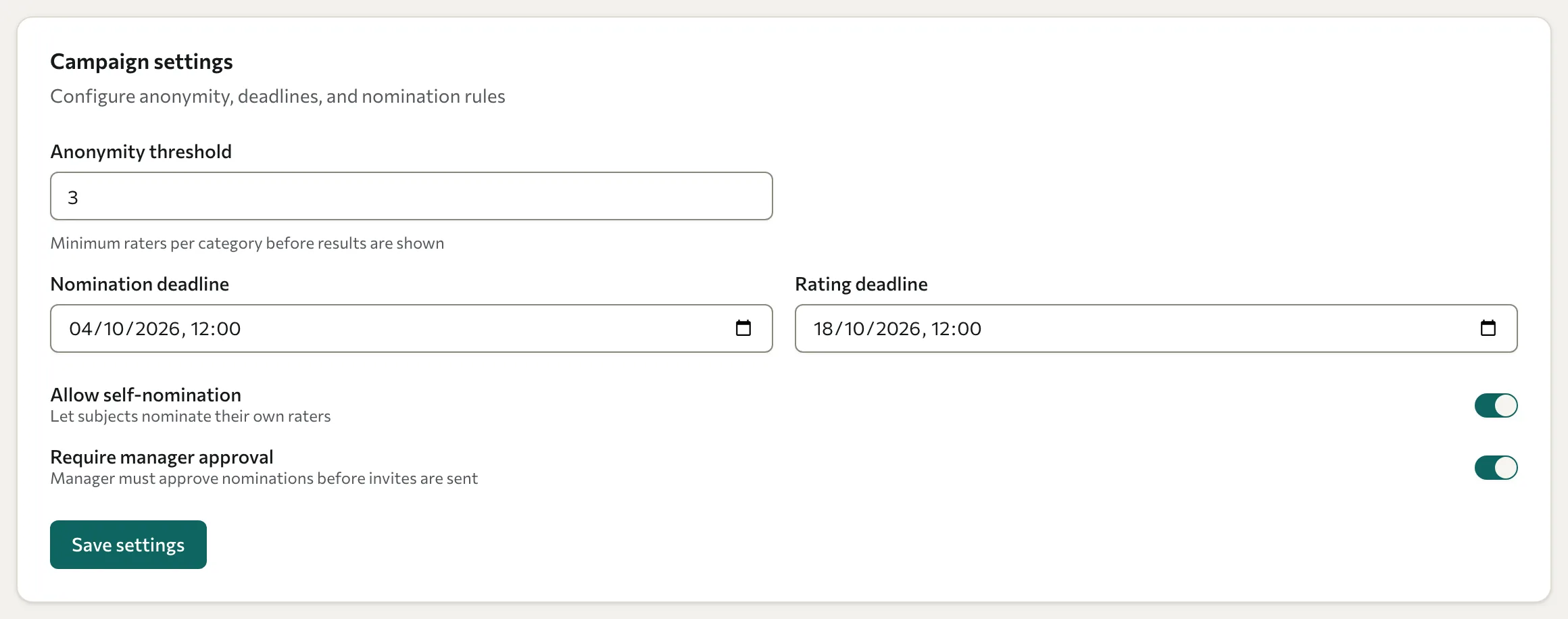
- Set the Anonymity threshold in Campaign settings. The minimum allowed value is 2.
- Configure Allow self-nomination, Require manager approval, and any nomination or rating deadline. Select Save settings.
- Under Rater categories, select Create defaults or Add category.
- Set each category's name, minimum and maximum rater counts, and whether it is anonymous. Mark the self and manager categories appropriately.
The anonymity threshold applies to anonymous categories other than self. A category's minimum rater count serves a separate purpose in nomination and result readiness. Self-ratings are shown as self; a non-anonymous manager category is not protected by the anonymous-group threshold.
Once rating has opened, you cannot reduce the anonymity threshold or turn off anonymity for a previously anonymous category. Explain the arrangement to raters before collecting feedback. Comments can identify their author through their wording even without a name.
Add subjects
- Open Roster and select Add subject.
- Add the person being evaluated and their manager, if applicable.
- For several people, use Import CSV and follow the displayed column requirements: email, name, and optional manager email.
- Review each subject and their rater assignments before opening collection.
A rater can occupy only one category for the same subject. Use the subject's rater controls to review or manage assignments.
Open nominations and rating
- In Campaign status, select Start nominations. Eligible subjects receive their nomination invitation.
- Review nominations. If manager approval is required, the manager reviews them in My360; an unapproved nomination does not become an active rating assignment.
- Select Start rating when the campaign is ready. Approved raters receive personal sign-in links.
- Use Monitor to check completion and the available reminder controls.
The nomination deadline stops new nominations. The rating deadline stops submissions, and scheduled processing closes the campaign. For immediate closure, select Close campaign. Do not assume that every invited person has answered just because a campaign is closed.
Close or reopen collection
Closing queues scoring for subjects with completed ratings that can produce visible results. Anonymous categories below the threshold stay suppressed. While rating remains open, results require all outstanding assignments to be resolved, applicable minimums to be met, and visible feedback from someone other than self.
A closed campaign offers Reopen rating, but a scheduled or open pulse blocks reopening. Reopening affects campaign links and collection state, so tell affected people which invitation to use.
Next, review the reports or run a pulse follow-up.