Deploy an assessment
Create a cohort and wave, set availability and privacy, and share a working assessment link.
A cohort groups participants for an assessment. A wave is one round of collection within that cohort. Use this workflow for ordinary assessments, surveys, and quizzes. For 360 feedback, follow Run a 360 campaign: a 360's rounds come from its campaign, so its Waves tab has no New wave button, and raters use personal links rather than the public wave link.
Before you start
Finish and preview the questions, translations, and scoring. Decide which client organisation owns the cohort and whether responses should be anonymous. Use an identified wave if you need to match individuals across rounds.
Create a wave
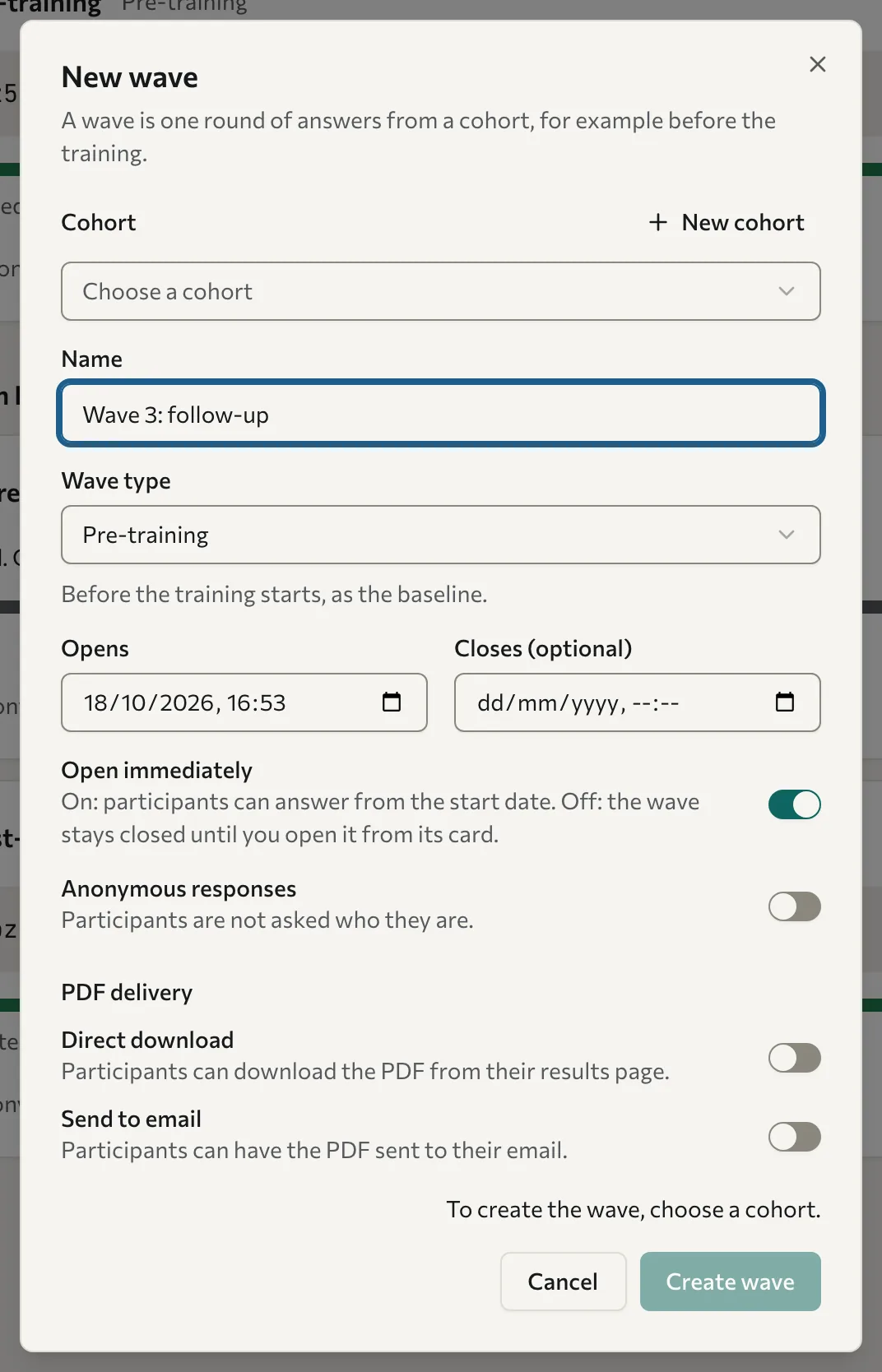
- Open the assessment's Waves tab and select New wave. The New wave form opens. If the page is filtered to one cohort, or the assessment has only one cohort, that cohort is already chosen.
- Under Cohort, choose a cohort, or select New cohort to add one:
- Enter a Cohort name.
- Choose the Organisation. If you leave it unset, the cohort belongs to your own organisation.
- Leave Mark as test cohort cleared for real participants. This cannot be changed later.
- Select Create cohort. If you go on without selecting it, Create wave creates the cohort first.
- Enter a Name for the wave, for example "Before training".
- Choose a Wave type. The types are grouped under Training, Coaching, and Other, and a line under the list says what the chosen type is for. See Wave types.
- Check Opens. It starts at the current date and time; change it to open the wave later. Optional: set Closes (optional) to end collection on a date.
- Leave Open immediately on to accept answers from the Opens date. Turn it off to keep the wave closed until you select Open wave on its card.
- Turn on Anonymous responses only if you want to collect answers without asking participants who they are.
- Optional: to offer participants a PDF report, turn on Direct download, Send to email, or both, under PDF delivery. These switches are available only when PDF report for participants reads Download in the Settings card on the assessment's Overview (the form's hint calls it "Downloadable results"), and the report needs a blueprint. See Offer a PDF report.
- Select Create wave. If something is missing, the form says what, for example "To create the wave, enter a name."
When the wave is live or scheduled, the form says it is ready and shows its link and QR code. Select Copy link to copy the link, Present to show the link and QR code full screen, or Done to return to the list. A wave with Open immediately turned off is saved as a draft instead; its link and QR code appear on its card once you open it.
Find a wave and follow its progress
The Waves tab groups waves by cohort, under headings such as "Q4 Leaders · Acme Ltd". To narrow the list, choose a cohort from the cohort list, or select a status, such as Live or Closed, to show only waves with that status. Each status shows how many waves have it, and only statuses that some waves have are listed. An expired wave counts under Closed. Select the status again to show all waves.

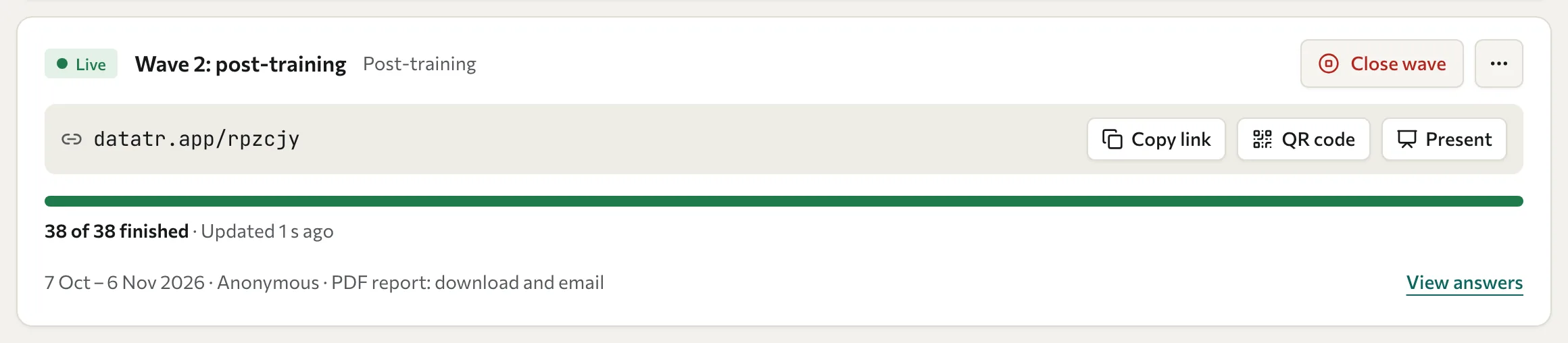
Each card shows the wave's status, name, type, dates, whether it's anonymous, and its PDF delivery setting. A wave can be:
| Status | What it means |
|---|---|
| Draft | Not open, and no answers yet. Participants who use the link see that it isn't open. |
| Scheduled | Open, but its Opens date is still to come. The card says when it opens. |
| Live | Taking answers. |
| Closed | Not open, and it has answers or its end date has passed. |
| Expired | Open, but its end date has passed, so it takes no more answers. |
Once a wave has answers, its card shows how many people finished and how many are still answering, for example "9 of 14 finished · 5 in progress". While a wave is live, the figures refresh every 15 seconds while the page is open in front of you, and the card says when they were last updated, for example "Updated 8 s ago". Select View answers on the card to open the wave's live dashboard. See Find responses and results.
When at least two waves in a cohort have answers, the cohort heading offers Compare before and after, which compares those waves in Analytics.
Check and share access
A live or scheduled wave has a share row on its card, with the wave's link and three buttons:
- Select the link itself to open the wave as a participant would, in a new tab. Use the assessment's Preview instead for content testing without submitting real responses.
- Select Copy link to copy it. The button changes to Link copied.
- Select QR code to show and download a scannable code.
- Select Present to show the link and QR code full screen, for a room to scan from a projector. Select Exit present view to return.

Keep anonymous and identified collection separate. An anonymous round cannot provide reliable person-to-person matching with another round. See Share links and invitations.
Stop collection
Select Close wave on the wave card, then confirm with Close wave, to stop accepting responses. Existing answers are kept. Select Open wave to reopen it while its dates still allow collection. If the end date has passed, Open wave is unavailable and the card says "The end date has passed. Create a new wave to collect more answers." A 360 round has no Close wave or Open wave button; manage it through its campaign.
Delete a wave
Use the wave's More button (three dots) for Export answers, Recalculate scores, Edit PDF delivery…, and Delete….
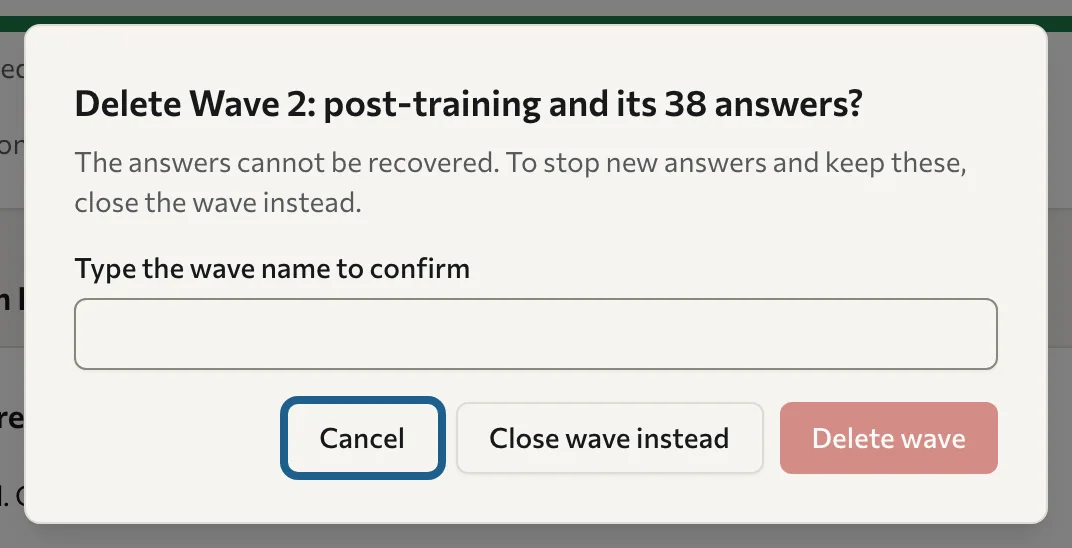
Warning: Deleting a wave also deletes its answers. They cannot be recovered. To stop collection and keep the answers, close the wave instead.
-
On the wave's card, select More, then Delete….
-
If the wave has answers, the dialog says how many. Type the wave's name under Type the wave name to confirm. If the wave is still open, the dialog also offers Close wave instead. A wave with no answers needs no name: the dialog asks you to confirm.
-
Select Delete wave. The wave disappears from the list.