Configure assessment settings
Check what is left before you send an assessment, set its language, blueprint, and PDF report, and lock or archive it.
Open an assessment and select Overview. The Overview shows what the assessment holds, what is left to do before people answer it, and its settings. You need a Facilitator or Admin role to change anything here; a Viewer can only look.
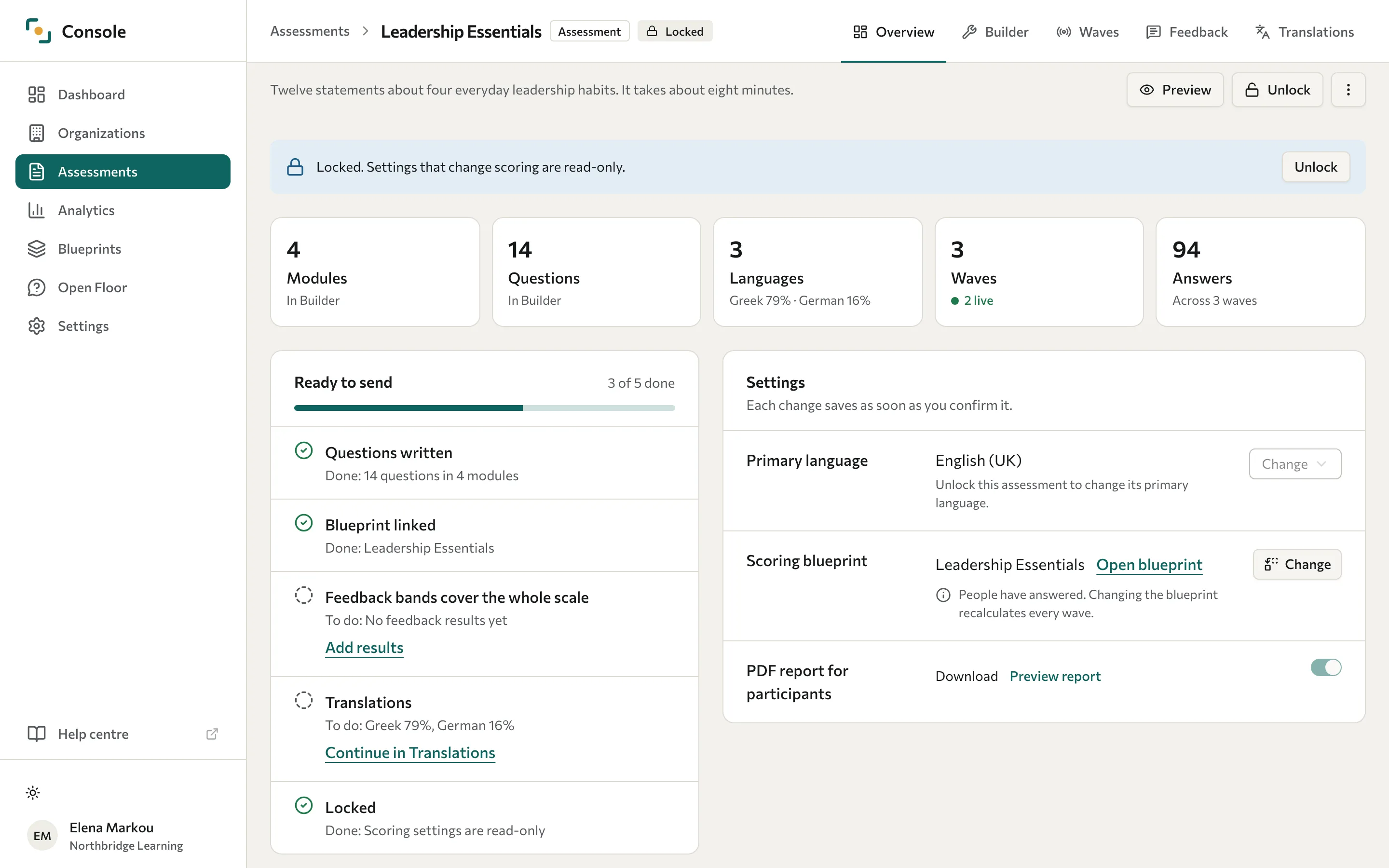
What the Overview shows
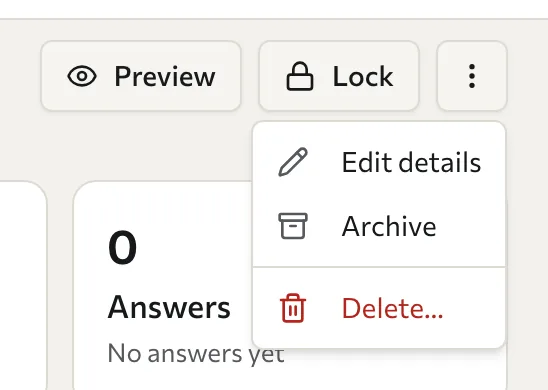
- Toolbar: Preview, Lock or Unlock, and More actions (three dots), which holds Edit details, Archive or Unarchive, and Delete….
- Banners: shown only when they apply. A locked assessment shows "Locked. Settings that change scoring are read-only." with an Unlock button. An archived one shows "Archived. It is hidden from new waves." with an Unarchive button.
- Summary tiles: Modules, Questions, Languages (with how much of each added language is translated), Waves (with how many are live), and Answers. Select a tile to open the page where you change it. If an organisation does not share its answer counts, Answers shows a dash or says "At least this many; some counts are not shared".
- Ready to send: a checklist of what is left before you send the assessment.
- Settings: Primary language, Scoring blueprint, and PDF report for participants. Each change saves as soon as you confirm it.
Check that the assessment is ready to send
The Ready to send card lists what the assessment needs before people answer it, in the order to work through it. The card shows how many items are done, for example "3 of 5 done", and each item reads Done, Needs attention, or To do, with a link to the page that fixes it.
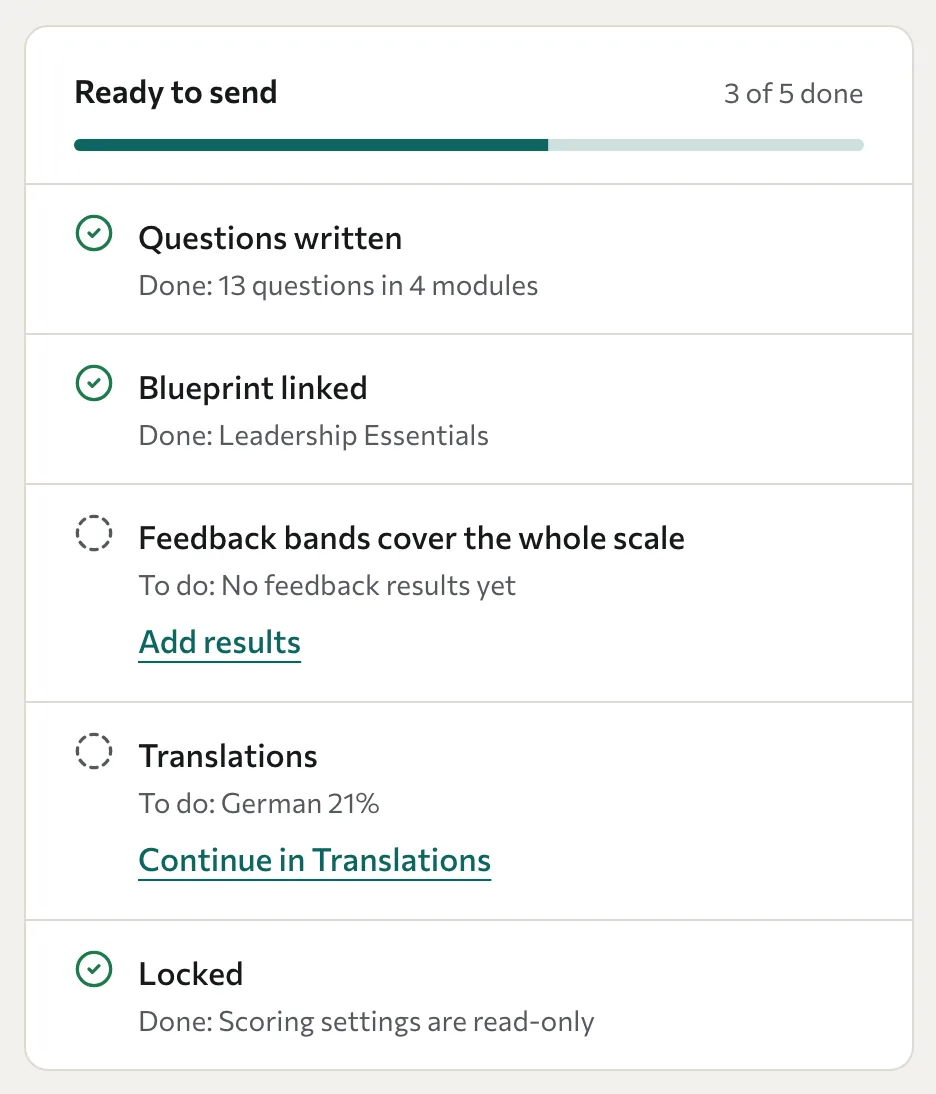
| Item | Shown for | Done when | How to fix it |
|---|---|---|---|
| Questions written | Every assessment | It has at least one question | Add questions in Builder |
| Blueprint linked | Assessments and 360 feedback | A scoring blueprint is linked | Choose a blueprint takes you to the Settings card. A locked assessment says "Unlock to choose a blueprint". |
| Feedback bands cover the whole scale | Assessments only | Every score on the blueprint's scale is covered by feedback | Add results when there is no feedback yet, or Fix in Feedback |
| Translations | Every assessment | Every text in every added language is translated | Continue in Translations |
| Locked | Every assessment | The assessment is locked | Lock |
Surveys and quizzes have no blueprint, so they skip the blueprint and feedback items. A 360's feedback comes from its campaign reports, so it skips the feedback item.
Scores are averages with decimals. Feedback that ends at 49 next to feedback that starts at 50 still leaves scores such as 49.5 without feedback, and the item names each gap, for example "1 gap, scores between 49 and 50 get no feedback". To close a gap, select Fix in Feedback, then Add band for 49–50 on the Feedback page. See Configure result feedback.
When every item except Locked is done, Lock becomes the main button in the toolbar.
Change the primary language
- In the Settings card, next to Primary language, select Change and choose the language.
- Read the confirmation, then select Change language.
Changing the primary language does not translate the wording. If the assessment already has texts in the new language, those are used, and any text without a version in that language keeps the previous wording. If it has none, the existing texts are relabelled as the new language, word for word. Review the content after changing it. See Translate an assessment.
You cannot change the primary language while the assessment is locked.
Link a scoring blueprint
Assessments and 360 feedback have a Scoring blueprint row in the Settings card. Surveys and quizzes do not.
- To link one, select Choose blueprint and pick it. The row reads None linked until you do. A locked assessment says "Unlock this assessment to link a blueprint."
- To open the linked blueprint, select Open blueprint.
- To swap the blueprint of an assessment, select Change. This opens the check-and-switch dialog. See Change a blueprint after responses arrive.
- To swap the blueprint of a 360, select Choose blueprint. This is available only while the 360 is unlocked and nobody has answered. After that, contact support.
- To remove the blueprint, select Remove blueprint. This is available only while the assessment is unlocked and nobody has answered.
For how to build a blueprint, see Set up scoring.
Offer a PDF report
- Link a scoring blueprint. The report is built from it.
- In the Settings card, turn on PDF report for participants. The row reads Download when it is on and Off when it is off.
- Optional: select Preview report to open a sample report in a new tab.
- When you create each wave, turn on Direct download, Send to email, or both under PDF delivery. To change an existing wave, select More on its card, then Edit PDF delivery…. On the wave form, the assessment setting is called "Downloadable results".
Email delivery is set on each wave, not on the assessment. If you turn on the report without a blueprint, participants are told their report is not available yet. You cannot change this setting while the assessment is locked. The PDF report is separate from the feedback shown on the completion screen. See Configure result feedback.
Understand locking
An assessment locks itself when the first participant answers it. Answers in a test cohort do not lock it. You can also lock it yourself: select Lock in the toolbar or on the Ready to send card.
While it is locked, you cannot edit its details, delete it, change its primary language, link or remove a blueprint, or change the PDF report setting, and its content and scoring settings are protected from ordinary edits. Change on the blueprint stays available, so you can still switch the blueprint of an assessment with answers.
To unlock it, select Unlock in the toolbar or in the banner. Changing questions after collection can make old and new responses difficult to compare, so use a separate assessment when the instrument itself changes.
A scheduled or open 360 pulse prevents unlocking. Close or cancel the pulse before making changes.
Quiz pass marks
You mark the correct answers in the Builder. A pass mark is optional, and you set it through the API as a percentage from 0 to 100: the Console has no setting for it. Without a pass mark, quiz analytics show scores but no pass rate.
Edit the title and description
- Select More actions, then Edit details.
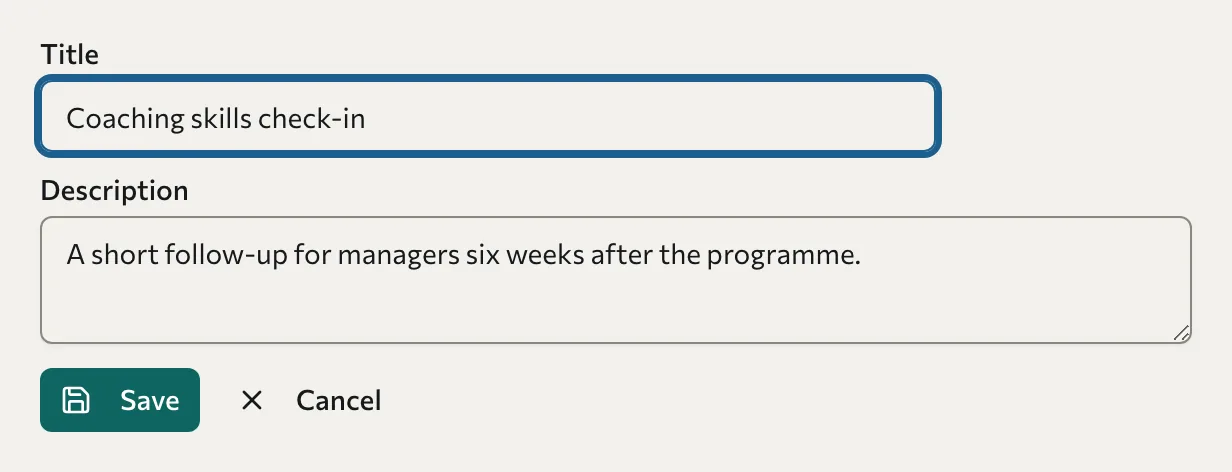
- Change the Title, the Description, or both.
- Select Save.
Edit details is unavailable while the assessment is locked.
Archive an assessment
Select More actions, then Archive. The assessment and its data are kept, and the Overview shows the archived banner. To restore it, select Unarchive in the banner or in More actions.
To stop collection, select Close wave on the relevant wave cards or close the 360 campaign. Do not use archiving as a substitute for closing collection.
Delete an assessment
Warning: Deleting an assessment cannot be undone.
- Select More actions, then Delete….
- In the Delete assessment dialog, select Delete.
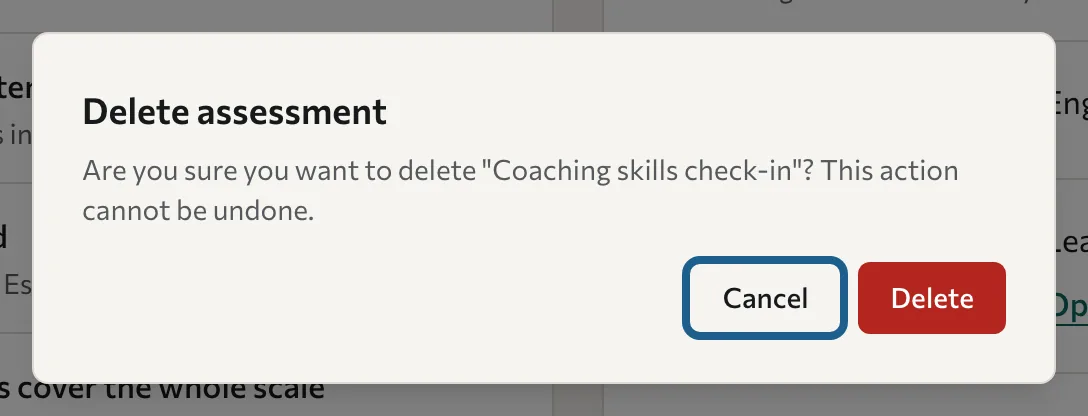
You cannot delete a locked assessment, or one that has cohorts. To take an assessment out of use and keep its data, archive it instead.