Configure result feedback
Write the bands of feedback that tell participants what their score means when they finish an assessment.
Result feedback is what participants read about their overall score when they finish. You set it up on the assessment's Feedback tab, as bands: each band covers a stretch of the score scale and has its own name and text. You need a Facilitator or Admin role to change feedback; a Viewer can only look.
An Assessment and a Quiz have a Feedback tab. A 360 feedback assessment has a Results page for its reports instead, and a Survey has no score, so it has no feedback.
Before you begin
- Link a scoring blueprint on the assessment's Overview. Feedback is worked out from the blueprint's dimension scores, and the score scale comes from the blueprint. Without one, the Feedback page reads Off and says "Feedback needs a blueprint." See Configure assessment settings.
- A quiz has a Feedback tab, but the Console has no blueprint setting for a quiz, so its Feedback page reads Off. A quiz's correct answers and pass mark are separate from this feedback.
How Datatrap chooses the feedback
Datatrap works out the participant's overall score as the average of their dimension scores. Then it picks the feedback:
- The first block of feedback whose scores contain the overall score. Most assessments have one block, covering the whole scale.
- Inside that block, the band that covers the score.
- If the score falls in a gap between bands, the nearest band.
If no block covers the score, participants see their score and no feedback text. Scores are averages with decimals, so a score such as 2.55 is possible on a 1 to 5 scale.
What the Feedback page shows
- Status line: On or Off, the linked blueprint, and its scale, for example "Scale 1–5, average of 4 dimensions". With no bands yet, it says "No bands yet. Add one to turn feedback on."
- Score scale: a bar across the whole scale. Each band is a coloured segment with its name, and a stretch with no band is hatched and marked No band.
- Bands: every band, sorted by score, with its scores, name, and text.
- Text above every band (optional): a title and text shown before the band, and the scores this block of feedback covers.
- Preview: what the completion page shows for a score you choose.
Every change saves itself shortly after you stop typing, and the toolbar shows whether your changes are saved. A field that needs attention shows a message, for example "To must be higher than From.", and isn't saved until you correct it. If you try to leave the page with changes still waiting to save, Datatrap asks first.
Add a band
- Open the assessment and select Feedback.
- Select Add band. The band's fields open, with From and To set to the first stretch of the scale that has no band.
- Enter a Name, for example "Developing". Datatrap saves the band once it has a name and a valid range.
- Change From and To to the scores the band covers. Bands can share an end score, but they cannot overlap.
- Optional: in Text, enter what participants in this band read.
- Optional: under Colour, choose the band's colour on the score bar.
The band appears on the score bar and in the list. To add the next band, select Add band again. When every score already has a band, Add band is unavailable and the page says "Every score already has a band. Shorten a band to add another."
Fill a gap in the scale
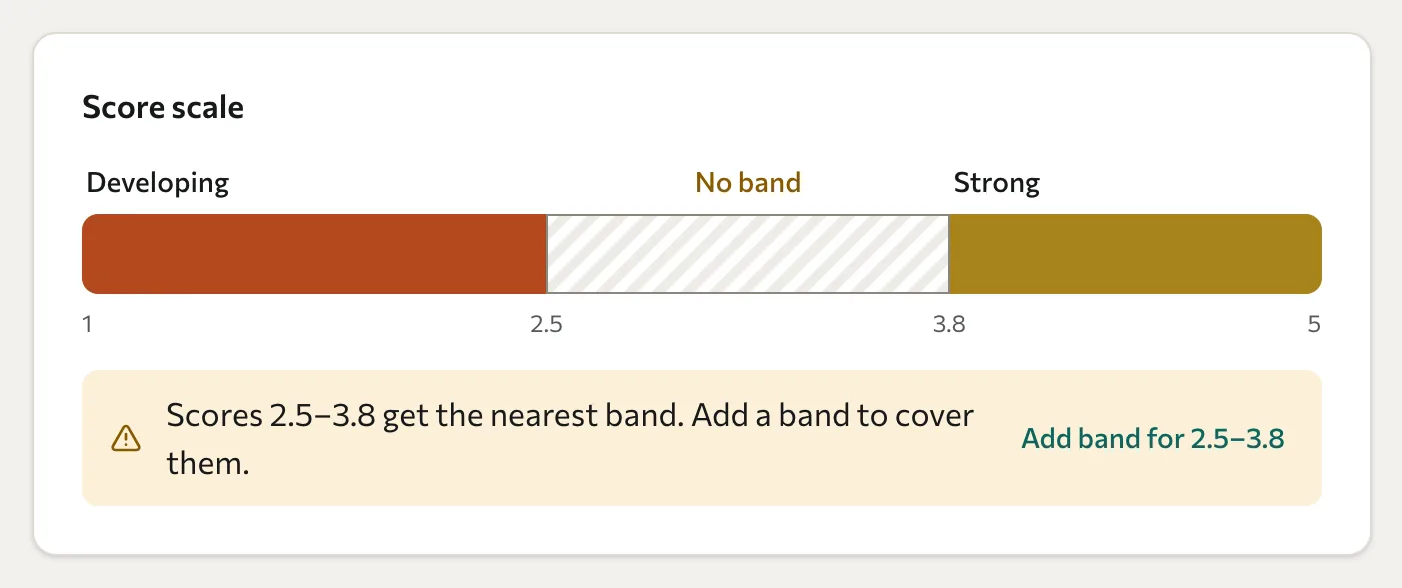
When part of the scale has no band, the score bar marks it No band and a notice names it, for example "Scores 2.5–3.8 get the nearest band. Add a band to cover them."
- In the notice, select Add band for 2.5–3.8. The new band's fields open with that range.
- Enter a Name and, optionally, a Text.
When no block of feedback covers part of the scale, the page says, for example, "Scores 4–5 get no feedback." Select Add band for 4–5 in the same way. The new band extends the block of feedback next to it to cover those scores, or starts a new block when none is next to it.
To leave no gap, start each band at the score where the previous one ends, for example 1 to 2.5 and 2.5 to 3.8.
Change or delete a band
To change a band, select the edit button (pencil) in its row, then change its From, To, Name, Text, or Colour. Select the edit button again to close the fields.
Warning: Deleting a band cannot be undone. Participants who finish afterwards see a different band.
- Select the delete button (bin) in the band's row.
- Read the dialog. It says that participants with those scores will get the nearest band instead, or, for the only band, that they will get only the text above every band.
- Select Delete band, or Keep band to cancel.
Write the text above every band
The text above every band is shown to everyone the block of feedback covers, before their band.
- Select Text above every band (optional).
- Enter a Title and a Text.
- Check Scores this feedback covers. From and To must be whole numbers, 0 or more, on the same scale as the blueprint's dimensions, and must still include every band.
Participants never see a block of feedback that has no minimum and maximum score. Such a block shows the warning "Participants do not see this feedback: it has no minimum and maximum score. Set them under “Text above every band”." To fix it, enter From and To under Scores this feedback covers.
Delete a block of feedback
Warning: Deleting a block of feedback deletes its bands too, and it cannot be undone. Participants who finish afterwards no longer see its text.
- In the block you want to delete, select Delete this feedback.
- Read the dialog. It says how many bands go with it.
- Select Delete feedback, or Keep feedback to cancel.
Try a score
In Preview, drag the Try a score slider, or type a score in the number box. The preview shows the feedback the completion page shows for that score, chosen the same way Datatrap chooses it for participants, in the assessment's primary language. It follows your edits as you type.
- "No band covers this score. Participants see the nearest band." means the score falls in a gap between bands.
- "No feedback covers this score. Participants see their score only." means no block of feedback covers it.
The assessment's own Preview ends at Preview complete and shows no score or feedback. To see the real completion page, answer the assessment in a test cohort.
Change feedback on a locked assessment
You can change the feedback of a locked assessment. The page shows the notice "This assessment is locked. You can still change the feedback: participants who finish from now on see the new text. Scores do not change."
Translate the feedback
The texts you write on the Feedback tab are in the assessment's primary language. Translate the titles, texts, and band names on the assessment's Translations tab. See Translate an assessment.
The PDF report is separate from this feedback and uses the blueprint's content. See Set up scoring and Reports.
Set up scoring
Create a blueprint with dimensions and archetypes, write the rules that match each archetype, attach it to an Assessment, and map questions to dimensions.
Translate an assessment and its reports
Translate question content and result feedback, then review blueprint report text separately.