For training partnersTraining partnersManage your workspace
Brand emails and reports
Apply your logo, colours, typography, and policy links to supported communications.
Open Settings, then Branding. This area requires the same administrative permission as user management.
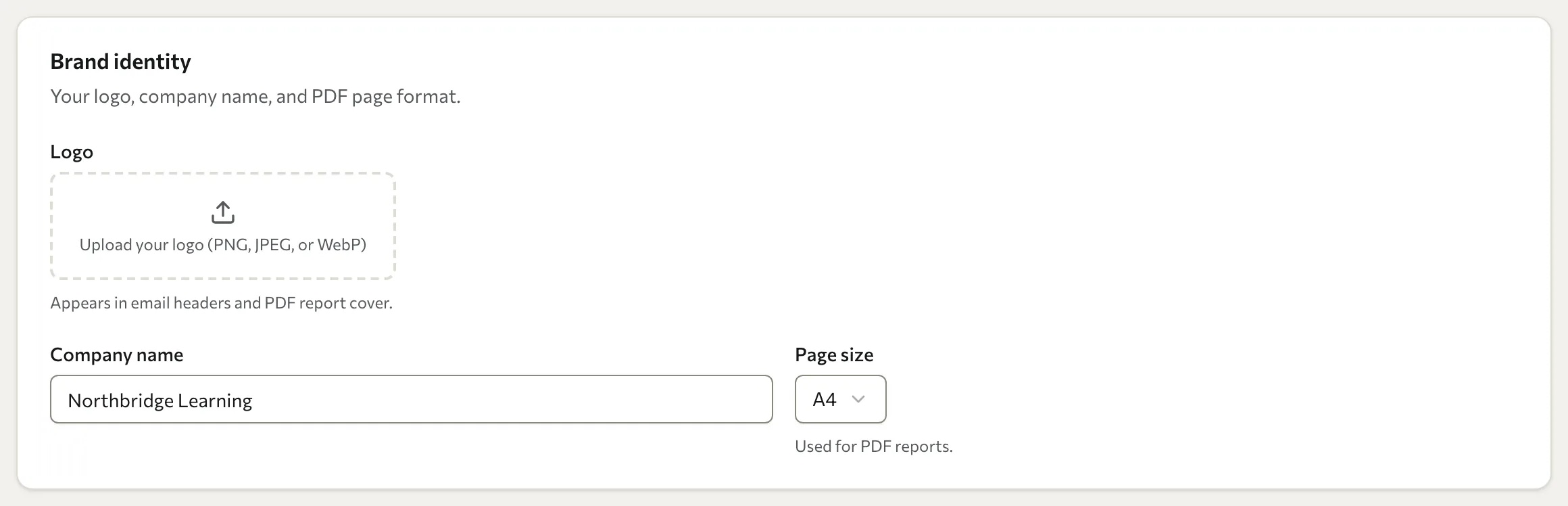
Set your branding
- Under Brand identity, upload a logo and enter your company name. Choose A4 or US Letter for PDF page size.
- Under Colors, set the email colours.
- To use a separate report palette, turn off Use same colors for PDF and set the PDF colours.
- Under Typography & links, choose the fonts and weights, and enter copyright text and the privacy-policy and terms URLs.
- Use Preview email and Preview sample PDF to inspect the output.
- Select Save changes.
Check the logo, text contrast, long names, and policy links in both previews. Use a representative translated report as well if you support several languages.
Restore the defaults
Reset to defaults replaces your custom branding settings. Record anything you need to keep before confirming. It does not recall emails or PDFs already sent.
Branding settings customise supported communications and reports; they do not provide a customer-managed custom domain. For message wording, use Email templates. For report availability, see Reports.