Translate an assessment and its reports
Translate question content and result feedback, then review blueprint report text separately.
Build the source content first. Your assessment's Primary language is the source; it need not be English. The primary language can be English (UK or US), German, Spanish, French, Italian, or Greek. On the Translations page you can also translate into Portuguese (Brazil), Dutch, and Polish. You need a Facilitator or Admin role to translate; a Viewer cannot save changes.
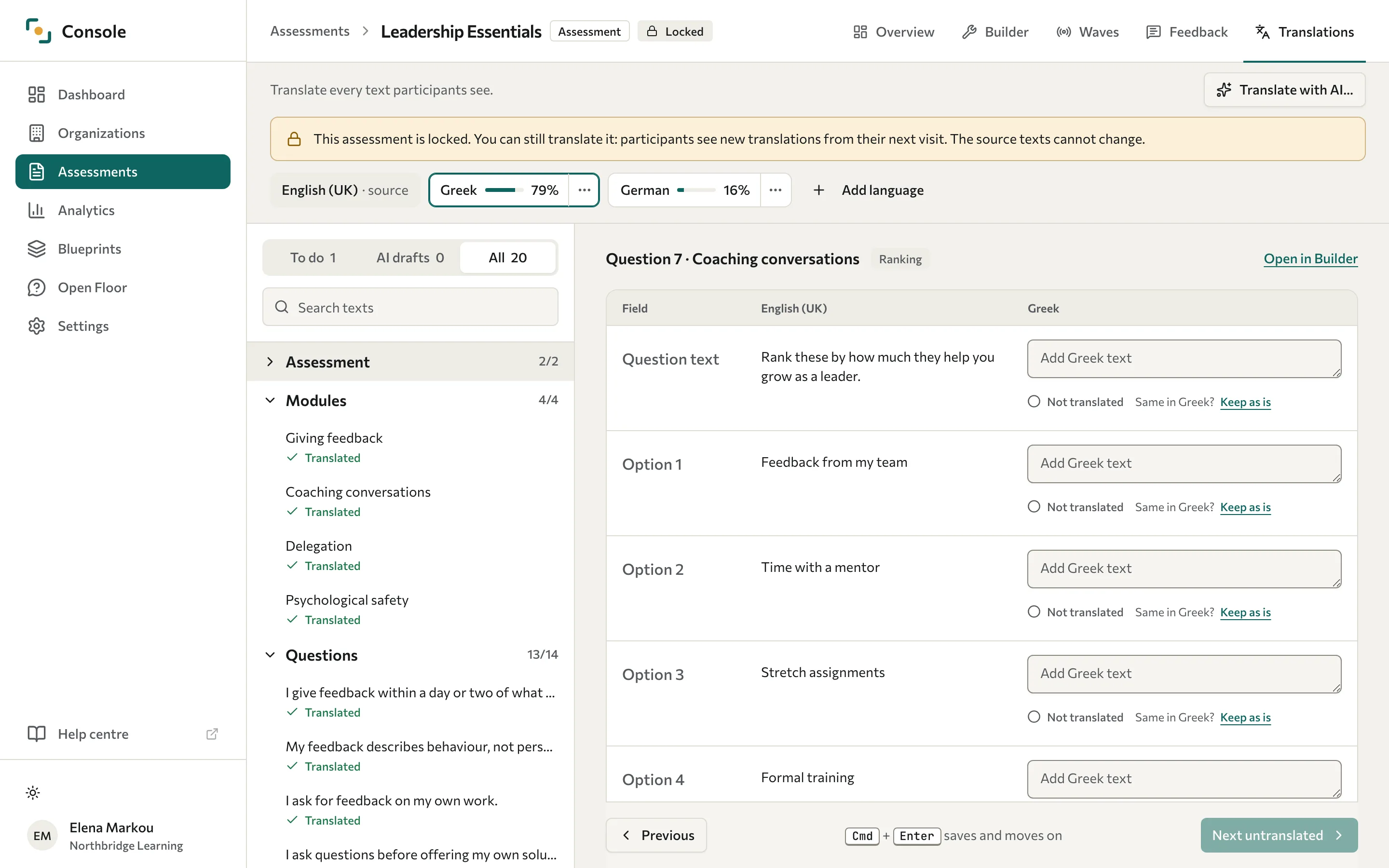
Translate assessment content
- Open the assessment and select Translations.
- Select Add language, choose the language, and select Add language to confirm.
- In the row of languages, select the target language. The primary language is marked source, and each added language shows how much of it is translated.
- In the list, select an item. The list groups the texts into Assessment, Modules, Questions, and Feedback (Results on a 360), and shows To do first. Use All or Search texts to find another text.
- Enter each translation beside its source text. Datatrap saves your text after a short pause, or when you leave the field.
- Select Next untranslated to move to the next item still to do. You can also press Ctrl+Enter (Cmd+Enter on a Mac).
A language is kept, and offered to participants, once at least one of its texts is saved. Adding a language without saving any text does not offer it. Texts you haven't translated can appear in the primary language, so review every text before you share the assessment. To check the result, open the language's options (three dots) and select Preview in the language.
You can translate a locked assessment. Participants see the new translations from their next visit, and the source texts cannot change.
Keep a text as it is
Some texts are the same in both languages, such as a name or a product term. Typing the source text into the field does not count it as translated. Instead, select Keep as is beside the "Same in" question for that text, for example "Same in German?". Datatrap copies the source text into the field and marks it Translated. The mark is saved, so the text still counts as translated after a reload and on the assessment's Overview. If you later change the text, the mark is removed and the text counts as translated like any other. If you then type the source text back in, it shows Not translated until you select Keep as is again.
Use AI translation
AI translation drafts only the texts that are still empty in the target language. Texts you have already translated are not touched, so you can translate some texts by hand first and let AI draft the rest.
- Select the target language, then select Translate with AI….
- Read the dialog, then select Draft and the language name, for example Draft German texts. Keep the page open while AI drafts; a long assessment can take a few minutes.
- When the drafts are ready, a banner says how many AI drafts there are to check. If some texts could not be drafted, the banner says how many; translate those by hand or run AI translation again.
- Select Show AI drafts to list the items with drafts. Check each draft, then select its Accept button, or edit the text.
- Optional: to accept every draft in the language at once, select Accept all in the banner.
Nothing from AI is saved until you accept or edit a draft. Next untranslated also accepts the drafts in the open item. Check scale wording, specialist terms, and answer options with care, then preview the assessment in that language.
AI translation uses an external service. Include only content you're allowed to send to that service.
Translate report content
The scoring blueprint has its own Translations page for dimension and archetype content. Translate names, interpretations, summaries, strengths, and development areas there. Assessment translation alone does not complete a translated PDF report.
To check the output, use Preview PDF in the language on an archetype in the blueprint's Translations page, and Preview report in the assessment's Settings card on the Overview. When a report has no translation for a field, source text can appear.
Changing Primary language relabels or selects existing text; it does not translate it. See Assessment settings.