Manage users and access
Invite Console teammates and create or deactivate client Portal accounts.
You need the Admin role or a Facilitator account with global scope to manage users. Use the Console's Settings, then Users, for your own team. Client Portal accounts are managed under their organisation.
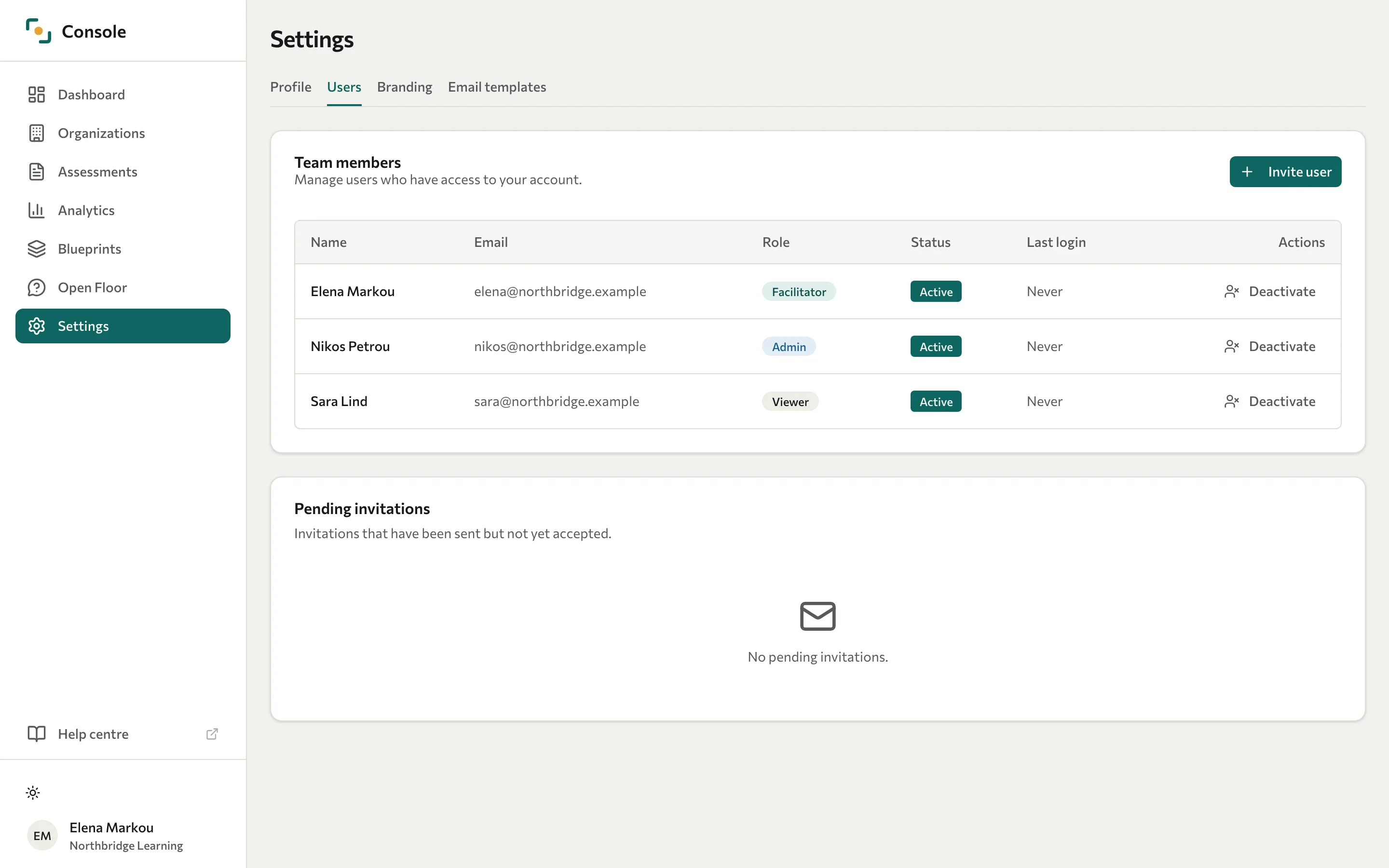
Invite a teammate
- Open Settings, then Users, and select Invite user.
- Enter the person's email address.
- Choose Facilitator, Admin, or Viewer.
- Select Send invitation.
The invitation appears under Pending invitations. It expires after 7 days. Use Resend to issue a fresh invitation or Revoke to cancel it. The dialog sets the role only. To limit someone to certain assessments, ask your Datatrap administrator or use the API.
Create a client Portal account
- Open Organizations and select the client.
- Open Portal users and select Add user.
- Enter the email address and name.
- Choose Client viewer for read-only access or Client admin for the organisation's administrative Portal controls.
- Set a password, or leave it blank to generate a temporary one, then select Create user.
- If a temporary password is shown, copy it and share it securely with the intended person. Ask them to change it after signing in.
Use the account's actions menu to edit its details or change its active status. Client admins do not have a user-management screen in the Portal; their training partner manages these accounts.
Deactivate access
Use Deactivate for a teammate or Portal user who no longer needs access. Reactivation restores the account's active status. Deactivation retains records; it is not a personal data erasure request.
For account roles, assessment scopes, and other access controls, see Roles and permissions.